 Zero
Zero
FMZ API Instructions
 0
15688
0
15688
of supported exchanges and the required configuration information.
Parameter None
Return value
{
  "code": 0,
  "data": {
      "result": {
          "exchanges": [{
              "website": "https://www.huobi.pro/",
              "name": "Huobi",
              "priority": 1,
              "meta": "[{"desc": "Access Key", "required": true, "type": "string", "name": "AccessKey", "label": "Access Key"}, {"encrypt": true, "name": "SecretKey", "required": true, "label": "Secret Key", "type": "password", "desc": "Secret Key"}]",
              "eid": "Huobi",
              "logo": "huobi.png",
              "id": 1
          }, {
              "website": "https://www.kex.com/",
              "name": "KEX",
              "priority": -99,
              "meta": "[{"desc": "Access Key", "required": true, "type": "string", "name": "AccessKey", "label": "Access Key"}, {"encrypt": true, "name": "SecretKey", "required": true, "label": "Secret Key", "type": "password", "desc": "Secret Key"}, {"encrypt": true, "required": true, "type": "password", "name": "Password", "label": "Trading Password"}]",
              "eid": "KEX",
              "logo": "",
              "id": 43
          },


           ...


          ]
      },
      "error": null
  }
}
DeleteNode(Nid)
- Parameter
  ```Nid``` is of integer type, namely the docker ```ID```.

- Return Value
{ “code”:0, “data”:{ “result”:true, “error”:null } }
#### DeleteRobot(...)

```DeleteRobot(RobotId, DeleteLogs)``` deletes the robot with the specified ID (robot ```ID```: ```RobotId```) corresponding to the ```API KEY``` in the request under the FMZ Quant account.

- Parameter
  ```RobotId``` is of integer type, namely the robot ```ID``` to be deleted.
  ```DeleteLogs``` is of Boolean type; set ```DeleteLogs``` to decide whether to delete the log or not; passing ```true``` indicates deleting the log.

- Return Value
// Return value after successful deletion { “code”: 0, “data”: { “result”: 0, “error”: null } }
#### GetStrategyList()

```GetStrategyList()``` obtains the strategy information corresponding to the ```API KEY``` in the request of the FMZ Quant Trading platform account.

- Parameter
  None

- Return value
{ “code”: 0, “data”: { “result”: { “strategies”: [{ “category”: 0, “username”: “yifidslei”, “is_owner”: true, “name”: “fmz simulation market test strategy”, “language”: 0, “hasToken”: false, “args”: “[]”, “is_buy”: false, “public”: 0, “last_modified”: “2018-01-18 12:36:03”, “date”: “2018-01-17 09:19:32”, “forked”: 0, “id”: 63372 }, { “category”: 20, “username”: “bifndslez”, “is_owner”: true, “name”: “Line drawing library”, “language”: 0, “hasToken”: false, “args”: “[]”, “is_buy”: false, “public”: 0, “last_modified”: “2017-05-08 09:44:18”, “date”: “2017-04-19 10:38:14”, “forked”: 0, “id”: 39677 },
          ...
          ],
          "all": 20
      },
      "error": null
  }
}
#### NewRobot(Settings)

```NewRobot(Settings)``` creates a new bot according to the parameter settings, corresponding to the ```API KEY``` in the request of the FMZ Quant account.

- Parameter
  ```Settings``` is of ```JSON``` object type. ```Settings``` is a ```JSON```object configured by the bot.

  The ```Settings``` description is explained as follows:
Settings = {
“name”: “hedge test”,
/*
Strategy parameters; the order does not have to be in correspondence with the parameter order, but the name must be the same as the parameter name
Note: the second element in the parameter array [“MAType”, 0, 75882] is an array including three elements, in which the first one “MAType” is the parameter on the pattern referred by the bot-binding strategy, and the second one “0” is the specific value set by the parameter “MAType”, and the third one “75882” is the pattern ID containing the parameter “MAType”
*/
“args”: [[“Interval”, 500], [“MAType”, 0, 75882]],
// Strategy ID, which can be obtained by “GetStrategyList” method
“strategy”: 25189,
// K-line period parameter; “60” indicates 60 seconds
“period”: 60,
// it can be specified to run on which docker; no writing of the attribute will lead to automatic assignment
“node” : 52924,
// custom field
“appid”: “member2”,
// Specify a bot group
“group”: 1122,
“exchanges”: [
// ZB; “pid” can be obtained by “GetPlatformList” method
{“pid”: 15445, “pair”: “ETH_BTC”},
// OKEX
{“pid”: 13802, “pair”: “BCH_BTC”},
// In addition to the exchanges configured by the FMZ dashboard (pid identification), you can also set exchange configuration information that has not been configured to operate the bot
{“eid”: “OKEX”, “pair”: “ETH_BTC”, “meta” :{“AccessKey”: “xxx”, “SecretKey”: “yyy”}},
{“eid”: “Huobi”, “pair”: “BCH_BTC”, “meta” :{“AccessKey”: “xxx”, “SecretKey”: “yyy”}}
]
}
  Note:
  When you use the sensitive information, such as platform ```API KEY```, including ```"meta":{"AccessKey":"xxx","SecretKey":"yyy"}``` in the configuration of ```eid```, you should know FMZ does not store the data. The data will be sent directly to the docker program, so this information must be configured every time the bot is created or restarted.

  To restart the bot that uses the plugin to support the platform, When configuring the ```Settings``` parameter, you should make the following settings for the ```exchanges``` attribute:
    ```
    {"eid": "Exchange", "label" : "testXXX", "pair": "ETH_BTC", "meta" :{"AccessKey": "123", "SecretKey": "1234", "Front" : "http://127.0.0.1:6666/XXX"}}
    ```
    ```label``` attribute is to set a label for the exchange object accessed by the current general protocol, which can be obtained by the ```exchange.GetLabel()``` function in the strategy.

- Test strategy:
  - Strategy parameter
    ```Interval```

  - ```JavaScript``` strategy code
    ```javascript
    function main(){
        Log(exchange.GetAccount())
        Log(exchange.GetTicker())
        Log(exchange.GetDepth())
        Log("Interval:", Interval)
    }
    ```

- Return value
// Create the bot successfully { “code”: 0, “data”: { “result”: 74260, “error”: null } }
#### PluginRun(Settings)
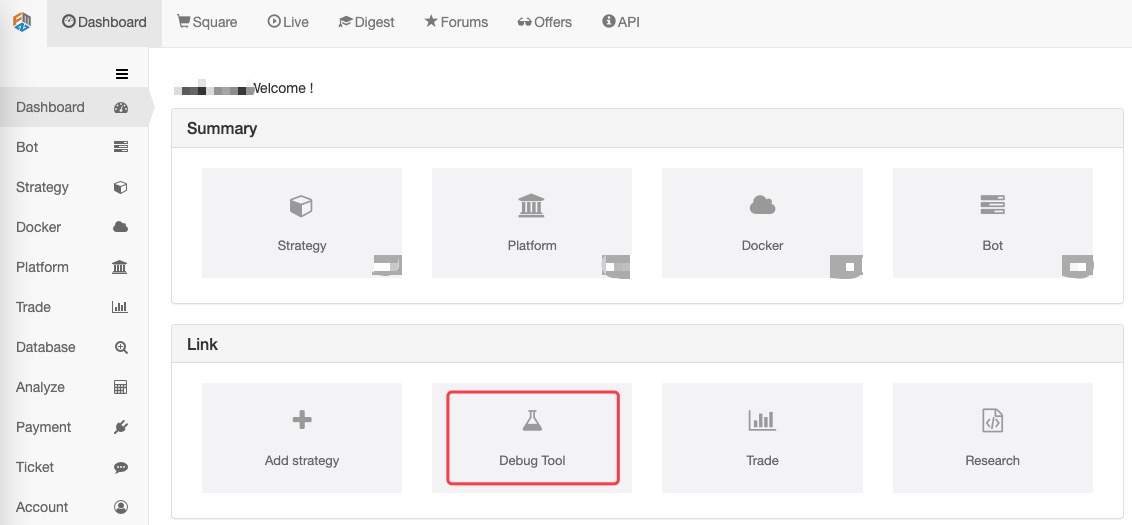
```PluginRun(Settings)``` uses the extended API to call **debugging tool** function.
- Parameter
```Settings``` is a ```JSON``` object, namely the settings in the debugging tool (```Settings``` contains the test code written in the attribute ```source```).
- Test code
```Python``` example:
```python
#!/usr/bin/python
# -*- coding: utf-8 -*-
import time
import md5
import urllib
import json
# API KEY has been blurred; you can use your own API KEY to test
accessKey = 'f77XXXXXXXXXXXXXXX757'
# API KEY has been blurred; you can use your own API KEY to test
secretKey = 'd8XXXXXXXXXXXXXXXX41ca97ea15'
def api(method, *args):
d = {
'version': '1.0',
'access_key': accessKey,
'method': method,
'args': json.dumps(list(args)),
'nonce': int(time.time() * 1000),
}
d['sign'] = md5.md5('%s|%s|%s|%d|%s' % (d['version'], d['method'], d['args'], d['nonce'], secretKey)).hexdigest()
return json.loads(urllib.urlopen('https://www.fmz.com/api/v1', urllib.urlencode(d)).read())
code = '''
function main() {
Log(exchange.GetTicker())
exchange.SetTimeout(2000);
return exchanges[0].GetTicker()
}
'''
settings = {
# K-line period parameter "60" indicates 60 seconds
"period": 60,
"source": code,
# The docker ID can specify which docker to run the bot on; if the value is -1, it means automatic assignment
"node" : 54913,
"exchanges": [
{"eid": "OKEX", "pair": "ETH_BTC", "meta" :{"AccessKey": "123abc", "SecretKey": "123abc"}},
{"eid": "Huobi", "pair": "BCH_BTC", "meta" :{"AccessKey": "123abc", "SecretKey": "123abc"}}
]
}
print api("PluginRun", settings)
Note:
{"eid": "OKEX", "pair": "ETH_BTC", "meta" :{"AccessKey": "123abc", "SecretKey": "123abc"}}
{"eid": "Huobi", "pair": "BCH_BTC", "meta" :{"AccessKey": "123abc", "SecretKey": "123abc"}}
For the exchanges attribute in the settings, the attribute only needs to be set to 1, when calling the PluginRun interface (for only one exchange object can be supported when you use the “Debug Tool” page). No error will be reported when you set 2 exchange objects in settings, but an error will be reported when the second exchange object is accessed in the code.
- Return value
api("PluginRun", settings)returned results:{ u'code': 0, u'data': { u'result': u'{"logs":[{"PlatformId":"","OrderId":"0","LogType":5,"Price":0,"Amount":0,"Extra":"{\\"Info\\":{\\"date\\":\\"1523715057\\",\\"ticker\\":{\\"high\\":\\"0.06400845\\",\\"vol\\":\\"117648.31546800\\",\\"last\\":\\"0.06204514\\",\\"low\\":\\"0.06178666\\",\\"buy\\":\\"0.06200001\\",\\"sell\\":\\"0.06208728\\"}},\\"High\\":0.06400845,\\"Low\\":0.06178666,\\"Sell\\":0.06208728,\\"Buy\\":0.06200001,\\"Last\\":0.06204514,\\"Volume\\":117648.315468,\\"OpenInterest\\":0,\\"Time\\":1523715057726}","Instrument":"","Direction":"","Time":1523715057726}],"result":"{\\"Info\\":{\\"date\\":\\"1523715057\\",\\"ticker\\":{\\"vol\\":\\"117648.31546800\\",\\"last\\":\\"0.06204514\\",\\"low\\":\\"0.06178666\\",\\"buy\\":\\"0.06200001\\",\\"sell\\":\\"0.06208728\\",\\"high\\":\\"0.06400845\\"}},\\"High\\":0.06400845,\\"Low\\":0.06178666,\\"Sell\\":0.06208728,\\"Buy\\":0.06200001,\\"Last\\":0.06204514,\\"Volume\\":117648.315468,\\"OpenInterest\\":0,\\"Time\\":1523715057774}"}\n', u'error': None } }
GetRobotLogs(…)
- Parameter
  |Parameter Name|Type|Remarks|
  |-|-|-|
  |robotId|integer| Bot ID|

  **table Log** queries the Log data of the database table:

  |Parameter Name|Type|Remarks|
  |-|-|-|
  |logMinId|integer|Minimum ID of the log|
  |logMaxId|integer|Maximum ID of the log|
  |logOffset|integer|After the range is determined by logMinId and logMaxId, the logOffset offset (how many records are skipped) begins to be used as the starting position for obtaining data|
  |logLimit|integer|After determining the starting position, the number of selected data records|

  **table Profit** queries the Profit data of the database table:

  |Parameter Name|Type|Remarks|
  |-|-|-|
  |profitMinId|integer|Minimum ID of record|
  |profitMaxId|integer|Maximum ID of record|
  |profitOffset|integer|The offset (how many records are skipped) begins to be used as the starting position|
  |profitLimit|integer|After determining the starting position, the number of selected data records|

  **table Chart** queries the Chart data of the database table:

  |Parameter Name|Type|Remarks|
  |-|-|-|
  |chartMinId|integer|Minimum ID of record|
  |chartMaxId|integer|Maximum ID of record|
  |chartOffset|integer|Offset|
  |chartLimit|integer|the number of the records to be obtained|
  |chartUpdateBaseId|integer|Query the updated base ID|
  |chartUpdateDate|integer|Data record updates the timestamp, which will filter out the records larger than this timestamp|

  **summaryLimit** queries the data of the status bar:

  It queries the status bar data of the bot. The parameter type is integer. Setting to "0" means there is no need to query the status bar information, and setting to non-zero number indicates the number of bytes of the status bar information to be queried (the interface does not limit the data quantity, so you can specify a larger ```summaryLimit``` parameter to get all status bar information). The status bar data is stored in the returned data ```summary```.


  ```Python``` example:
  ```python
  api('GetRobotLogs', 63024, 0, 0, 7, 2, 0, 0, 0, 0, 0, 0, 0, 0, 0, 0, 0)    # For the specific code, please refer to the above content: 4. Simple examples, which will not be repeated here; here only write the call and pass of "GetRobotLogs"
Return value returned data:
{
  "code": 0,
  "data": {
      "result": {
          "status": 1,
          "updateTime": 1527049990197,
          "wd": 0,
          // The first data structure in logs is the log records in the strategy log table in the bot database
          "logs": [{
              "Max": 3984,
              "Arr": [
                  [3977, 3, "Futures_OKCoin", "", 0, 0, "Sell(688.9, 2): 20016", 1526954372591, "", ""],
                  [3976, 5, "", "", 0, 0, "OKCoin:this_week too many positions, long: 2", 1526954372410, "", ""]
              ],
              "Total": 1503,
              "Min": 2482
          }, {
              // The second data structure in logs is the log records in the strategy log table in the bot database
              "Max": 0,
              "Arr": [],
              "Total": 0,
              "Min": 0
          }, {
              // The third data structure in logs is the log records in the strategy log table in the bot database
              "Max": 0,
              "Arr": [],
              "Total": 0,
              "Min": 0
          }],
          "chart": "",
          "refresh": 1527049988000,
          "summary": "...",
          "chartTime ": 0,
          "node_id ": 50755,
          "online ": true
      },
      "error ": null
  }
}
The strategy log table in the database
The Arr attribute value description in the above returned result data:
  "Arr": [
      [3977, 3, "Futures_OKCoin", "", 0, 0, "Sell(688.9, 2): 20016", 1526954372591, "", ""],
      [3976, 5, "", "", 0, 0, "OKCoin:this_week too many positions, long: 2", 1526954372410, "", ""]
  ],
|id|logType|eid|orderId|price|amount|extra|date|contractType|direction| |-|-|-|-|-|-|-|-|-|-| |3977|3|“Futures_OKCoin”|“”|0|0|“Sell(688.9, 2): 20016”|1526954372591|“”|“”| |3976|5|“”|“”|0|0|“OKCoin:this_week too many positions, long: 2”|1526954372410|“”|“”|
  Specific log types represented by ```logType``` value:

  |logType:|0|1|2|3|4|5|6|
  |-|-|-|-|-|-|-|-|
  |Meaning of logType:|BUY|SALE|RETRACT|ERROR|PROFIT|MESSAGE|RESTART|
  |Chinese Meaning|Buy order type log|Sell order type log|Withdraw|Error|Revenue|Log|Restart|

- Log table of the revenue chart in the database
  The data in the chart's log table is consistent with the revenue log in the strategy log table.
“Arr”: [ [202, 2515.44, 1575896700315], [201, 1415.44, 1575896341568] ]
Take one of the log data as an example:
[202, 2515.44, 1575896700315]
  ```202``` as log ```ID```; ```2515.44``` as revenue value; ```1575896700315``` as timestamps.

- Chart log table in the database
“Arr”: [ [23637, 0, “{\“close\”:648,\“high\”:650.5,\“low\”:647,\“open\”:650,\“x\”:1575960300000}“], [23636, 5, “{\“x\”:1575960300000,\“y\”:3.0735}“] ]
Take one of the log data as an example:
[23637, 0, “{\“close\”:648,\“high\”:650.5,\“low\”:647,\“open\”:650,\“x\”:1575960300000}“],
```23637``` is the log ```ID```, ```0``` is the index of the chart data series, and the last data ```"{\"close\":648,\"high\":650.5,\"low\":647,\"open\":650,\"x\":1575960300000}"``` is the log data; This data is the K-line data on the chart.
# Trading Plugin
### Introduction
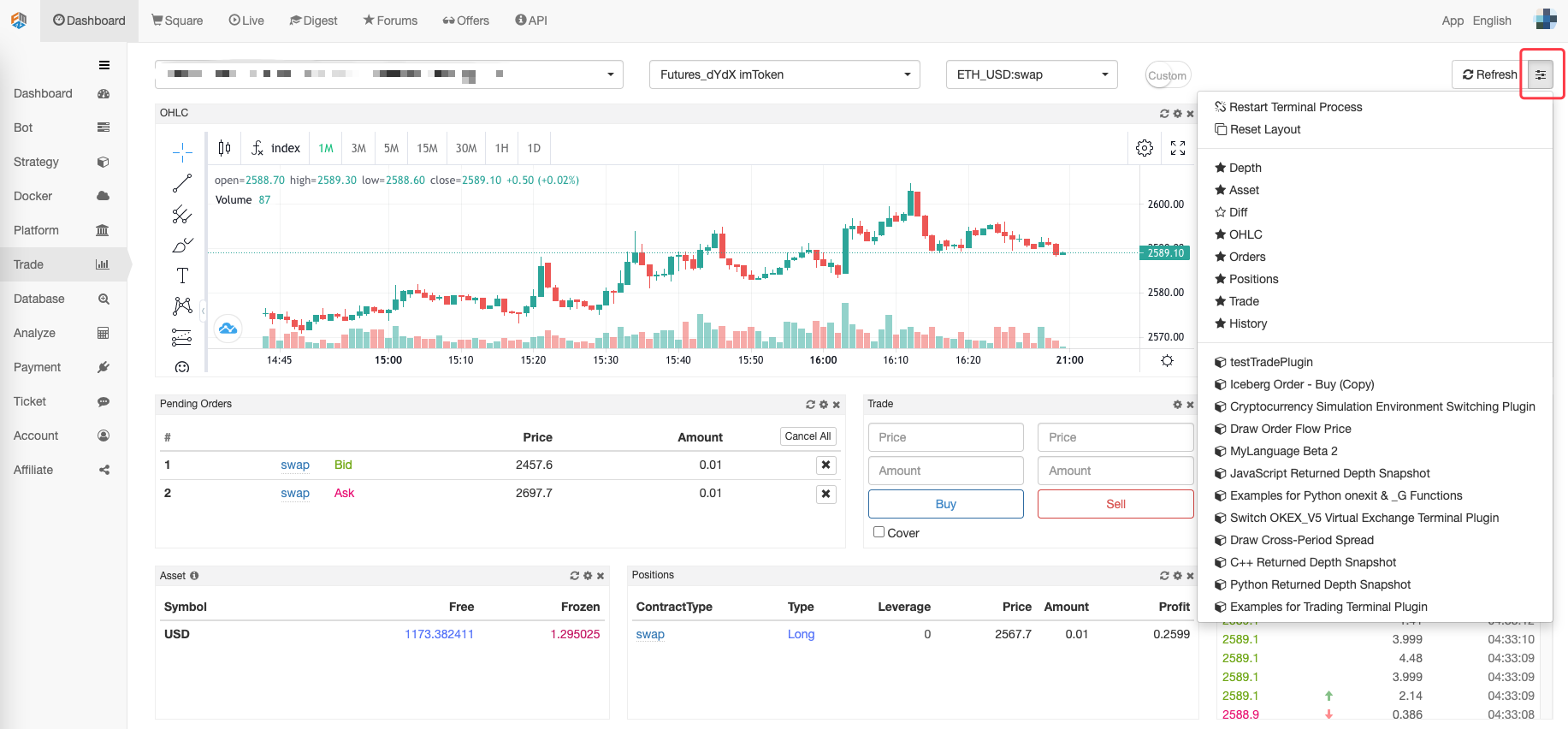
In order to improve the functions of the trading terminal and well facilitate manual trading, a plug-in function is now available. The location is shown as follows:
### Principle of Plugin
The principle is the same as the debugging tool: send a piece of code to the docker of the "Trade" terminal page to execute, and support the return of charts and tables (the debugging tool is also able to support after upgrade). The function is the same as **debugging tool**, it can only be executed for 3 minutes, without charging. It can realize some simple small functions, complex strategies still need to run in real trading.
### Plugin Writing
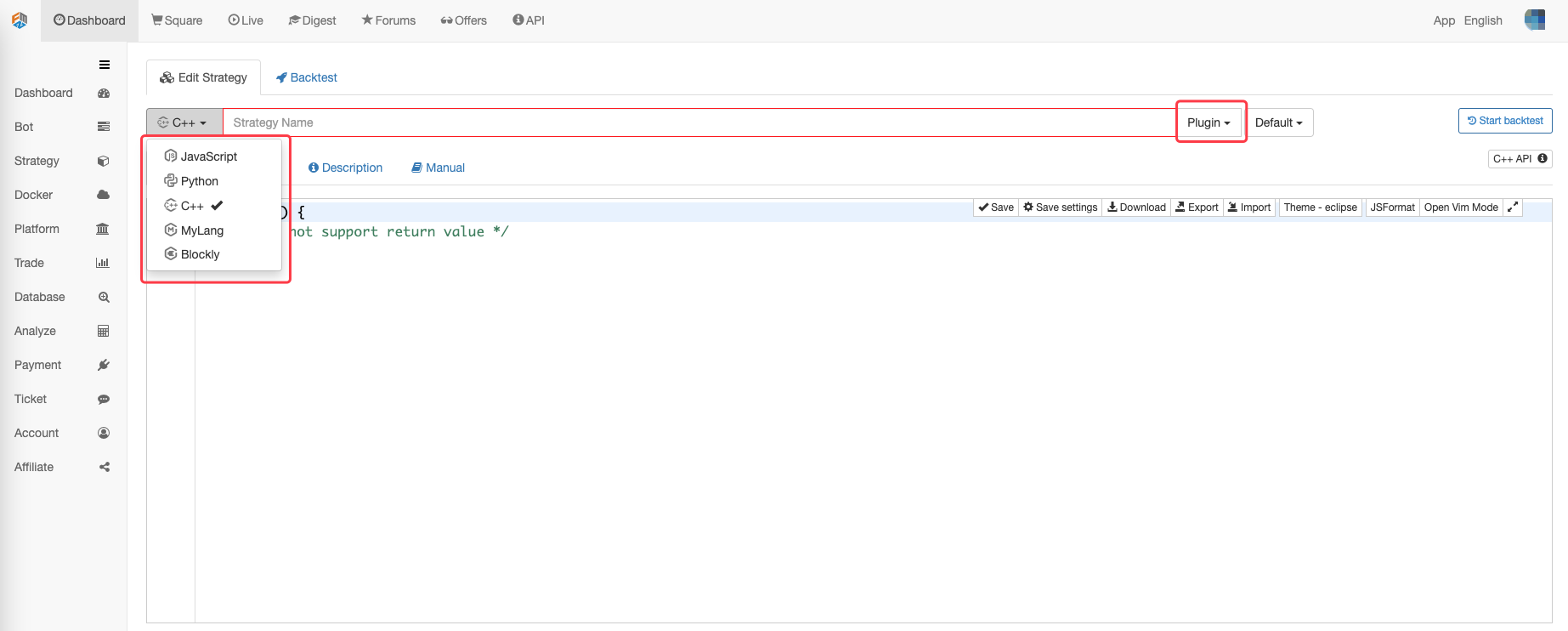
On the "New Strategy" page, set the strategy type to: ```Trading Plugin```, which supports ```JavaScript```, ```Python```, ```cpp``` and ```MyLanguage```.
### Usage of Plugin
The plugin can execute the code for a period of time, and it can perform some simple operations, such as **iceberg orders**, **pending orders**, **order cancellation** and **order calculation**. Same as the **debugging tool**, it uses ```return``` to return the results, and it can also directly return the charts and tables. Here are a few examples, and other functions can be explored by yourself.
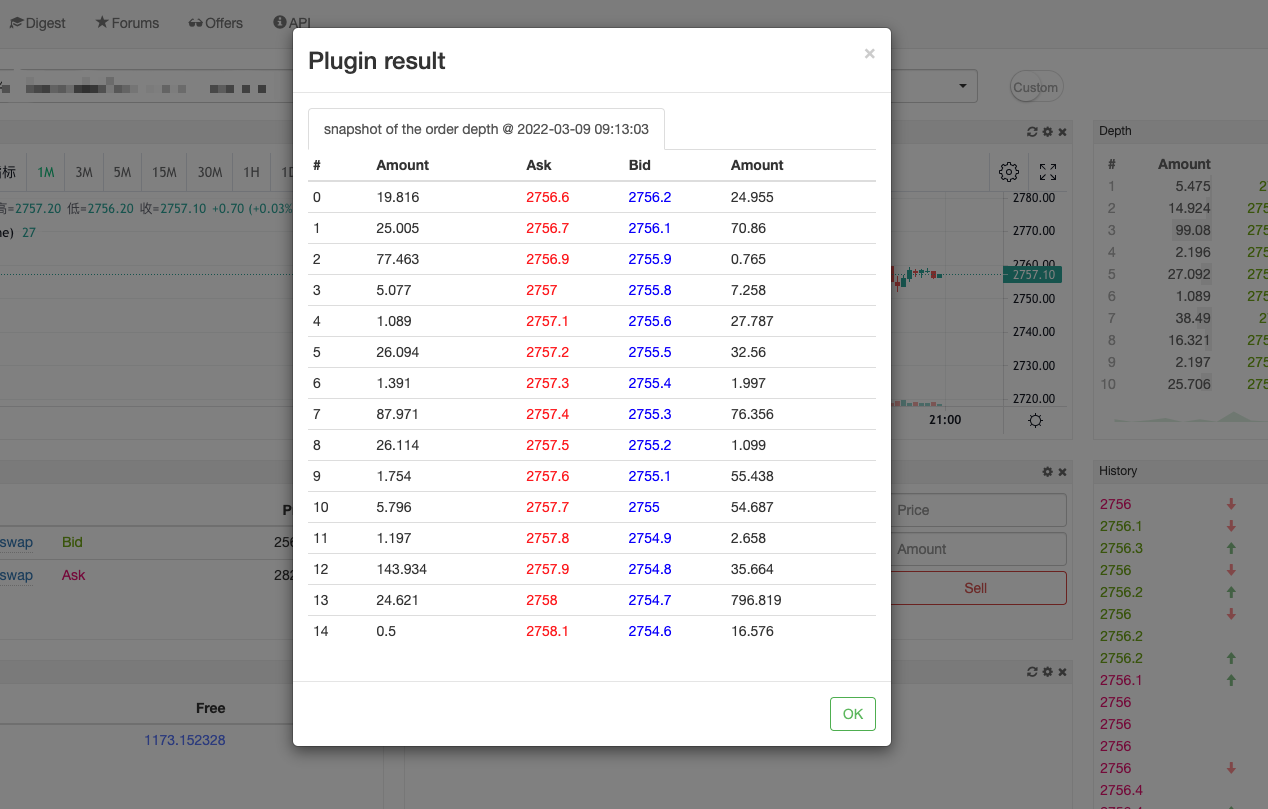
- Return to the depth snapshot
```js
// Return to the depth snapshot
function main() {
var tbl = {
type: 'table',
title: 'snapshot of the order depth @ ' + _D(),
cols: ['#', 'Amount', 'Ask', 'Bid', 'Amount'],
rows: []
}
var d = exchange.GetDepth()
for (var i = 0; i < Math.min(Math.min(d.Asks.length, d.Bids.length), 15); i++) {
tbl.rows.push([i, d.Asks[i].Amount, d.Asks[i].Price+'#ff0000', d.Bids[i].Price+'#0000ff', d.Bids[i].Amount])
}
return tbl
}
  def main():
      tbl = {
          "type": "table",
          "title": "snapshot of the order depth @ " + _D(),
          "cols": ["#", "Amount", "Ask", "Bid", "Amount"],
          "rows": []
      }
      d = exchange.GetDepth()
      for i in range(min(min(len(d["Asks"]), len(d["Bids"])), 15)):
          tbl["rows"].append([i, d["Asks"][i]["Amount"], str(d["Asks"][i]["Price"]) + "#FF0000", str(d["Bids"][i]["Price"]) + "#0000FF", d["Bids"][i]["Amount"]])
      return tbl
  void main() {
      json tbl = R"({
          "type": "table",
          "title": "abc",
          "cols": ["#", "Amount", "Ask", "Bid", "Amount"],
          "rows": []
      })"_json;

      tbl["title"] = "snapshot of the order depth @" + _D();
      auto d = exchange.GetDepth();
      for(int i = 0; i < 5; i++) {
          tbl["rows"].push_back({format("%d", i), format("%f", d.Asks[i].Amount), format("%f #FF0000", d.Asks[i].Price), format("%f #0000FF", d.Bids[i].Price), format("%f", d.Bids[i].Amount)});
      }

      LogStatus("`" + tbl.dump() + "`");
      // C++ does not support "return json" to display the table, and you can create a bot to display the table of the status bar
  }
- Draw cross-period spreads
  // Draw cross-period spreads
  var chart = {
      __isStock: true,
      title : { text : 'spread analysis chart'},
      xAxis: { type: 'datetime'},
      yAxis : {
          title: {text: 'spread'},
          opposite: false
      },
      series : [
          {name : "diff", data : []}
      ]
  }

  function main() {
      exchange.SetContractType('quarter')
      var recordsA = exchange.GetRecords(PERIOD_M5)
      exchange.SetContractType('this_week')
      var recordsB = exchange.GetRecords(PERIOD_M5)

      for(var i = 0; i < Math.min(recordsA.length, recordsB.length); i++){
          var diff = recordsA[recordsA.length - Math.min(recordsA.length, recordsB.length) + i].Close - recordsB[recordsB.length - Math.min(recordsA.length, recordsB.length) + i].Close
          chart.series[0].data.push([recordsA[recordsA.length - Math.min(recordsA.length, recordsB.length) + i].Time, diff])
      }
      return chart
  }
  chart = {
      "__isStock": True,
      "title": {"text": "spread analysis chart"},
      "xAxis": {"type": "datetime"},
      "yAxis": {
          "title": {"text": "spread"},
          "opposite": False
      },
      "series": [
          {"name": "diff", "data": []}
      ]
  }

  def main():
      exchange.SetContractType("quarter")
      recordsA = exchange.GetRecords(PERIOD_M5)
      exchange.SetContractType("this_week")
      recordsB = exchange.GetRecords(PERIOD_M5)

      for i in range(min(len(recordsA), len(recordsB))):
          diff = recordsA[len(recordsA) - min(len(recordsA), len(recordsB)) + i].Close - recordsB[len(recordsB) - min(len(recordsA), len(recordsB)) + i].Close
          chart["series"][0]["data"].append([recordsA[len(recordsA) - min(len(recordsA), len(recordsB)) + i]["Time"], diff])
      return chart
// C++ does not support "return json" structure drawing
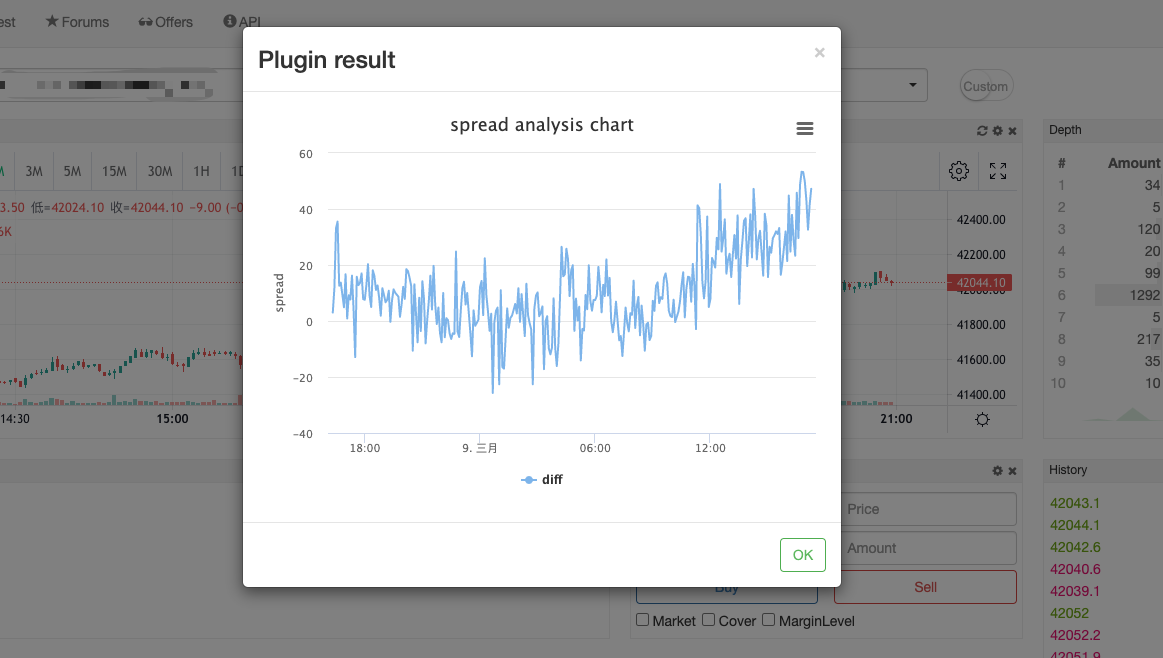
There are other examples in the “More Strategies”, such as buy / sell in small quantities, Strategy Address.
How to Use
- Add the plugin module of trading terminal As shown in the figure, open the module add menu on the “Trade” terminal page, the trading terminal plugins in the strategy library of the current FMZ account will be displayed in the list automatically, find the plugin to be added and click “Add”.
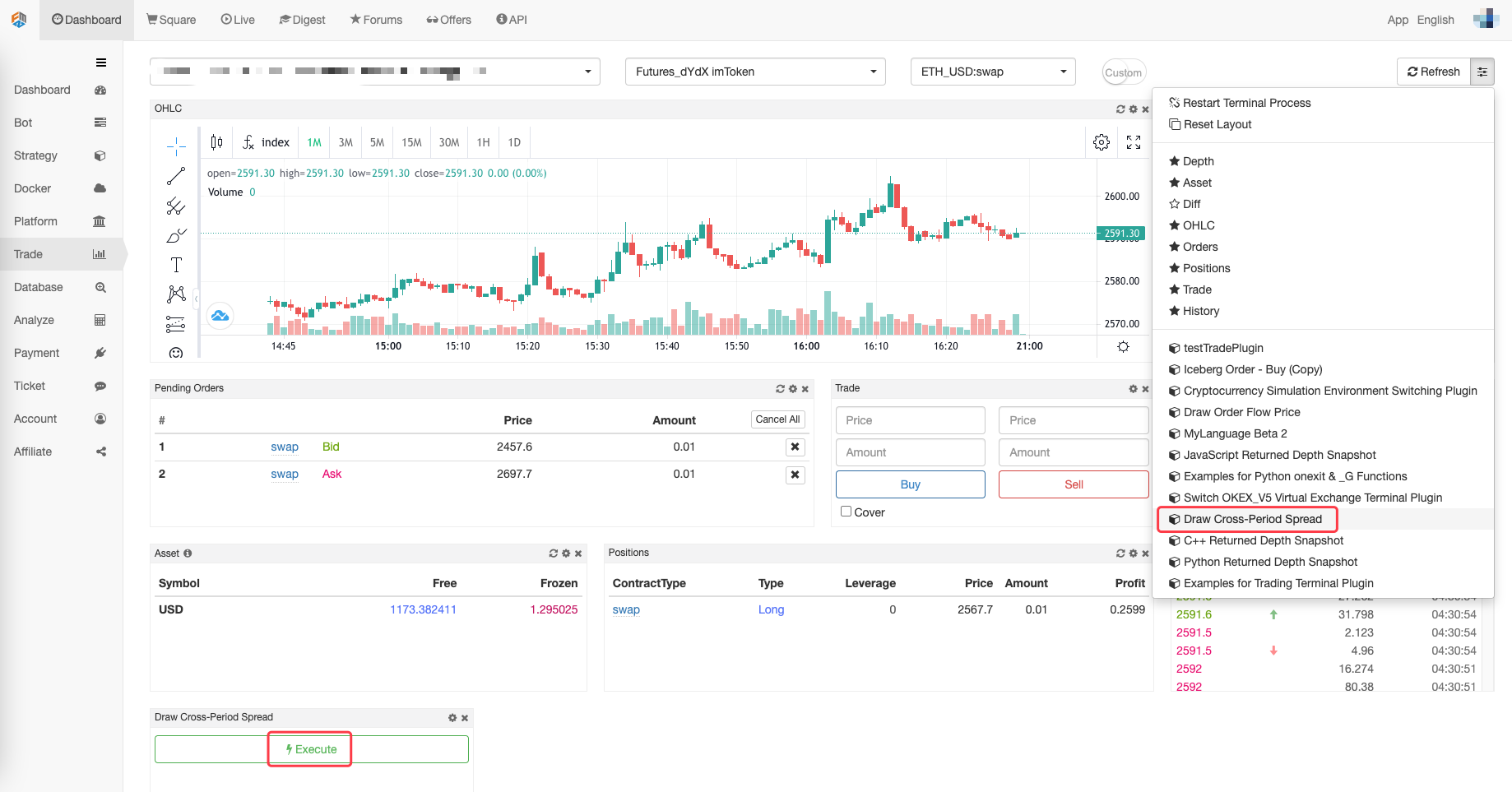
Run the plugin Click “Execute”, and the trading terminal plugin will start running. The plugin will not display the log, but it can return display table.
Time of running the plugin The maximum running time of the plugin is 3 minutes; and it will stop running automatically after exceeding 3 minutes.
Alpha Factor Analysis Tool
Introduction
The analysis formula refers to the market quote calculation method in the public alpha101 of worldquant: http://q.fmz.com/chart/doc/101_Formulaic_Alphas.pdf, which is basically compatible with its grammar (with explanations for unimplemented features), and has been enhanced.
It is used for quickly performing calculations on time series and validating ideas, Use Address.
Page Introduction:
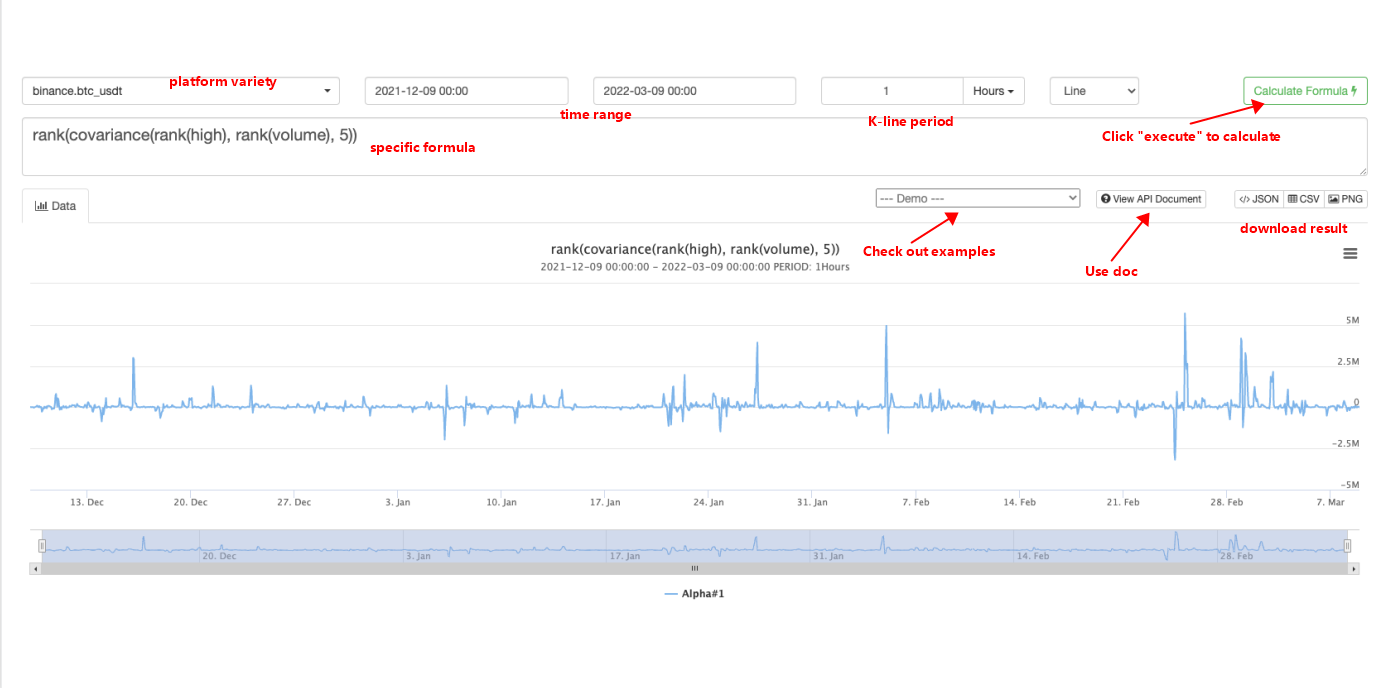
Functions & Operators
”{}” below represents placeholder, all expressions are not case sensitive, and “x” represents data time series
abs(x), log(x), sign(x)literally means absolute value, logarithm and sign function, respectively.
The following operators, including +, -, *, /, >, <, also meet the meanings of their standards; == represents “equal or not”; || means “or”; x? y: z indicates ternary operator.
rank(x): the ranking of cross-sections, returning the percentage of the location; it is necessary to specify multiple candidate target pools, which cannot be calculated for a single market and will directly return the original result.delay(x, d): the value before the d period of the sequence.sma(x, d): the simple moving average of the d period of the sequence.correlation(x, y, d): the correlation coefficient of time series x and y over the past d periods.covariance(x, y, d): the covariance of the time series x and y in the past d periods.scale(x, a): it normalizes the data, so thatsum(abs(x)) = a(“a” defaults to 1).delta(x, d): the current value of the time series x minus the value before d periods.signedpower(x, a):x^a.decay_linear(x, d): weighted d-period moving average of time series x, with weights being d, d-1, d-2… 1 (normalized).indneutralize(x, g): the neutral processing for industry classification “g”, currently not supported.ts_{O}(x, d): perform “O” operations on the time series x in the past d periods (“O” can specifically represent “min” and “max”, etc., introduced later), “d” will be converted to an integer.ts_min(x, d): the minimum value of the past d periods.ts_max(x, d): the maximum value of the past d periods.ts_argmax(x, d):ts_max(x, d)position.ts_argmin(x, d):ts_min(x, d)position.ts_rank(x, d): sorting of the past d periods time series x values (percentage sorting).min(x, d):ts_min(x, d).max(x, d):ts_max(x, d).sum(x, d): the sum of the past d periods.product(x, d): the product of the past d periods.stddev(x, d): the standard deviation of the past d periods.
Input Data
The input data is not case sensitive; the default data is the selected symbol on the web page, or it can be specified directly, such as binance.ada_bnb
returns: returns of closing price.open, close, high, low, volume: namely open price, close price, highest price, lowest price and trading volume during the period.vwap: volume-weighted executed price, not implemented yet, which is currently the closing price.cap: total market value, not implemented yet.IndClass: industry classification, not implemented yet.
Others
Outputting multiple results (expressed by list) at once is supported; for example, [sma(close, 10), sma(high, 30)] will draw two lines on the chart. In addition to inputting time series data, it can also be used as a simple calculator.
Appendix
General Protocol
For FMZ Quant Trading platform that has not encapsulated the exchange API interface yet, it can be accessed by writing a general protocol plug-in program. You can use this general protocol to access any exchange that provides API interface for trading, and the following two protocols are supported:
RESTprotocol: reference documentation.FIXprotocol: reference item.
The difference between the FIX protocol plug-in program and the REST protocol plug-in program is only the interaction between the protocol plug-in program and the exchange interface. The protocol plug-in program has the same detail processing of the docker program interaction and data format as FMZ Quant. For details, please refer to the examples in the above links.
Trading Terminal
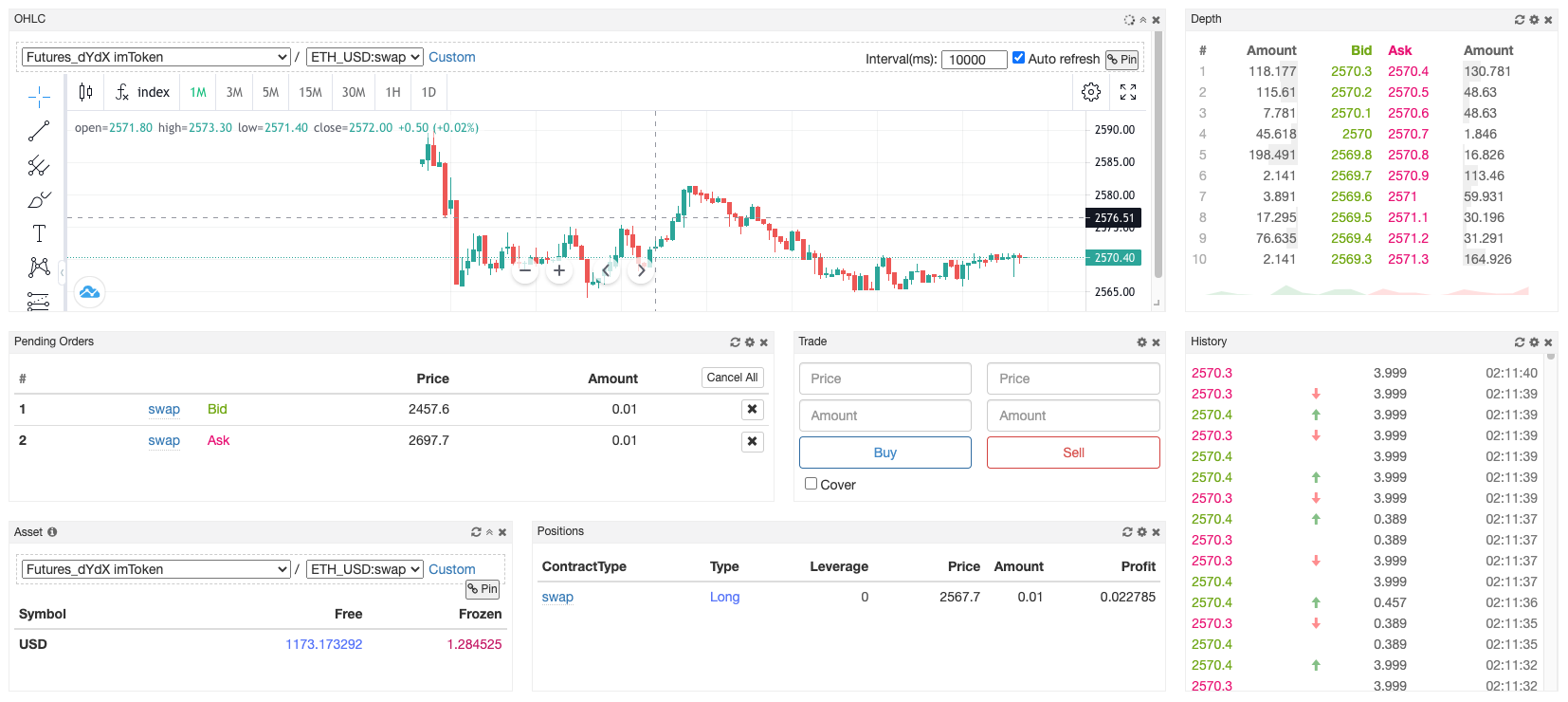
The FMZ Quant Trading platform provides a modular and customizable “Trade” page. You can freely add various data modules and trading function modules, and even develop their own code modules (trading terminal plugins). With its highly flexible and free usage, it also greatly facilitates users of manual trading and semi-programmatic trading. Various modules on the “Trade” page can be dragged and zoomed, the settings of the trading pairs and exchanges bound by the modules can be modified, and multiple modules of the same type can be added.
Debugging Tool
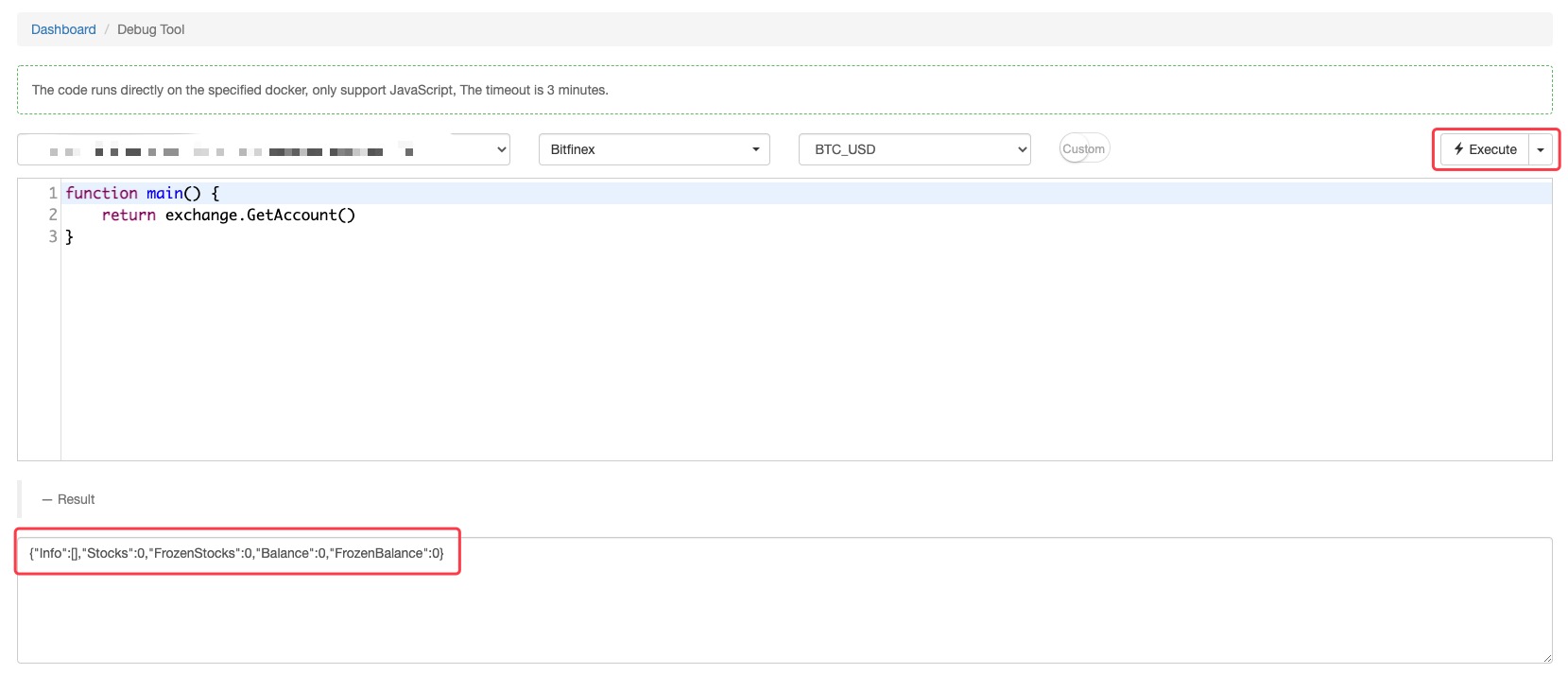
Debug Tool page provides an environment to quickly test codes by bot, supporting only JavaScript currently.
Remote Editing
It supports the local editor remote synchronization strategy code to FMZ Quant Trading platform, and it supports Sublime Text/Atom/Vim/VSCode editor. On the strategy editing page, click “Remote Edit” to unfold the plugin download address button to display the remote synchronization key (token) of the current strategy.
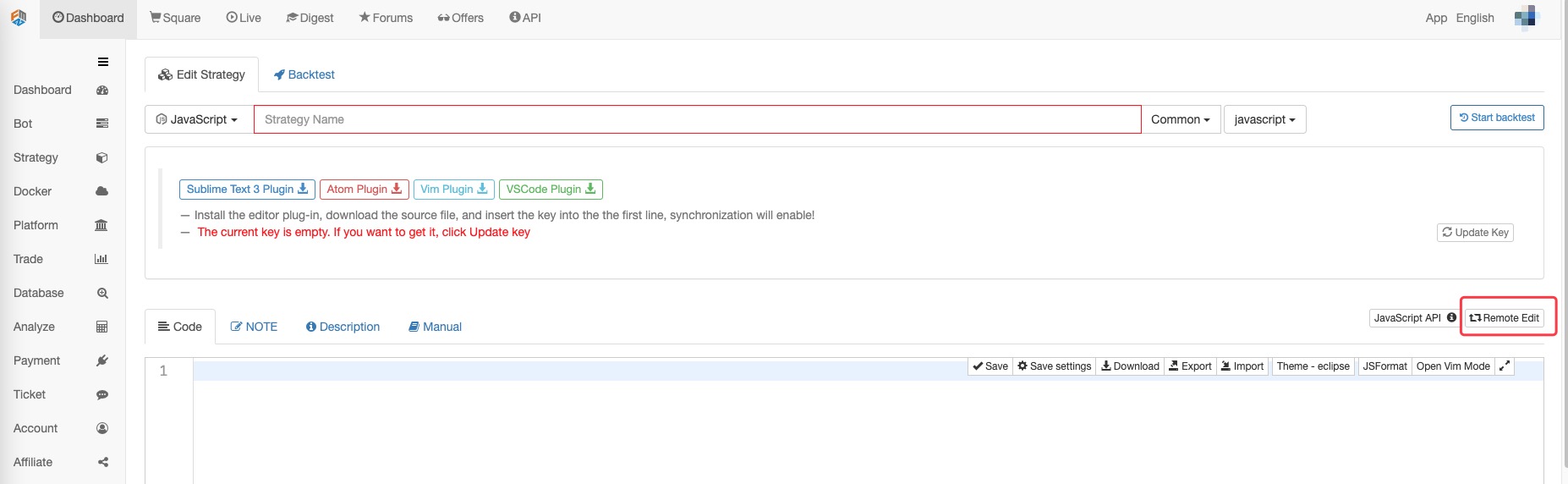
Click “Update key” to refresh the current key display, and click “Delete Key” to delete the secret key (token) of the current strategy.

The plug-in installation methods of different editors are slightly different. You can click the download button to jump to the specific remote synchronization plug-in item.

Bot Parameters Import & Export
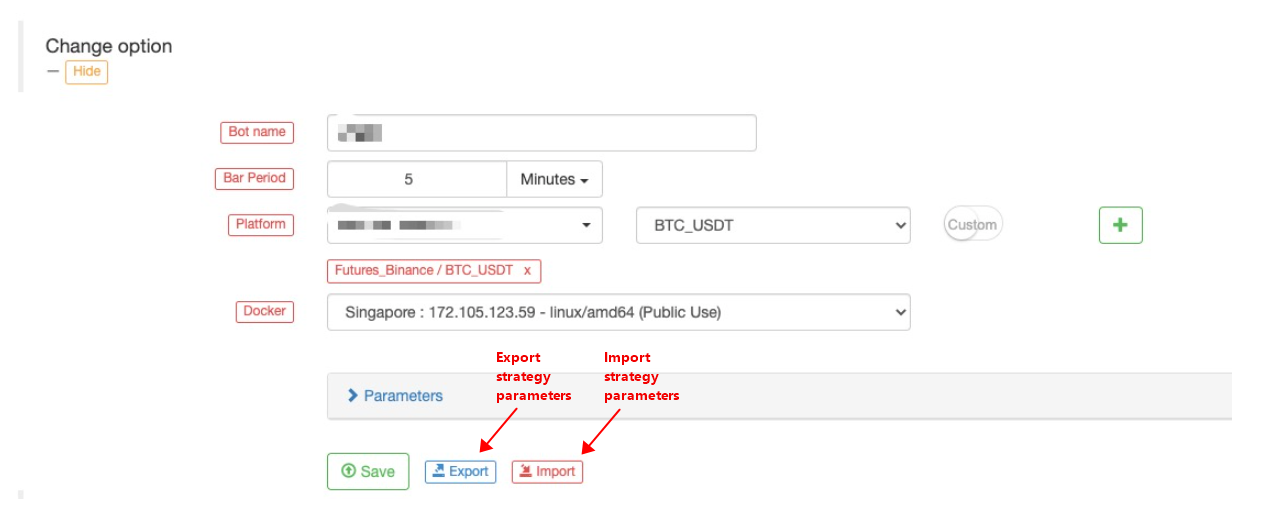
When running the live trading, you need to save the parameter data of the real bot configuration, you can click the “Export” button. The exported strategy parameters will be saved in the JSON file, and the exported strategy parameter configuration can also be imported to the real bot again. Click the “Import” button to import the saved strategy bot parameters to the current real bot. Then, click “Save” to save.
Strategy Import & Export Files
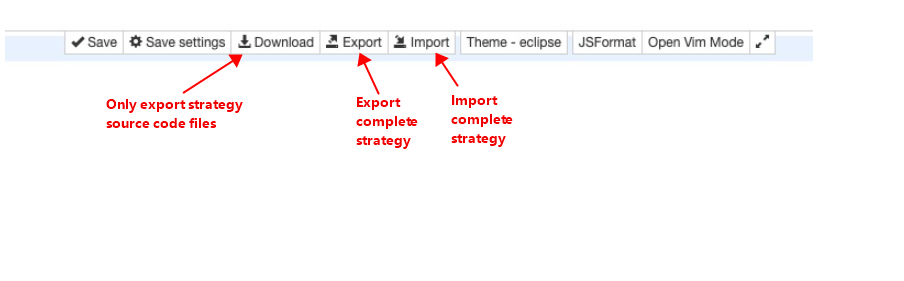
Download Source Code Export the strategy source code, and the type of the export file is based on the strategy programming language. JavaScript strategy exports the files with the extension
js; python strategy exports the files with the extensionpy; C++ strategy exports the files with the extensioncpp; Mylanguage strategy exports the files with the extensiontxt. Note that only the strategy source code is exported, not including strategy parameters, template references, etc.Export Strategy Export the complete strategy, including all strategy information, such as strategy source code and parameter design. The export file is an
xmlfile.Import Strategy Use the
xmlfile exported by the “Export” function, and click the “Import” button on the strategy editing page to select thexmlto be imported, that is, you can import a complete strategy. After importing, you need to click the “Save” button to save the strategy.
Multilingual Support
Strategy names and strategy parameter descriptions can be written in Chinese|English, displayed in the language recognized by web pages automatically.


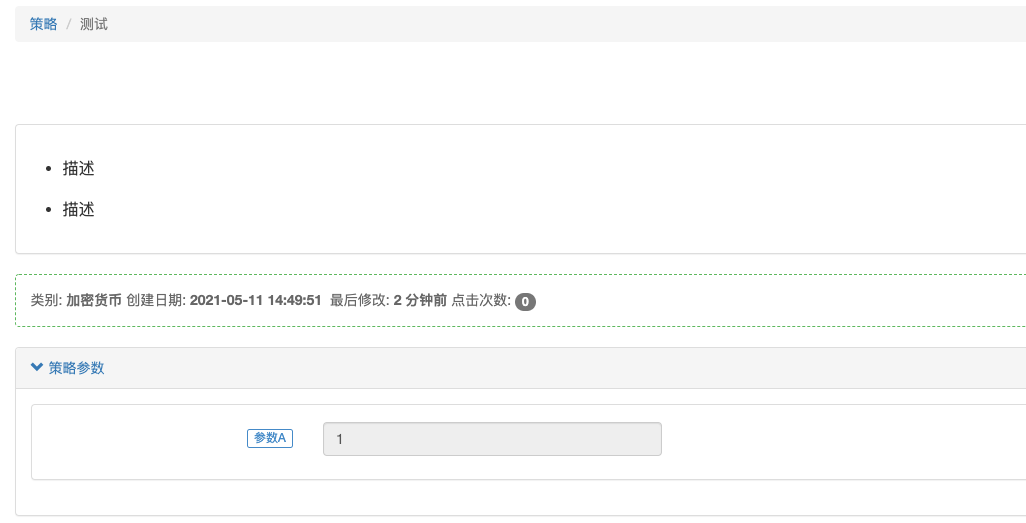
In other places, such as: strategy description, usage instruction and other texts in Markdown format, using Chinese or Chinese can also achieve the effect of automatic recognition. The effect of the above example is shown in the following figure:
Page display in Chinese:
Page display in English:
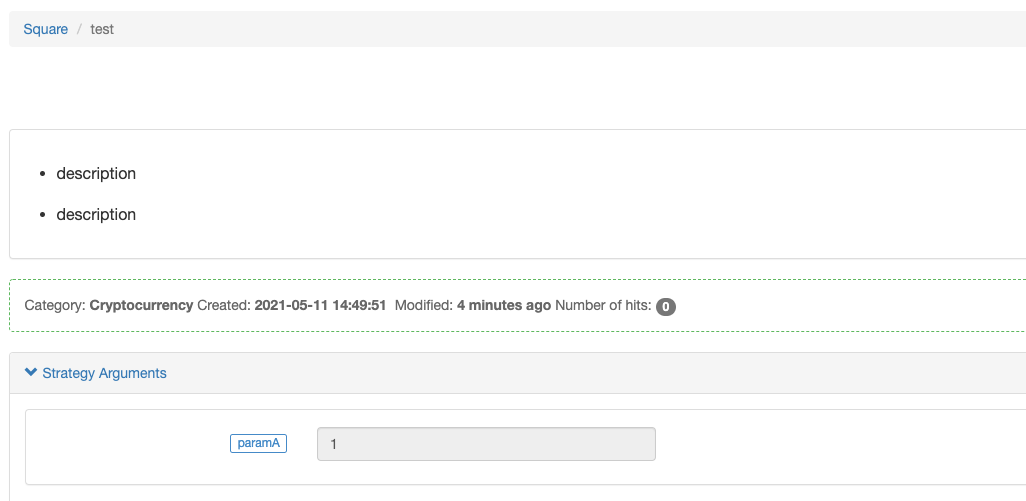
After switching the language, it will take effects after refreshing the web page.
Functions that can write strings in the strategy code also support language switching, such as function Log, function LogStatus, etc.
function main() {
    Log("日志")
    var table = {
        type: "table",
        title: "操作",
        cols: ["列1", "列2", "操作"],
        rows: [
            ["比特币", "以太坊", {"type": "button", "cmd": "coverAll", "name": "平仓|cover", "description": "描述|description"}]  // Note: It doesn't need to add  tag in the button
        ]
    }
    LogStatus("[trans]信息", "\n`" + JSON.stringify(table) + "`")
    throw "错误"
}
import json
def main():
    Log("日志")
    table = {
        "type": "table",
        "title": "操作",
        "cols": ["列1", "列2", "操作"],
        "rows": [
            ["比特币", "以太坊", {"type": "button", "cmd": "coverAll", "name": "平仓|cover", "description": "描述|description"}]
        ]
    }
    LogStatus("信息", "\n`" + json.dumps(table) + "`")
    raise Exception("错误")
void main() {
    Log("日志");
    json table = R"({
        "type": "table",
        "title": "操作",
        "cols": ["列1", "列2", "操作"],
        "rows": [
            ["比特币", "以太坊", {"type": "button", "cmd": "coverAll", "name": "平仓|cover", "description": "描述|description"}]
        ]
    })"_json;
    LogStatus("信息", "\n`" + table.dump() + "`");
    Panic("错误");
}
WexApp Simulation Market
- 24-hour non-stop operation, powerful trading matching system, simulating real trading.
- Powerful market-making bot that provides good liquidity and depth of the order book.
- Complete API interface support, not only can be tested on FMZ Quant for simulated quantitative trading, but also can connect to the API interface by yourself, address: WexApp.
Docker Program Parameters
After downloading the docker software, the executable file after decompression (file name: robot) is the docker program; the parameters can be specified for the docker program, when deploying the docker.
-v: check the information including the version and compilation time of the current docker program. The complete execution command is based onApple Mac System:./robot -v.-s: the address specified to communicate with FMZ Quant Trading platform when running the docker program. The complete execution command is based onApple Mac System:./robot -s node.fmz.com/xxxxxxx;xxxxxxxis the unique identification ID of each account on FMZ Quant Trading platform; after executing the command, there will be a prompt to input the password for the corresponding FMZ Quant Trading platform account.
-p: you can directly specify the parameter in the run command to input the password, which is not recommended, because the password parameter will be left in the current system record. Suppose the account password corresponding to the addressnode.fmz.com/xxxxxxxis:abc123456. The complete execution command is based onApple Mac System:./robot -s node.fmz.com/xxxxxxx -p abc123456.-n: attach label information to the running docker program. The complete execution command is based onApple Mac System:./robot -n macTest -s node.fmz.com/xxxxxxx. There will be amacTesttext label in the docker information on the platform docker management page.-l: print the exchange list supported by the current docker. The complete execution command is based onApple Mac System:./robot -l, that is, the names of the supported exchanges can be output.
Common Causes for Bot Error & Abnormal Exit
- Strategy static grammar errors (such errors are obvious, and usually you can see the error mark on the strategy editing page), which can be found and corrected during backtest.
- Strategy runtime errors, the most common example is the direct use of the function’s return value without making a legal judgment.
- Too much content that cannot be garbage collected is stored in global variables, resulting in excessive memory usage.
- When using the asynchronous
exchange.Gofunction, there is no reasonablewaitto wait for the end of the coroutine during the operation, resulting in a large number of coroutines. - Too many layers of recursive function calls cause the exceeded stack size of the coroutines.
- Interface business errors and network request errors, etc.; such error messages will display the information, including relevant exchange object names, function names, error-related messages and reasons, and other information. Such errors will not cause abnormal stoppage in actual trading (such errors are usually causes, but not the direct causes. The direct causes are usually the program exceptions caused by the direct use without the interface return value to judge the legality).
- Platform underlayer errors, the common example is
Decrypt: Secret key decrypt failed, which will cause the failure of starting the live trading. The reason for the error is that the modification of the FMZ account password causes all the configuredAPI KEYto be invalid. To solve the problem, theAPI KEYneeds to be reconfigured, and the docker needs to be restarted. - When renting a Python strategy, an error is reported due to the version incompatibility between the Python encrypted by the platform and the Python in the strategy runtime:
ValueError: bad marshal data (unknown type code). Upgrade or install the Python environment run by the strategy to one of the versions supported by the strategy:Python 2.7,Python 3.5andPython 3.6. interrupterror; the error is because the user clicks the Stop bot button on the Bot page when the program performs an operation (such as accessing the platform interface), and the bot stops and interrupts the error message printed by the current operation. The error has no effect and is just a log record.
Bots & Strategy Grouping
On the “Bot” page and “Strategy” page of the FMZ Quant Trading platform, you can click Group setting button on the right to manage strategies and real trading in groups. For example, for the group setting of strategies, Template, JavaScript Strategy and Strategy for Backtest can be divided into three groups, respectively.
Sub-Account & Live Bot
Sub-Account After logging in the platform, click “Dashboard” and “Account” to jump to the FMZ account management page. Click “Sub-Account” to see the sub-account creation page, select the bot that the added sub-account can access in the available permissions control, and set the sub-account’s username and sub-account login password in the user information control. Click the “Add sub-member” button to create a sub-account. The added sub-account will be displayed on the current page and can be “modified”, “locked/unlocked”, and “deleted”.
Sub-accounts have limited permissions; only the authorized bots in the settings of available permissions can be seen in the sub-accounts. The authorized bot has the authority to modify parameters, stop and restart live trading, but it cannot modify the exchange object configured by the bot. The usage scenarios of sub-accounts are usually: - A. It is convenient to log in and manage when the quantitative team manages multiple bot strategies. - B. Debugging when the strategy is for rent.
Live Trading View In the bot list of the FMZ platform bot page, click the “Public” button to display the bots of the current row publicly. There are currently two ways to view the live bots: - 1. Display the bots on the Live View page published on the FMZ platform, after clicking the “Public” button, and select Public Share. - 2. Create a private link for viewing. After clicking the “Public” button and selecting Internal Share, you can set a validity period to generate a private link to log in the private live view page of the strategy bot.
Strategy Sharing & Renting
On “Strategy” page, after clicking the “Action” button on the right side of the strategy, the menu that pops up has options for sharing and renting.
Strategy Sharing - Public Sharing After clicking the “Sharing” button, a dialog box will pop up, and you can choose “Public Sharing”, so the strategy is completely shared in the platform’s “More Strategies”, and any user can copy the strategy.
- Internal Sharing After clicking the “Sharing” button, a dialog box will pop up, and you can choose “Internal Sharing”. After selecting the share validity period and the number of shares, the copy page address and copy code of the strategy will be generated. It can be distributed to designated FMZ platform users. Users who need this strategy only need to use the copy page address link, to log in the copy page and enter the copy code to obtain the strategy. After obtaining the strategy, it will appear on the “Strategy” page automatically.
Strategy Renting - Public Sale After clicking the “Rent” button, a dialog box will pop up, and you can choose “Public Sale”. The strategy can be applied for listing (subject to approval).
- Internal Sale After clicking the “Rent” button, a dialog box will pop up, and you can choose “Internal Sale”. After selecting the number of days to use, the maximum concurrent number and the number of strategy tokens, the registration page address and strategy token of the strategy will be generated. It can be distributed to specified FMZ users. Users who need this strategy only need to use the registration page address link, to log in to the registration page. Then, enter the strategy token to obtain the right to use the strategy. The strategy will be also displayed on the “Strategy” page, but only with the right to use the backtest and the bot. The information like the source code of the strategy is inaccessible.
Important note: When creating and distributing the strategy token, please make sure to carefully confirm whether it is a “strategy token” or a “copy code”, so as not to share the strategy by mistake.
Sharpe Algorithm in Backtesting System
function returnAnalyze(totalAssets, profits, ts, te, period, yearDays) {
    // force by days
    period = 86400000
    if (profits.length == 0) {
        return null
    }
    var freeProfit = 0.03 // 0.04
    var yearRange = yearDays * 86400000
    var totalReturns = profits[profits.length - 1][1] / totalAssets
    var annualizedReturns = (totalReturns * yearRange) / (te - ts)

    // MaxDrawDown
    var maxDrawdown = 0
    var maxAssets = totalAssets
    var maxAssetsTime = 0
    var maxDrawdownTime = 0
    var maxDrawdownStartTime = 0
    var winningRate = 0
    var winningResult = 0
    for (var i = 0; i < profits.length; i++) {
        if (i == 0) {
            if (profits[i][1] > 0) {
                winningResult++
            }
        } else {
            if (profits[i][1] > profits[i - 1][1]) {
                winningResult++
            }
        }
        if ((profits[i][1] + totalAssets) > maxAssets) {
            maxAssets = profits[i][1] + totalAssets
            maxAssetsTime = profits[i][0]
        }
        if (maxAssets > 0) {
            var drawDown = 1 - (profits[i][1] + totalAssets) / maxAssets
            if (drawDown > maxDrawdown) {
                maxDrawdown = drawDown
                maxDrawdownTime = profits[i][0]
                maxDrawdownStartTime = maxAssetsTime
            }
        }
    }
    if (profits.length > 0) {
        winningRate = winningResult / profits.length
    }
    // trim profits
    var i = 0
    var datas = []
    var sum = 0
    var preProfit = 0
    var perRatio = 0
    var rangeEnd = te
    if ((te - ts) % period > 0) {
        rangeEnd = (parseInt(te / period) + 1) * period
    }
    for (var n = ts; n < rangeEnd; n += period) {
        var dayProfit = 0.0
        var cut = n + period
        while (i < profits.length && profits[i][0] < cut) {
            dayProfit += (profits[i][1] - preProfit)
            preProfit = profits[i][1]
            i++
        }
        perRatio = ((dayProfit / totalAssets) * yearRange) / period
        sum += perRatio
        datas.push(perRatio)
    }

    var sharpeRatio = 0
    var volatility = 0
    if (datas.length > 0) {
        var avg = sum / datas.length;
        var std = 0;
        for (i = 0; i < datas.length; i++) {
            std += Math.pow(datas[i] - avg, 2);
        }
        volatility = Math.sqrt(std / datas.length);
        if (volatility !== 0) {
            sharpeRatio = (annualizedReturns - freeProfit) / volatility
        }
    }

    return {
        totalAssets: totalAssets,
        yearDays: yearDays,
        totalReturns: totalReturns,
        annualizedReturns: annualizedReturns,
        sharpeRatio: sharpeRatio,
        volatility: volatility,
        maxDrawdown: maxDrawdown,
        maxDrawdownTime: maxDrawdownTime,
        maxAssetsTime: maxAssetsTime,
        maxDrawdownStartTime: maxDrawdownStartTime,
        winningRate: winningRate
    }
}
Special Exchange Instructions
- Futures_Binance
It supports the dual position mode of Binance futures; you can use
exchange.IOto switch:function main() { var ret = exchange.IO("api", "POST", "/fapi/v1/positionSide/dual", "dualSidePosition=true") // ret : {"code":200,"msg":"success"} Log(ret) }
  def main():
      ret = exchange.IO("api", "POST", "/fapi/v1/positionSide/dual", "dualSidePosition=false")
      Log(ret)
  void main() {
      auto ret = exchange.IO("api", "POST", "/fapi/v1/positionSide/dual", "dualSidePosition=true");
      Log(ret);
  }
It supports switching between crossed position/ isolated position
  function main() {
      exchange.SetContractType("swap")
      exchange.IO("cross", true)    // Switch to crossed position
      exchange.IO("cross", false)   // Switch to isolated position
  }
  def main():
      exchange.SetContractType("swap")
      exchange.IO("cross", True)
      exchange.IO("cross", False)
  void main() {
      exchange.SetContractType("swap");
      exchange.IO("cross", true);
      exchange.IO("cross", false);
  }
- Futures_HuobiDM
It supports modifying the address of Huobi Futures participating in the signature, which is not switched by default. If you need to disable the function, you can use
exchange.IO("signHost", "")to set an empty string. Useexchange.IO("signHost", "https://aaa.xxx.xxx")to switch the base address of Huobi Futures participating in signature verification. Useexchange.IO("base", "https://bbb.xxx.xxx")orexchange.SetBase("https://bbb.xxx.xxx")to switch the base address of the platform interface. When the trading pair is set toXXX_USDT, use the functionexchange.SetContractType("swap")to set the contract code toswapperpetual contract, usingexchange.IO("cross", true)can switch toUSDT-margined perpetual contract in the crossed position mode. Usingexchange.IO("cross", false)to switch back to the isolated position mode. The initial default is the isolated position mode. - Huobi
It supports Huobi spot leverage tokens, such as:
LINK*(-3); the code defined by the exchange is:link3susdt, which is written when FMZ sets the trading pairLINK3S_USDT. It is also possible to switch trading pairs in the strategy:
  function main() {
      exchange.SetCurrency("LINK3S_USDT")
      Log(exchange.GetTicker())
  }
  def main():
      exchange.SetCurrency("LINK3S_USDT")
      Log(exchange.GetTicker())
  void main() {
      exchange.SetCurrency("LINK3S_USDT");
      Log(exchange.GetTicker());
  }
OKX OKX interface can switch to the simulation bot testing environment of OKX; using
exchange.IO("simulate", true)can switch to the simulated trading environment. If you want to switch to the real trading environment, useexchange.IO("simulate", false)to switch. The initial default is the real trading environment. It supports switching account margin modes; useexchange.IO("cross", true)to switch to crossed position mode, and useexchange.IO("cross", false)to switch to isolated position mode, the initial default is the crossed position mode.Futures_Bibox Use
exchange.IO("cross", true)to switch to the crossed position mode, and useexchange.IO("cross", false)to switch to the isolated position mode; the initial default is crossed position mode. The exchange does not support the query of current pending orders and the interface for querying the historical trading records of the market, so theGetOrdersandGetTradesfunctions are not supported.Futures_Bitget Use
exchange.IO("cross", true)to switch to crossed position mode, and useexchange.IO("cross", false)to switch to isolated position mode.Futures_AOFEX Use
exchange.IO("cross", true)to switch to crossed position mode, and useexchange.IO("cross", false)to switch to isolated position mode.Futures_MEXC Use
exchange.IO("cross", true)to switch to crossed position mode, and useexchange.IO("cross", false)to switch to isolated position mode.Futures_GateIO GateIO futures exchange uses leverage value to set crossed position mode, and use
exchange.SetMarginLevel(0)to switch to crossed position mode.Futures_Bybit Use
exchange.IO("cross", true)to switch to full position mode, useexchange.IO("cross", false)to switch to position-by-position mode. Useexchange.IO("unified", true)to switch to unified margin interface, useexchange.IO("unified", false)to switch back to normal contract interface.
- 有没有日内分时图中结合macd的例子
- 请问各路大神,币交易所的API网络情况!
- huobi合约报错
- 灵机一动,托管者可以部署在免费的IBM cloud foundry上吗
- 如何在托管者安装pandas数据库
- 使用 exchange.IO 跑回测报错
- 关于my语言中bk,sk等指令下单数量的问题
- 布林带指标问题
- 遇到订单参数错误怎么调试?
- 用自定义回测数据报错
- 托管者的ip被墙,会影响正常的运行么?
- 为啥这几天OKex期货的K线好像都只能获取49根呢?
- 关于第一项怎么赋值的问题
- 为啥没法获取到币安的K线数据?
- 回测自定义数据源能否支持其它交易所
- 自己写的RSI指标公式,有个错误的地方,请大家指导
- 数字货币委托单成交时有没有事件被触发?
- 币安大赛历史数据
- 回测时能否在init()函数中动态设置账户 币 与 额的数量?
- 无法使用永续合约