Strategy Editor
Open the edit page from the new strategy page or by opening an existing strategy in the Strategy Library (for strategy ID 123456 the address is https://www.fmz.com/m/edit-strategy/123456) to write strategies.
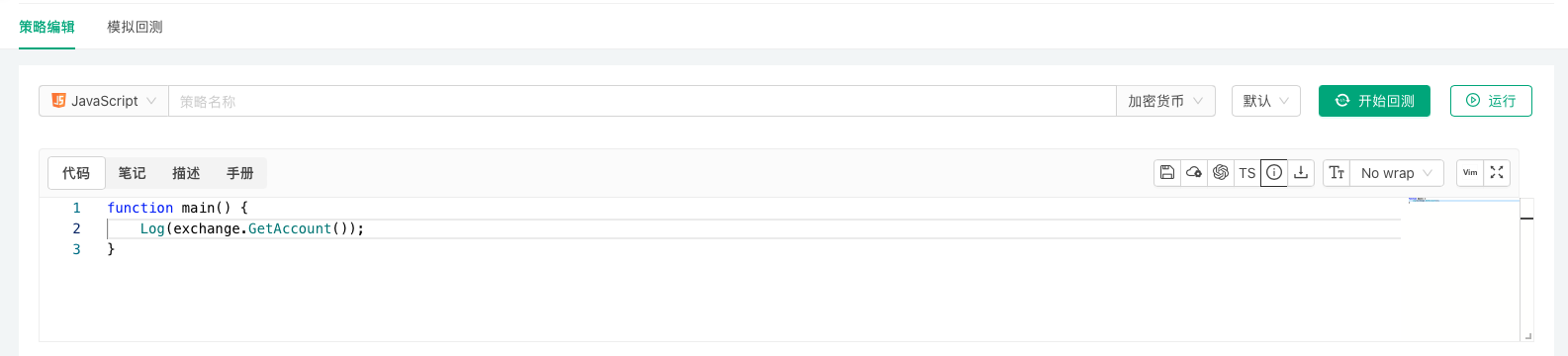
This chapter covers the editor's assistance features. Related features of the editing page:
- Remote editing: write in a local editor and sync to the platform automatically (see Development Tools → Remote Editing).
- Backtest configuration and saving: save the backtest configuration and strategy parameters with the strategy (see Backtesting System).
- Import and export of complete strategies: export and import a strategy with its parameters and everything else (see Platform Basics → Strategy Library).
AI Assistant
The strategy editor has a built-in AI assistant that generates strategy code from a description, explains and edits selected code, adjusts strategy parameters and interactive controls, and runs backtests and analyzes their results automatically.
-
AI assistant panel
The AI assistant panel sits to the right of the code editor and can be collapsed or expanded. Describe what you want in the input box to start a conversation; code selected in the editor beforehand becomes context for the conversation.
Changes the AI proposes to code, parameters and interactive controls are shown as diffs that you can "Accept" or "Reject" one by one, or accept all at once; it asks for permission before modifying the strategy or running a backtest automatically. -
Quick actions on selected code
Select code and right-click: the menu has AI actions (such as explaining or optimizing the code), which can also be triggered with⌘1,⌘2, ... (Ctrl+1,Ctrl+2, ... on Windows).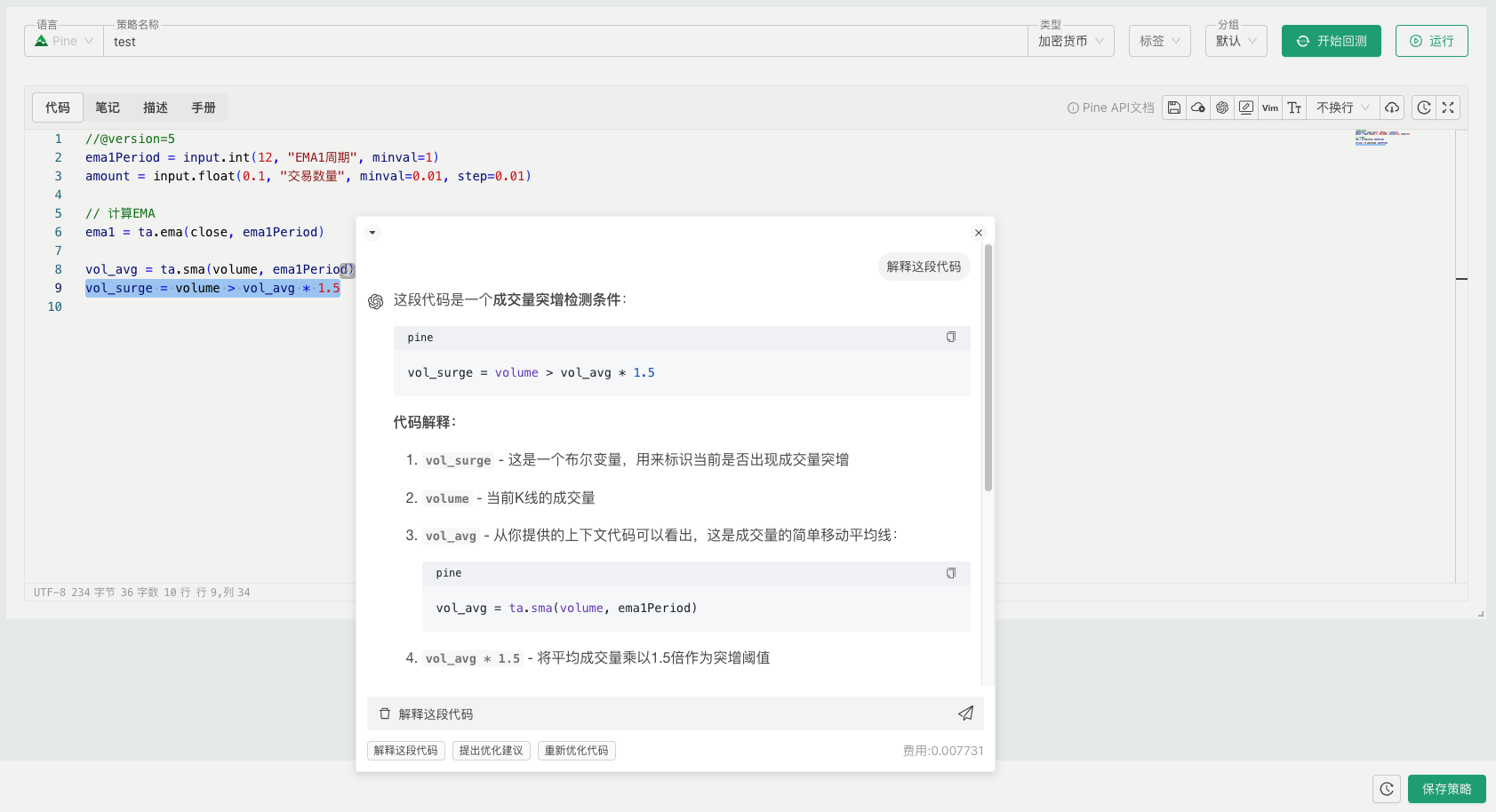
-
Smart completion
Turn smart completion on or off from the right-click menu, or with⌘J(Ctrl+Jon Windows).
The AI assistant is charged to your account balance by usage, and each conversation shows its cost.
Besides the assistant in the editor, you can connect the external AI assistant you already use to the platform and manage strategies, backtests and live robots through conversation (see Integrations → AI Integration).
Command Palette
Right-click in the strategy code editing area and select "Command Palette" from the context menu to view keyboard shortcuts and editor commands for various functions.

Syntax Manual Quick Reference
In the "Code" editing area of the Strategy Editor Page, you can quickly access the "Syntax Manual". Use the corresponding keyboard shortcuts based on your operating system:
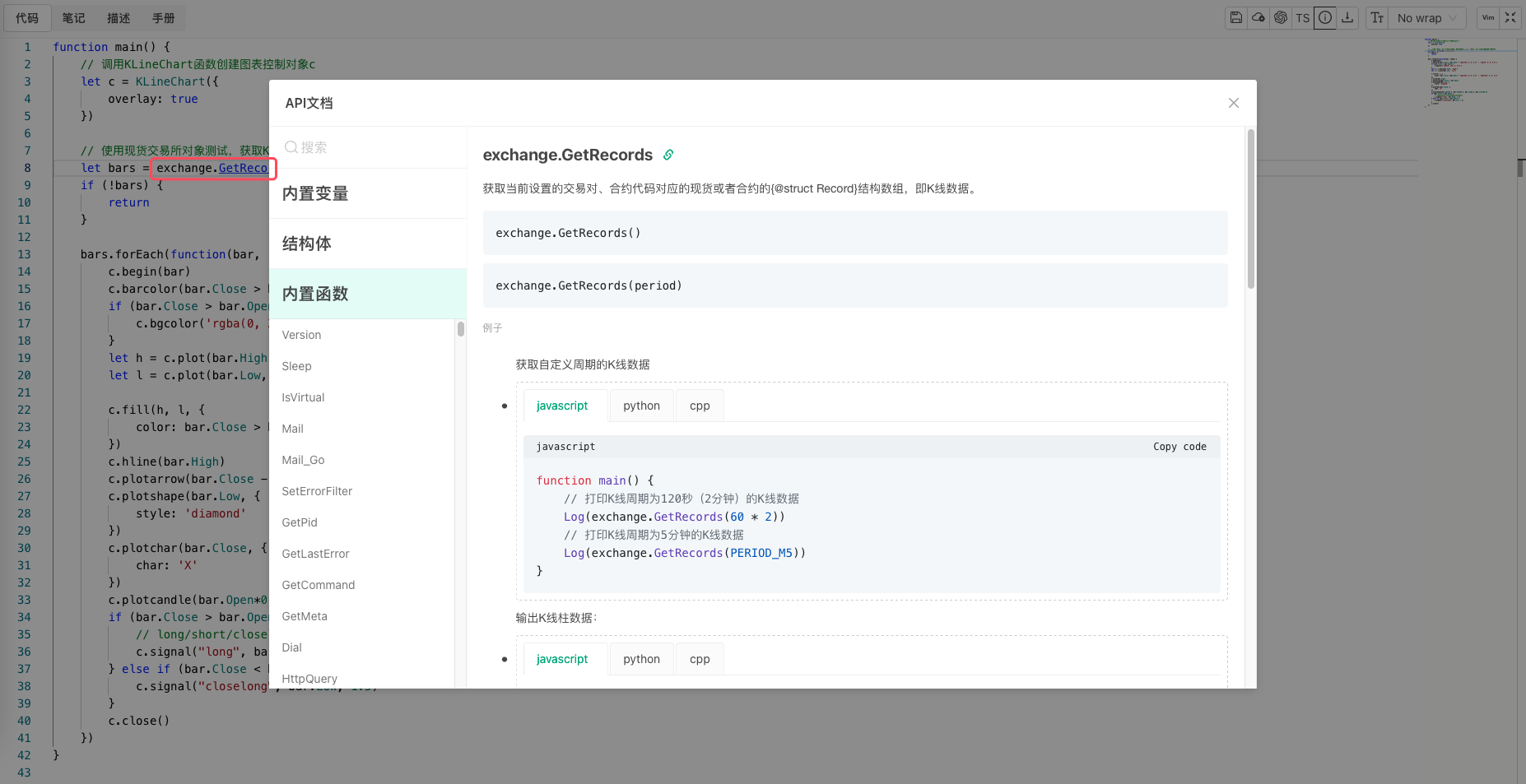
- In browsers on Mac systems (Apple computers): Hold down the
⌘key. - In browsers on Windows systems: Hold down the
Ctrlkey.
Then when you hover your mouse over the variable name or function name you want to look up, a jump link will appear. Click the link to open the "Syntax Manual" popup, which will automatically navigate to the queried content.
Go to Definition and References
Select the content you want to query, then right-click to open the context menu.
-
Go to Definition: Navigate to the definition location of the queried content.
-
Go to References: Navigate to the reference locations of the queried content.
-
Peek - Peek Definition: View the definition of the selected code without leaving the current line.
-
Peek - Peek References: View references to the current code in other lines without leaving the current position, with support for quick navigation to better understand code logic and structure.
Strategy Documentation
The online strategy editing page keeps the code, description, usage instructions and development notes of a strategy separately.

- Code: the source code of the strategy program.
A complete strategy on the platform consists of the source code, the strategy parameter design, the interactive control design and the template library references (see Writing Strategies → Strategy Parameters, Interactive Controls and Template Libraries). - Notes: notes taken while developing the strategy.
- Description: the introduction shown when the strategy is published.
- Manual: instructions visible only to those who rent the strategy.
History Version Management
The platform supports version iteration functionality during strategy development. On the Strategy Editing Page, click the "History Version" button in the "Code" editing area to open the strategy history version management page.
-
When the current strategy has no history version snapshots, click the "Create Now" button to create a snapshot of the current strategy. Snapshot contents include: strategy code, notes, description, manual, parameter design, interaction design, etc.
-
After creating a history snapshot, the saved history snapshot list will be displayed on the right side of the history version management page. Click the "Create History Version" button above the list to continue saving new history snapshots.
-
Edit and use history snapshots: You can perform operations such as modify history snapshot name, delete history snapshot, and restore to the strategy version of the history snapshot on recorded strategy history snapshots.
-
Preview the currently selected history snapshot: Click the "Preview" button at the bottom left of the history version management page to preview the strategy code, notes, description, manual, parameter design, interaction design, and other contents in the current history snapshot.
-
Compare the differences between the currently selected history snapshot and the current strategy: Click the "Compare" button at the bottom left of the history version management page to compare the differences between the current history snapshot and the current strategy.
Running History Versions in Live Trading
Strategy history versions can not only be used for code management and version rollback, but can also be run directly in live trading:
-
Set Default Running Version: On the strategy editor page, click the "History Version" button, select a history version, then click the "Modify" button in the menu. In the popup, you can check the "Set as Default Version" option. If not set, the latest version will run by default.
-
Use History Version in Live Trading: When creating a live trading instance or modifying live trading parameters, the strategy owner can select a specific history version of the strategy to run. This feature is only available to the strategy owner.
-
Version Control for Rented Strategies: When a strategy is rented to other users, the renter can only run the "default running version" set by the strategy owner and cannot select other history versions. The strategy owner can control which version is used for rented strategies by setting the default running version.