Getting Started
Start here: what the platform is, the five steps from adding an exchange to running a live robot, and keeping API keys safe.
Welcome to FMZ Quant Trading Platform
FMZ Quant is a quantitative trading platform: write strategies in the browser, backtest them online, then run them as live robots on a docker you deploy yourself or rent. You can also learn from, share and rent out strategies in the strategy square, or show your own live robots publicly.
Supported markets
- Crypto: spot, futures and perpetual contracts on the major centralized exchanges, plus some on-chain exchanges.
- Securities and futures: Futu Securities, Interactive Brokers and others.
- Exchanges the platform has not integrated yet can be connected yourself through the general protocol (see Platform Basics → Exchange → General Protocol).
Strategy languages
JavaScript, TypeScript, Python, Rust, PINE, MyLanguage, Blockly visual programming and Workflow; see Writing Strategies → Programming Languages.
AI assistance
- The strategy editor has a built-in AI assistant that generates, explains and edits strategy code and analyzes backtest results (see Development Tools → Strategy Editor → AI Assistant).
- You can also connect the external AI assistant you already use to the platform and manage strategies, backtests and live robots through conversation (see Integrations → AI Integration).
Dashboard
After signing up and logging in, open the dashboard:
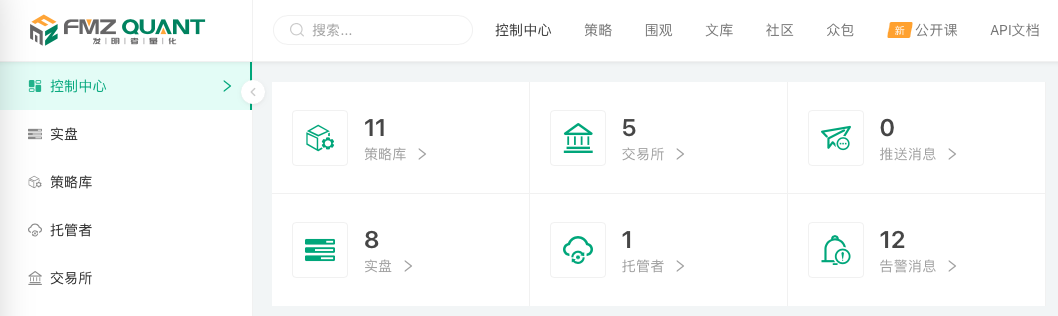
- Control Center: account overview and shortcuts. Running a live robot takes three things: an online docker, a strategy and a configured exchange account.
- Live Trading: create, manage and control live robots. A live robot is a running instance of a strategy program.
- Strategy Library: write, save and group strategies in any supported language.
- Docker: deploy and manage the docker programs that run strategies.
- Exchange: add and manage exchange accounts.
Public resources
- Strategy Square: strategies shared publicly or listed for rent, good for learning and reference.
- Live: live robots that users show publicly.
- Digest: original articles by the platform.
- Community: the forum for discussing quantitative trading.
- Crowdsourcing: post and take on strategy development requests.
- Classes: video tutorials.
- API Docs: the API syntax manual for writing strategies.
Getting help
Post in the community, submit a ticket from the dashboard, or contact the administrators in the Telegram group.
Quick Start
Five steps take you from adding an exchange to running your first live robot; each step names the chapter with the details.
1. Add an exchange account
Add the exchange's API key on the Exchange page of the dashboard. Enable only read and trade permissions, never withdrawal; for a first try, use the exchange's demo trading or a small sub-account. See "Platform Basics → Exchange" and "Getting Started → Key Security".
2. Deploy a docker
The docker is the program that runs strategies; every live robot runs on one. Rent a docker provided by the platform with one click, or deploy it on your own server. See "Platform Basics → Docker".
3. Write a strategy
Create a strategy in the Strategy Library and pick a programming language. A strategy is an entry function main() with a main loop: each round fetches market data, computes signals, places orders and sleeps until the next round. See "Writing Strategies"; its "Strategy Structure" chapter has main-loop templates for every language and a quick reference of all API functions. You can also start from a public strategy in the strategy square.
4. Backtest
On the strategy editing page, choose the exchange, trading pair, time range and K-line period, then start a backtest and check the profit curve, trades and logs. Go live only after the backtest looks right. See "Backtesting System".
5. Create a live robot
On the Live Trading page of the dashboard, create a robot with the strategy, a docker and the exchange account, set the strategy parameters and start it. Live robots are billed by the hour, so the account needs a balance before you start; see "Platform Basics → Account and Billing → Live Robot Billing and Top-up". Its status, logs and profit are on the robot page, and errors can be pushed to your phone. See "Platform Basics → Live Trading".
Read on as needed: "Development Tools" covers editing and debugging, "Advanced Topics" covers rate limiting, communication between robots, multi-threading and on-chain trading, and "Integrations" covers driving the platform from programs or AI assistants.
Key Security
A leaked exchange key costs you the assets in that exchange account. Before configuring an exchange account, go through this checklist:
- Trade permission only: enable only read and trade permissions for the API key, and never enable withdrawal.
- Bind an IP whitelist: on the exchange, bind the API key to the outbound IP of the server running your docker. If the server has several IPs, pin the outbound IP with the docker's
-Ioption (see Platform Basics → Docker → Command-Line Options). - Keep private keys local: if the exchange supports asymmetric keys such as RSA, prefer them, and keep the private key as a credential file on the docker's machine so that the platform stores only the file path (see Platform Basics → Exchange → Local Credential Files).
- Start small: run a new strategy against the exchange's demo trading or a small sub-account first.
- Do not publish secrets: if the strategy code, parameters or description contain keys, account names or similar information, do not publish or sell the strategy.
How the platform stores keys: encrypted fields such as keys on the exchange configuration page are encrypted in the browser with your platform account password before upload, so the platform never stores them in plain text; only a docker started with that account password can decrypt them locally. Changing the platform account password therefore invalidates existing exchange configurations; see Platform Basics → Live Trading → Common Causes of Live Trading Errors and Abnormal Exits for what to do.