Strategy Library
The Strategy Library page holds all strategies of the current account, written in any of the programming languages or visually.
- Grouping: strategies can be grouped just like robots (see Platform Basics → Live Trading → Grouping).
- Import and export: besides the source code, a complete strategy includes its parameters, interactions, description, notes, manual, template references and more, so move a strategy by exporting and importing the complete strategy (see Import and Export of Complete Strategies).
- Sharing and renting: generate a "copy code" to share a strategy or a "registration code" to rent it out (see Strategy Sharing and Renting).
Import and Export of Complete Strategies
Copying the source code is not enough to move a strategy: the parameter design, interaction design, template references and more are not in the source. "Export Strategy" and "Import Strategy" on the strategy editing page move a strategy completely.

-
Export Strategy
Exports onexmlfile, for strategies in every programming language. When exporting you can choose what to include: name, source code, notes, description, manual, template references, strategy parameters, interactive controls and backtest settings. -
Import Strategy
Click "Import Strategy" on the strategy editing page, choose anxmlfile produced by "Export Strategy", and select what to import. Click "Save" afterwards to save the strategy.
Strategy Sharing and Renting
On the Strategy Library page, click the "Actions" button on the right side of a strategy to display a menu containing sharing and renting options.
Important Notice: When creating and distributing strategy registration codes, please carefully confirm whether it is a "Registration Code" or "Copy Code" to avoid accidentally leaking your strategy.
Strategy Sharing
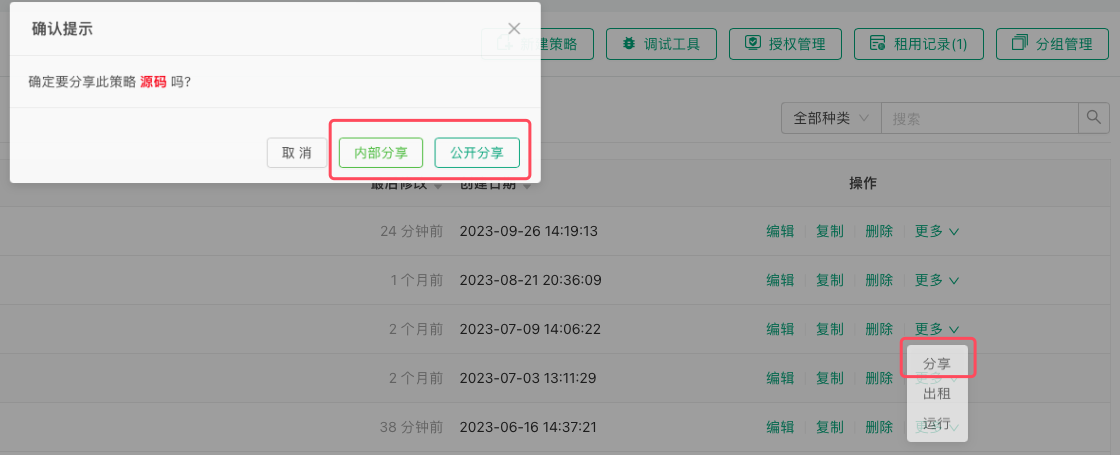
-
Public Sharing
After clicking the "Share" button, a dialog box will pop up where you can select "Public Sharing". The strategy will be fully shared to the platform's Strategy Square, where any user can copy the strategy. -
Private Sharing
After clicking the "Share" button, a dialog box will pop up where you can select "Private Sharing". After selecting the sharing validity period and sharing limit, a copy page URL and copy code for the strategy will be generated. These can be distributed to designated FMZ platform users. Users who need the strategy can simply use the copy page URL link, log in to the copy page and enter the copy code to obtain the strategy. Once obtained, the strategy will automatically appear in their strategy library.
Strategy Rental
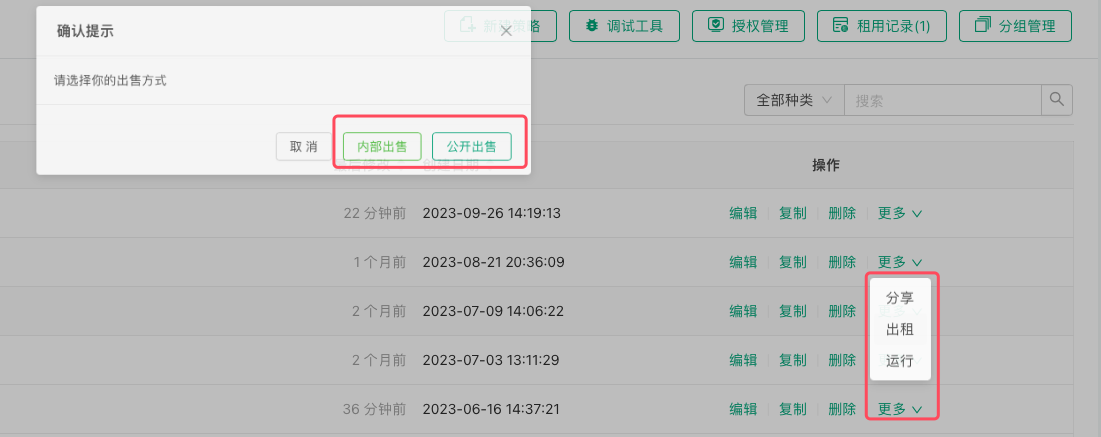
-
Public Sale
After clicking the "Rent" button, a dialog box will pop up where you can select "Public Sale". The strategy can then be submitted for listing (requires approval). -
Internal Sale
After clicking the "Rent" button, a dialog box will pop up where you can select "Internal Sale". After selecting the number of days, maximum concurrent instances, and number of registration codes, the system will generate a registration page URL and registration codes for this strategy. You can distribute these to designated FMZ platform users. Users who need this strategy only need to visit the registration page URL link, log in to the registration page, and enter the registration code to obtain access to the strategy. The strategy will also appear in the strategy library, but users will only have backtesting and live trading permissions, and cannot view the strategy source code or other information. When the number of concurrent live trading instances is set to 0, it means there is no limit on concurrent instances, allowing unlimited creation of live trading bots.