Exchange
The Exchange page manages the exchange accounts you have configured. On FMZ, an "exchange" is an account a strategy program can operate: it holds the keys of the funding account together with the protocol and API wrapper used to talk to that exchange.
Click "Add Exchange" on the exchange management page to open the add exchange page, then choose the exchange and fill in its configuration. Encrypted fields such as keys are encrypted in the browser before being saved to the platform, so the platform never stores them in plain text (see Getting Started → Key Security).
**Exchange objects**
In strategy code a configured exchange is the exchange object exchange. A backtest or live robot can be configured with several exchanges; in code they form the exchange object array exchanges.
Using an exchange object
Strategy code reads the account and market data, places orders and cancels them through the exchange object. In JavaScript:
javascript
function main() {
let account = exchange.GetAccount() // query account information
let ticker = exchange.GetTicker() // get the ticker
let id = exchange.Buy(1000, 1) // price 1000, amount 1
if (id) {
exchange.CancelOrder(id) // an order Id exists only if the order was placed; cancel it if still open
}
}
The rest of this chapter:
- General Protocol: connect an exchange the platform has not integrated yet.
- Local Credential Files: keep private keys and other secrets only on the docker's machine.
- Exchange-Specific Notes: configuration steps and behavior differences of individual exchanges.
General Protocol
For exchange API interfaces that have not yet been encapsulated and integrated by the FMZ Quant Trading Platform, you can access them by writing general protocol plugin programs.
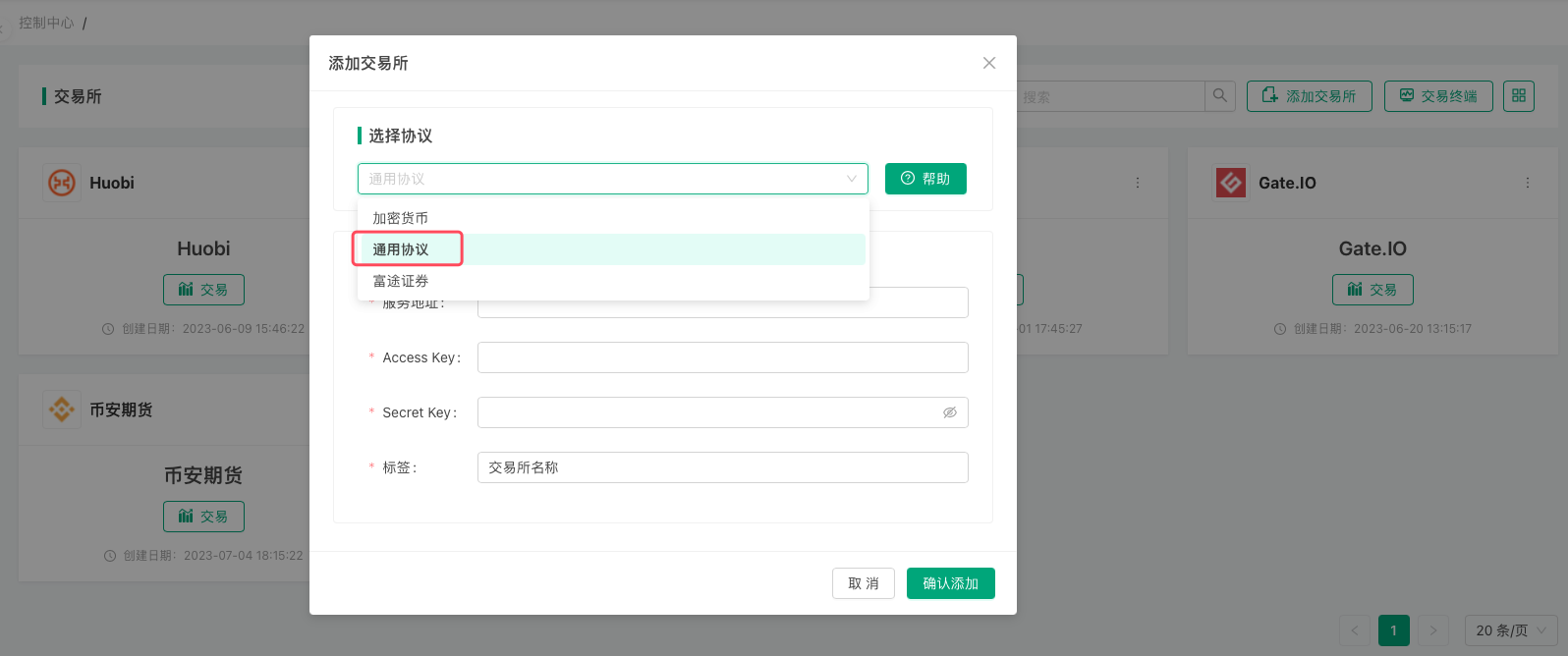
This general protocol can be used to access any exchange that provides API interfaces, supporting the following two protocols:
RESTProtocol: Reference Documentation.FIXProtocol: Reference Project.
The difference between FIX protocol plugin programs and REST protocol plugin programs lies only in the interaction method between the plugin program and the exchange interface. The interaction method, data format, and other implementation details between the protocol plugin program and the FMZ Quant docker program are exactly the same. For specific implementation, please refer to the examples in the above links.
Local Credential Files
When configuring an exchange, every masked encrypted input (Secret Key, private key, password, etc.) can hold a credential file path file:///name.txt instead of the secret itself. When the live robot runs, the docker reads that file on its own machine and uses the content as the value. The private key then exists only on the docker's machine, and the platform stores nothing but a path.
Path rules
- The path is resolved relative to this robot's directory
logs/storage/<robot ID>/(logsis under the docker's working directory). For robot ID123456,file:///rsaKey.txtmeanslogs/storage/123456/rsaKey.txt. - Subdirectories are allowed, e.g.
file:///keys/rsaKey.txt. - Only the
.txtsuffix is recognized; with any other suffix the text is not read as a file but used literally as the configuration value. - The path cannot be absolute, cannot contain
.., and after resolution cannot leave the robot directory (symbolic links pointing outside are rejected too). - Credential files are read from each robot's own directory, so when several robots use the same exchange configuration, every robot directory needs its own copy.
- If the file cannot be read, the robot fails to start with an error containing
read key file; an invalid path fails withkey file path must be relative and cannot contain '..'orkey file path escapes the robot directory.
Example: an RSA key
For an exchange that supports RSA KEY authentication:
- Generate an RSA public/private key pair, e.g. a PKCS#8 pair with
openssl. - Create an
RSA KEYon the exchange and upload the public key from step 1. - Configure the exchange on the platform: put the exchange's
RSA KEYinAccess Keyandfile:///rsaKey.txtinSecret Key. - Create the live robot and note its ID (e.g.
123456). - Save the private key from step 1 as
logs/storage/123456/rsaKey.txt, then start (or restart) the robot.
See the video walkthrough (Chinese) for the full process.
Exchange-Specific Notes
Configuration steps of individual exchanges and the places where they behave differently from the general API. Exchanges not listed here follow the general descriptions in the syntax manual; the switches each exchange supports through exchange.IO() are listed under exchange.IO.
Securities and Futures
Futu Securities
Futu NiuNiu live trading and paper trading are supported. FutuOpenD must run on the docker's machine. For configuring the exchange object and running FutuOpenD, see the Futu Securities configuration guide.
When FutuOpenD is used for paper trading, some stock codes are not supported and cannot be traded (paper trading works in the Futu NiuNiu mobile app).
-
Call frequency
GetOrder,GetOrders,GetPositionsandGetAccountuse cached data by default, so their call frequency is not limited;FutuOpenDupdates the cache automatically when new data arrives.
exchange.IO("refresh", true)disables the cache; without the cache the limit is at most 10 queries every 30 seconds, and exceeding it returns an error. -
Stock codes
The format iscode.market, e.g.600519.SH. Market suffixes:- HK: Hong Kong stocks
- US: US stocks
- SH: Shanghai
- SZ: Shenzhen
- SG: Singapore futures
- JP: Japan futures
Set the stock code with
exchange.SetContractType()in the strategy, for example:javascriptfunction main() { var info = exchange.SetContractType("600519.SH") // set the stock 600519.SH (Moutai); the account switches to the mainland market Log(info) Log(exchange.GetAccount()) // the current stock is Moutai, so GetAccount returns the mainland market assets Log(exchange.GetTicker()) // current quote of Moutai }pythondef main(): info = exchange.SetContractType("600519.SH") Log(info) Log(exchange.GetAccount()) Log(exchange.GetTicker())rustfn main() { let info = exchange.SetContractType("600519.SH"); // set the stock 600519.SH (Moutai); the account switches to the mainland market Log!(info); Log!(exchange.GetAccount()); // the current stock is Moutai, so GetAccount returns the mainland market assets Log!(exchange.GetTicker(None)); // current quote of Moutai }exchange.SetDirection(trade direction),exchange.Buy/exchange.Sell(orders),exchange.CancelOrder(cancellation),exchange.GetOrder(order query) and the like are used the same way as in futures markets. -
Account information
Futu usesTrdMarketto tell the Hong Kong, US, mainland and other markets apart. From theFutu APIdocumentation:mylangconst ( TrdMarket_TrdMarket_Unknown TrdMarket = 0 // unknown market TrdMarket_TrdMarket_HK TrdMarket = 1 // Hong Kong market TrdMarket_TrdMarket_US TrdMarket = 2 // US market TrdMarket_TrdMarket_CN TrdMarket = 3 // mainland market TrdMarket_TrdMarket_HKCC TrdMarket = 4 // Hong Kong Stock Connect market TrdMarket_TrdMarket_Futures TrdMarket = 5 // futures market )Data returned by
exchange.GetAccount():json{ "Info": [{ "Header": { ... // omitted "TrdMarket": 1 // market ID in the raw Info data: assets of the Hong Kong market }, "Funds": { // account assets in this market ... } }, ...], "Stocks": 0, "FrozenStocks": 0, "Balance": 1000000, // assets in the current market "FrozenBalance": 0 } -
FutuOpenDdecides the region by the IP address it logs in from; accounts logged in from outside mainland China have some market data restrictions. See the officialFutuOpenD(Futu) documentation.
Interactive Brokers
-
Configure the exchange
Run "IB Gateway" or "TWS (Trader Workstation)" on the docker's machine. With TWS: after logging in, click the configuration button at the top right, open "Configure" → "API" → "Settings", uncheck "Read-Only API", check "Enable ActiveX and Socket Clients", and note the "Socket port" (TWS defaults to 7496 for live and 7497 for paper; IB Gateway to 4001 for live and 4002 for paper).
Then choose Interactive Brokers on the platform's add exchange page:- Server address: the address and port of TWS or IB Gateway, e.g.
localhost:7496. - Market data type: realtime, frozen, delayed or delayed frozen. Accounts without a realtime market data subscription can choose delayed data. It can also be switched at run time with
exchange.IO("marketDataType", n)(nfrom 1 to 4, in the order above).
- Server address: the address and port of TWS or IB Gateway, e.g.
-
Contract codes
Set withexchange.SetContractType()in the formsymbol.currency[.type[.exchange]]; the type defaults to stockSTKand the exchange toSMART:- US stocks:
AAPL.US,TSLA.US(USmeans priced in USD). - Hong Kong stocks:
symbol.HK(HKmeans priced in HKD). - Futures (
FUT):symbol-expiry[-multiplier].currency.FUT.exchange, with the expiry month written asYYYYMMand the exchange as IB's exchange code. - Options (
OPT) and futures options (FOP):symbol-expiry-C or P-strike×100[-multiplier].currency.OPT or FOP.exchange, with the strike multiplied by 100 and written as an integer. - A plain number: used directly as the IB contract ID (conId).
- US stocks:
-
Other notes
- The docker connects to TWS with the live trading ID as its client ID (clientId), so the client ID stays the same across restarts and orders placed earlier can still be cancelled or modified. TWS only lets the client ID that placed an order (or the master client) modify or cancel it.
Symbolin positions and orders is the short form (e.g.Z74.SGD);exchange.GetPositions()andexchange.GetOrders()accept either the short form or the full code used when ordering (e.g.Z74.SGD.STK.SGX).- When the gateway rejects an order, the
Rejectfield in the order'sInfoholds the reason. - After
exchange.IO("debug", true), every frame sent to or received from TWS is logged in the TWS API log format, so it can be matched against the gateway's own log.
Crypto
-
Futures_Binance
Binance trading pairs with Chinese names are supported:javascriptfunction main() { let ticker = exchange.GetTicker("币安人生_USDT.swap") Log("ticker:", ticker) // {"Info":{...},"Symbol":"币安人生_USDT.swap","Open":0.29622,"High":0.31661, ...} }For the
exchange.IO()switches of Binance Futures (dual-side position mode, isolated/cross margin, unified account, STP mode, etc.), seeexchange.IO. -
Futures_HuobiDM
Useexchange.IO("base", "https://xxx.xxx.xxx")orexchange.SetBase("https://xxx.xxx.xxx")to switch the base address of the exchange API.For the
exchange.IO()switches of Huobi Futures (signHost, isolated/cross margin, one-way/two-way position mode, unified account, etc.), seeexchange.IO.Condition orders of the OCO type (
ORDER_CONDITION_TYPE_OCO) are not supported; condition orders also work in multi-asset margin mode. -
Huobi
Huobi trading pairs with Chinese names are supported:javascriptfunction main() { let ticker = exchange.GetTicker("币安人生_USDT") Log("ticker:", ticker) // {"Info":{...},"Symbol":"币安人生_USDT","Open":0.29622,"High":0.31661, ...} } -
Bitfinex
The amount of a spot market buy order is the quantity of the traded coin, not the quote amount. -
AscendEx
The amount of a spot market buy order is the quantity of the traded coin, not the quote amount. -
Futures_Hyperliquid
See the Hyperliquid guide.For the
exchange.IO()switches of Hyperliquid Futures (isolated/cross margin, mainnet/testnet, vaultAddress, walletAddress, expiresAfter, etc.), seeexchange.IO. -
Futures_Lighter
The test environment can be selected when configuring the exchange object, or reached by changing the REST API endpoint withexchange.SetBase().For the
exchange.IO()switches of Futures_Lighter (isolated/cross margin, order expiry, etc.), seeexchange.IO.BuyandSellreturned byexchange.GetTickers()are each instrument's last trade price (the exchange has no batch order book endpoint); useexchange.GetTicker()orexchange.GetDepth()when you need the best bid and ask. -
Futures_edgeX
All edgeX perpetuals are quoted in USDC: write the trading pair asBTC_USDCand so on, with full symbols such asBTC_USDC.swap;BTC_USDTorBTC_USDis reported as a contract that does not exist. -
Poloniex
Spot condition orders support stop-loss only (ORDER_CONDITION_TYPE_SL): a buy triggers when the price rises to the trigger price, a sell when it falls to the trigger price. Take-profit (ORDER_CONDITION_TYPE_TP) and OCO condition orders return an error and no order is placed.