Manual Deployment of Docker
The docker can run on a PC, a server, a Raspberry Pi (64-bit OS) and similar devices. Only 64-bit builds are released:
- Linux command line: x86_64 (amd64), ARM64 (aarch64)
- macOS command line: Intel, Apple Silicon
- Windows: x64 and ARM64, each with a command-line and a GUI version
On the docker deployment page, click Manual Deployment, download the build for your system and unpack it; the executable robot is the docker program. The same page shows the two pieces of information needed:
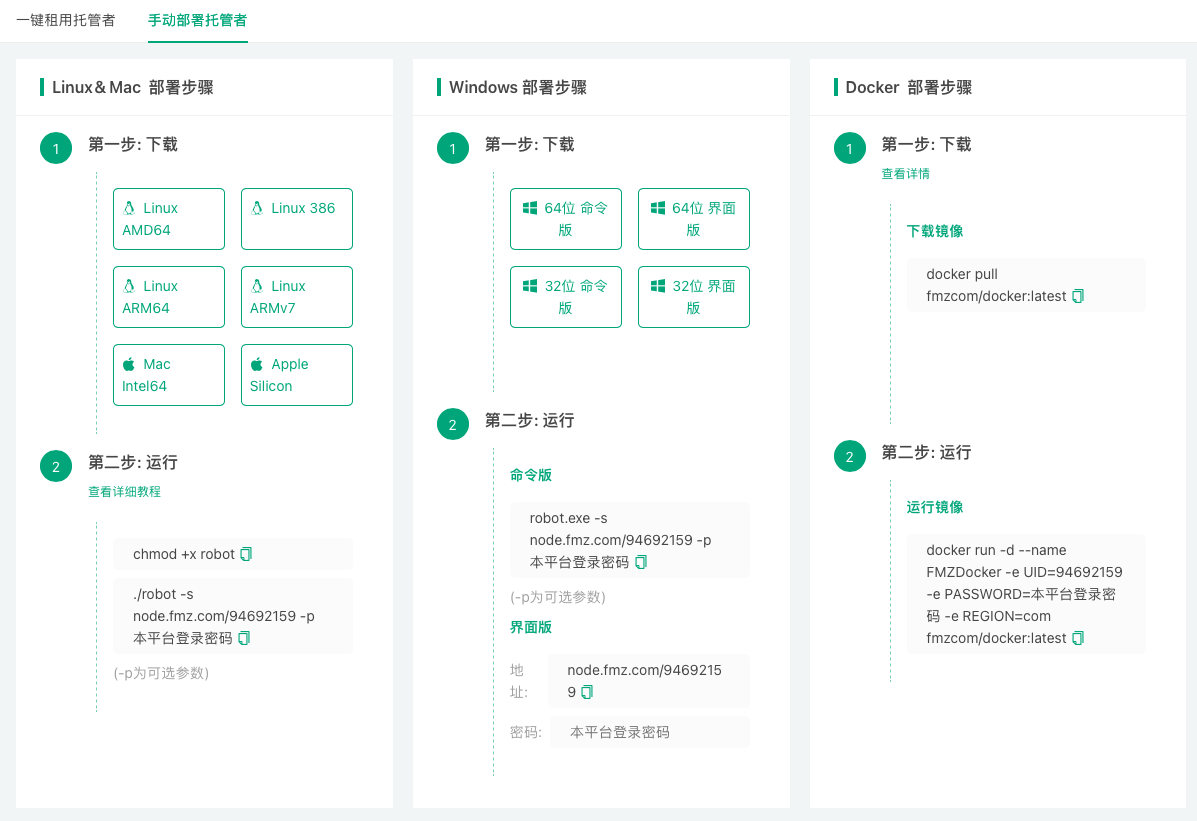
- Communication address: contains your account UID, like
node.fmz.com/123456. - Password: the password of the FMZ account that owns the UID.
Windows GUI version
Run robot.exe, enter the communication address and password, and click start.
Command-line version
bash
chmod +x robot # Linux/macOS: make it executable before the first run
./robot -s node.fmz.com/123456 # prompts for the password, which is not echoed
123456 is only an example; the real address is on the docker deployment page. Do not pass the password in plain text with -p: it stays in the shell history and the process list. For unattended start-up, put the address and password in a configuration file robot.conf that only you can read:
            bash

            cat > robot.conf <<'EOF'
s=node.fmz.com/123456
p=your-password
EOF
chmod 600 robot.conf
./robot -c robot.conf               # with robot.conf in the startup directory, plain ./robot loads it too
All options and the configuration file format are described in Platform Basics → Docker → Command-Line Options.
Running in the background
The docker ignores the terminal hang-up signal: start it in the foreground over SSH and simply disconnect, and it keeps running, with its log also written to logs/docker.log. To start at boot or restart after a crash, run it under a service manager such as systemd, e.g. /etc/systemd/system/robot.service:
            ini

            [Unit]
Description=FMZ robot
After=network-online.target
Wants=network-online.target

[Service]
WorkingDirectory=/opt/robot
ExecStart=/opt/robot/robot -c /opt/robot/robot.conf
Restart=on-failure
TimeoutStopSec=90

[Install]
WantedBy=multi-user.target
            bash

            sudo systemctl daemon-reload
sudo systemctl enable --now robot
The SIGTERM sent by systemctl stop robot makes the docker shut down gracefully: it stops all its live robots, reports their state and then logs out of the platform. TimeoutStopSec leaves enough time so that it is not killed before finishing.
Upgrading the docker
The strategy runtime and the exchange connectors are delivered by the platform when needed and need no manual updates. To upgrade the docker program itself, stop the docker (see Docker Operation Precautions), replace the robot executable with the new version and start it in the same working directory. The logs directory there keeps the docker identity and the robot data, so the docker comes back with its old ID.
Isolating strategy processes in Docker containers
On Linux and macOS, the command-line version can run each strategy process in its own Docker container with the -i option (Docker must be installed and running on the machine). This isolates strategy processes; it is not a Docker image of the docker program itself. See Command-Line Options for the parameters.