Integrations
Driving the platform from AI assistants or other programs: AI integration (the MCP service), the extended API and trading terminal plugins.
AI Integration
Connect FMZ to an AI coding assistant (AI agent) such as Claude Code, Codex or Cursor, and you can write strategies, run backtests, create and manage live trading, and read logs and profit just by talking to it. The assistant reaches these functions through the platform's MCP (Model Context Protocol) service, with an API KEY created for it alone; you choose its permissions when you approve it and can change or revoke them at any time.
Connect with one sentence
Tell your AI assistant:
Read https://www.fmz.com/agent/setup.md and connect to FMZ
The assistant follows that page; your only step is one click in the browser:
- The assistant requests authorization and shows you a link such as
https://www.fmz.com/agent/authorize?code=XXXX-XXXX, valid for 10 minutes. - Open it in a browser where you are logged in to FMZ, check the requester's name and the permissions, and approve. You can untick permissions you do not want to grant.
- The assistant receives an API KEY, writes it into its own MCP configuration and connects. From then on you can simply ask it to "list my live trading" or "backtest this strategy".
The assistant names the key "name @ machine" (for example Claude Code @ MacBook). When a request with the same name is approved again, the old key is revoked and replaced, so connecting again does not pile up keys.
Permissions
| Permission | Allows | Default |
|---|---|---|
| read | Lists and details of strategies, live trading, nodes and exchange accounts; logs, messages, account summary (never any secret) | Yes |
| backtest | Start, query and stop backtests | Yes |
| write | Save strategies and versions, groups, alert switches; change the configuration of stopped live trading | Yes |
| trade | Create, start and stop live trading, send interactive commands (costs balance and places real orders) | Yes |
| danger | Delete strategies, live trading and nodes; publish strategies | No |
danger is never granted by default: the assistant has to request it explicitly and you have to tick it on the approval page. Before calling a [trade] or [danger] tool the assistant should ask you first.
Manual configuration
Clients that cannot run commands (for example Cherry Studio) can be configured by hand:
- Create an API KEY under Account settings → API KEY (
https://www.fmz.com/m/account#apikey) and note its Access Key and Secret Key. - Add an MCP server of type Streamable HTTP to the client:
- URL:
https://www.fmz.com/api/mcp/<Access Key> - Header:
Authorization: Bearer <Secret Key>
- URL:
The Secret Key goes in the header only, never in the URL. Examples:
            bash

            # Claude Code
claude mcp add --transport http fmz "https://www.fmz.com/api/mcp/<Access Key>" --header "Authorization: Bearer <Secret Key>"
            json

            {"mcpServers": {"fmz": {"url": "https://www.fmz.com/api/mcp/<Access Key>", "headers": {"Authorization": "Bearer <Secret Key>"}}}}
The JSON is for Cursor (~/.cursor/mcp.json) and other clients that speak Streamable HTTP; Claude Desktop needs the npx mcp-remote bridge described in the setup page.
Install the skills (recommended)
The skills are knowledge packs written for AI assistants: platform workflow, the full API reference, how to write strategies in each language, backtesting and indicators. With them installed the assistant writes noticeably more accurate strategies. In a terminal:
            bash

            npx skills add fmzquant/skills --global --yes -a claude-code
Put your assistant's name after -a (claude-code, codex, cursor, gemini-cli, ...). They can also be read on GitHub: https://github.com/fmzquant/skills.
Available tools
Once connected the assistant can use the tools below; the list the assistant sees is authoritative:
| Permission | Tools |
|---|---|
| read | ping, get_account_summary, list_exchanges, list_platforms, list_nodes, list_strategies, get_strategy, list_strategy_versions, get_strategy_version, list_robots, get_robot, get_robot_logs, get_robot_profit, get_robot_output, list_messages, list_groups, revoke_my_key |
| backtest | run_backtest, get_backtest, list_backtests, stop_backtest |
| write | check_strategy, save_strategy, save_strategy_version, delete_strategy_version, update_robot, save_group, move_to_group, delete_group, set_robot_alert, set_node_alert, delete_messages |
| trade | create_robot, start_robot, stop_robot, restart_robot, send_robot_command, and the trading terminal plugin tools plugin_* (market data, orders, ...) |
| danger | delete_strategy, delete_robot, delete_node, publish_strategy |
A typical session: list_platforms and list_nodes to see which exchange accounts and nodes the account has; save_strategy to save a strategy and check_strategy to check it; run_backtest and get_backtest to backtest; then create_robot to go live and get_robot / get_robot_logs to watch it.
Security and management
- Exchange API KEYs never pass through the assistant: add them on the Exchanges page of the website and the assistant picks them by id. No tool result ever contains a secret.
- At
https://www.fmz.com/m/account#apikeyyou can see the key the assistant uses, change its permissions or lock it. Besides the permission names above, permissions can list tool names, and!tool_nameexcludes one tool. - When you are done, ask the assistant to call
revoke_my_keyto revoke its own key, or delete it on that page. stop_robotstops live trading; it does not close positions.- The first time the assistant creates live trading, backtest first and then run on a demo account or with a small amount.
Common problems
- No online node: live trading needs at least one online node, see Platform Basics → Nodes.
- Too many backtests: concurrent backtests are limited; have the assistant
stop_backtestthe ones it no longer needs. - The assistant says a tool is missing or a call is refused: the key lacks that permission; change it on the API KEY page and reconnect.
The same API KEY also works with the Extended API (Integrations → Extended API Interface) for scripts and schedulers; prefer MCP wherever it can be used.
Extended API Interface
The extended API is the platform's HTTP interface (https://www.fmz.com/api/v1) for scripts, scheduled jobs and other programs: query the account, dockers, strategies and live trading bots, create, restart and stop bots, send interactive commands to bots, and so on.
To operate the platform interactively from an AI assistant (Claude Code, Cursor, ...), prefer AI Integration (the MCP service, see Integrations → AI Integration): it has more tools, takes named parameters, and can be authorized by permission category. Both can use the same API KEY.
Steps: create an API KEY (Create ApiKey), send requests as described in Authentication Methods, and look up methods and parameters in Extended API Interface Details.
Create ApiKey
On the Account Settings → API KEY page (/m/account#apikey), click "Create New ApiKey" to get an AccessKey and a SecretKey. The SecretKey carries every permission of the key; keep it secret. The same page lets you change the permissions of existing keys, or disable and delete them.
Permissions
When creating or editing a key, enter a comma-separated list in the "API Permissions" field:
*: allow all extended API methods.- Method names: allow only the listed methods, e.g.
GetRobotList,GetRobotDetail,CommandRobot. !MethodName: exclude a method, usually together with*, e.g.*,!DeleteRobot,!DeleteNode.
The same API KEY can also be used for AI Integration (the MCP service, see Integrations → AI Integration). Besides tool names, MCP tools can be authorized by permission category: read, backtest, write, trade, danger (see the AI Integration page), and !name excludes as well. Categories only apply to MCP tools; the extended API only recognizes method names and *.
With an empty permission list the extended API does not restrict methods (MCP allows every tool except danger). Grant only what each use needs, e.g. a key used only for TradingView alerts should get CommandRobot and nothing else.
Authentication Methods
The extended API supports two authentication methods:
- Signature authentication: the request parameters are signed with the
SecretKey, which itself never travels over the network. Programs should use this method. - Direct verification: the
SecretKeyis put into the request URL itself; meant for webhooks such as TradingView that accept only a single URL.
Signature Authentication
Request format
Send a POST request to https://www.fmz.com/api/v1 with the parameters as a form (application/x-www-form-urlencoded). The server also accepts the same parameters in the URL query string of a GET request, but then they end up in access logs along the way, so POST is recommended.
| Parameter | Description |
|---|---|
| version | Version, always 1.0. |
| access_key | The AccessKey of the API KEY. |
| method | Method name, e.g. GetNodeList. |
| args | Method parameters as a JSON string: an array in parameter order (e.g. [], [123, "ok"]), or an object keyed by parameter name (e.g. {"robotId": 123}), see Extended API Interface Details. Treated as [] when omitted. |
| nonce | Timestamp in milliseconds. It must be within 1 hour of server time and greater than the nonce of this API KEY's previous request. |
| sign | Signature, computed as described below. |
The request does not contain the SecretKey.
Signature
Concatenate the string below, where args is the exact JSON string being submitted:
            plaintext

            version + "|" + method + "|" + args + "|" + nonce + "|" + secretKey
Compute the MD5 of the result and use its 32-character lowercase hexadecimal form as sign.
Python example
            python

            import hashlib
import json
import time
import urllib.parse
import urllib.request

ACCESS_KEY = ''   # AccessKey of the API KEY
SECRET_KEY = ''   # SecretKey of the API KEY

def api(method, *args, **kwargs):
    d = {
        'version': '1.0',
        'access_key': ACCESS_KEY,
        'method': method,
        # Positional arguments are sent as an array, keyword arguments as an object (by name)
        'args': json.dumps(kwargs if kwargs else list(args)),
        'nonce': int(time.time() * 1000),
    }
    s = '%s|%s|%s|%d|%s' % (d['version'], d['method'], d['args'], d['nonce'], SECRET_KEY)
    d['sign'] = hashlib.md5(s.encode('utf-8')).hexdigest()
    body = urllib.parse.urlencode(d).encode('utf-8')
    with urllib.request.urlopen('https://www.fmz.com/api/v1', body, timeout=10) as resp:
        return json.loads(resp.read().decode('utf-8'))

print(api('GetNodeList'))                             # Docker list
print(api('GetRobotList', appId='member2'))           # By name: bots labeled member2
print(api('CommandRobot', 123, 'ok'))                 # Send an interactive command to bot 123
print(api('GetRobotDetail', 123))                     # Details of bot 123
Go example
            mylang

            package main

import (
    "crypto/md5"
    "encoding/hex"
    "encoding/json"
    "fmt"
    "io"
    "net/http"
    "net/url"
    "strconv"
    "time"
)

const (
    accessKey = "" // AccessKey of the API KEY
    secretKey = "" // SecretKey of the API KEY
    baseAPI   = "https://www.fmz.com/api/v1"
)

var client = &http.Client{Timeout: 10 * time.Second}

func api(method string, args ...interface{}) (string, error) {
    if args == nil {
        args = []interface{}{}
    }
    b, err := json.Marshal(args)
    if err != nil {
        return "", err
    }
    nonce := strconv.FormatInt(time.Now().UnixMilli(), 10)
    sum := md5.Sum([]byte("1.0|" + method + "|" + string(b) + "|" + nonce + "|" + secretKey))
    form := url.Values{
        "version":    {"1.0"},
        "access_key": {accessKey},
        "method":     {method},
        "args":       {string(b)},
        "nonce":      {nonce},
        "sign":       {hex.EncodeToString(sum[:])},
    }
    resp, err := client.PostForm(baseAPI, form)
    if err != nil {
        return "", err
    }
    defer resp.Body.Close()
    body, err := io.ReadAll(resp.Body)
    return string(body), err
}

func main() {
    ret, err := api("GetNodeList")
    fmt.Println(ret, err)

    // Restart bot 123 with a new configuration; settings fields: see the bot configuration section in Extended API Interface Details
    settings := map[string]interface{}{
        "name":     "hedge test",
        "strategy": 456,
        "period":   60,
        "node":     789,
        "exchanges": []interface{}{
            map[string]interface{}{"pid": 1001, "pair": "BTC_USDT"},
        },
    }
    ret, err = api("RestartRobot", 123, settings)
    fmt.Println(ret, err)
}
Direct Verification
Direct verification computes no signature; the secret_key is put into the request parameters instead. This produces a fixed URL that can be entered into webhooks such as TradingView that accept only a single URL.
Security note: a
secret_keyin a URL ends up in browser history, proxy and server access logs, and the webhook provider's configuration; anyone who obtains the URL can call the API with this key's permissions. Use direct verification only forCommandRobotwebhooks, and create a dedicated API KEY for it that is grantedCommandRobotonly (see Create ApiKey). If it leaks, delete that API KEY immediately.
The request parameters are access_key, secret_key, method and args (a JSON array, URL-encoded); version, nonce and sign are not needed. CommandRobot skips the nonce check; other methods are still checked: without a nonce the server uses the current time (to the second), so a second call within the same second returns a nonce error (code 3).
For example, with an API KEY whose AccessKey is xxx and SecretKey is yyy, opening the URL below sends the interactive command ok12345 to the live trading bot with ID 186515:
            plaintext

            https://www.fmz.com/api/v1?access_key=xxx&secret_key=yyy&method=CommandRobot&args=%5B186515%2C%22ok12345%22%5D
Receiving a webhook body
When the command argument of CommandRobot is an empty string and the request is a POST, the server sends the request body to the bot as the interactive command. For example, set the TradingView webhook URL to:
            plaintext

            https://www.fmz.com/api/v1?access_key=xxx&secret_key=yyy&method=CommandRobot&args=%5B186515%2C+%22%22%5D
The args value %5B186515%2C+%22%22%5D decodes to [186515, ""] (+ is a URL-encoded space): 186515 is the bot ID and the command is an empty string.
Simulating a TradingView webhook alert:
javascript
function main() {
var options = {
method: "POST",
body: `{"test": 123}`,
headers: {"Content-Type": "application/json"}
}
// A webhook alert sends a POST request with the required headers automatically
return HttpQuery("https://www.fmz.com/api/v1?access_key=xxx&secret_key=yyy&method=CommandRobot&args=%5B186515%2C+%22%22%5D", options)
}
The content of the TradingView alert message box is the request body:
-
JSON format:
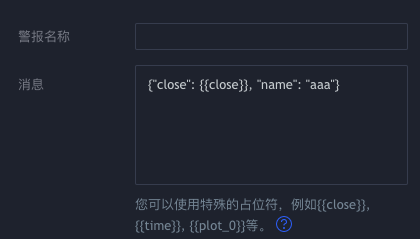 plaintext{"close": {{close}}, "name": "aaa"}
The bot with ID
186515receives the interactive command{"close": 39773.75, "name": "aaa"}. -
Text format:
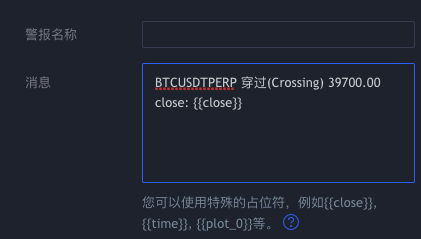 plaintextBTCUSDTPERP Crossing 39700.00 close: {{close}}
The bot with ID
186515receives the interactive commandBTCUSDTPERP Crossing 39700.00 close: 39739.4.
Python and Go examples
            python

            import json
import urllib.parse
import urllib.request

ACCESS_KEY = ''   # AccessKey of an API KEY granted CommandRobot only
SECRET_KEY = ''   # SecretKey

def api(method, *args):
    query = urllib.parse.urlencode({
        'access_key': ACCESS_KEY,
        'secret_key': SECRET_KEY,
        'method': method,
        'args': json.dumps(list(args)),
    })
    with urllib.request.urlopen('https://www.fmz.com/api/v1?' + query, timeout=10) as resp:
        return json.loads(resp.read().decode('utf-8'))

# Without permission for the method the result is {'code': 4, 'data': None}
print(api('CommandRobot', 186515, 'ok12345'))
            mylang

            package main

import (
    "encoding/json"
    "fmt"
    "io"
    "net/http"
    "net/url"
    "time"
)

const (
    accessKey = "" // AccessKey of an API KEY granted CommandRobot only
    secretKey = "" // SecretKey
    baseAPI   = "https://www.fmz.com/api/v1"
)

var client = &http.Client{Timeout: 10 * time.Second}

func api(method string, args ...interface{}) (string, error) {
    if args == nil {
        args = []interface{}{}
    }
    b, err := json.Marshal(args)
    if err != nil {
        return "", err
    }
    q := url.Values{
        "access_key": {accessKey},
        "secret_key": {secretKey},
        "method":     {method},
        "args":       {string(b)},
    }
    resp, err := client.Get(baseAPI + "?" + q.Encode())
    if err != nil {
        return "", err
    }
    defer resp.Body.Close()
    body, err := io.ReadAll(resp.Body)
    return string(body), err
}

func main() {
    ret, err := api("CommandRobot", 186515, "ok12345")
    fmt.Println(ret, err)
}
References:
Extended API Interface Details
All methods are called through https://www.fmz.com/api/v1; for the request format and signature see Authentication Methods → Signature Authentication, for the response structure and error codes see Extended API Interface Return Codes. The api() used in the examples on the method pages is the function from the Python example on the signature authentication page.
Method overview
| Object | Method | Parameters (in order; bracketed ones may be omitted) | Description | Notes |
|---|---|---|---|---|
| Account | GetAccount | none | Account information | Read-only |
| Docker | GetNodeList | [offset, limit] | Docker list | Read-only |
| Docker | DeleteNode | nid | Delete a docker | Deletes, cannot be undone |
| Exchange | GetExchangeList | isSummary | Exchanges supported by the platform and their settings | Read-only |
| Exchange | GetPlatformList | [offset, limit] | Exchange accounts you added | Read-only |
| Strategy | GetStrategyList | offset, length, strategyType, category, language, kw[, groupId, orderBy] | Strategy list | Read-only |
| Live trading | GetRobotGroupList | none | Live trading groups | Read-only |
| Live trading | GetRobotList | [offset, length, customStatus, appId, kw, groupId, orderBy, strategyId] | Live trading list | Read-only |
| Live trading | GetRobotDetail | robotId | Live trading details | Read-only |
| Live trading | GetRobotLogs | robotId, logMinId, …, summaryLimit[, logExchange, logKeyword, logTypes] | Logs, profit, chart and status bar data | Read-only |
| Live trading | NewRobot | settings | Create and start a live trading bot | Charges fees; the bot trades for real |
| Live trading | RestartRobot | robotId[, settings] | Start (restart) a live trading bot | Charges fees; the bot trades for real |
| Live trading | StopRobot | robotId | Stop a live trading bot | Does not close positions |
| Live trading | CommandRobot | robotId, cmd | Send an interactive command | The strategy may place orders on it |
| Live trading | DeleteRobot | robotId[, removeLog] | Delete a live trading bot | Deletes, cannot be undone |
| Debugging | PluginRun | settings | Run a piece of code on a docker | The code can place real orders |
The API KEY needs permission for the method, see Create ApiKey.
Passing parameters
args can be written in two ways:
- Array: positional parameters in the order of the table above, e.g.
[123, "ok"]. - Object: values by parameter name, e.g.
{"robotId": 123, "cmd": "ok"}. Names are case-insensitive and underscores are ignored; omitted parameters take their defaults. Recommended for methods with many optional parameters (GetRobotList, GetRobotLogs, GetStrategyList).
Live trading configuration (settings)
The settings parameter of NewRobot, RestartRobot and PluginRun is a JSON object; common fields:
| Field | Description |
|---|---|
| name | Name of the live trading bot. |
| strategy | Strategy ID, see GetStrategyList. RestartRobot cannot change a bot's strategy. |
| args | Strategy parameters, each element ["name", value], e.g. [["Interval", 500]]; [] if the strategy has none. |
| exchanges | Array of exchange object configurations, one element per exchange object, see below. |
| period | Default K-line period in seconds, e.g. 60, 3600. |
| node | ID of the docker that runs the bot, see GetNodeList; omitted or -1 means automatic assignment. |
| group | Live trading group ID, see GetRobotGroupList. |
| appid | Custom label; GetRobotList can filter by it. |
An exchanges element takes one of two forms, which cannot be mixed in one array (the first element decides):
- Reference an exchange account added on the platform:
{"pid": 123, "pair": "BTC_USDT"}.pidis theidreturned by GetPlatformList. - Pass the exchange configuration directly:
{"eid": "Binance", "label": "test", "pair": "BTC_USDT", "meta": {"AccessKey": "...", "SecretKey": "..."}}.eidis the exchange ID; the field names ofmetaare given by themetareturned by GetExchangeList;labelis the exchange object's label, read in the strategy withexchange.GetLabel(). The platform does not store the keys inmetabut forwards them to the docker, so a bot created this way needssettingsagain on every restart.
For a custom-protocol exchange: {"eid": "Exchange", "label": "test", "pair": "BTC_USDT", "meta": {"AccessKey": "...", "SecretKey": "...", "Front": "http://127.0.0.1:6666/test"}}, where Front is the address of the custom-protocol service.
GetAccount
The GetAccount method is used to retrieve account information for the FMZ Quant Trading Platform account corresponding to the API KEY in the request.
Returns
            json

            {
    "code":0,
    "data":{
        "result":{
            "balance":22944702436,
            "concurrent":0,
            "consumed":211092719653,
            "email":"[email protected]",
            "openai":false,
            "settings":null,
            "sns":{"wechat":true},
            "uid":"105ea6e51bcc177926a10fdbb7e2a1d6",
            "username":"abc"
        },
        "error":null
    }
}
- balance: Account balance in USD, stored as an integer for precision; divide by 1e8 (10 to the power of 8) to get the actual value, 229.44702436 in this example.
- consumed: Total amount spent, same unit and conversion as
balance.
Arguments
No parameters
GetNodeList
The GetNodeList method returns the dockers available to the platform account of the API KEY in the request, including your own dockers and the platform's public dockers.
Returns
            json

            {
    "code": 0,
    "data": {
        "result": {
            "all": 1,
            "nodes": [{
                "build": "3.7",
                "city": "...",
                "created": "2024-11-08 09:21:08",
                "date": "2024-11-08 16:37:16",
                "forward": "...",
                "guid": "...",
                "host": "node.fmz.com:9902",
                "id": 123,
                "ip": "...",
                "is_owner": true,
                "loaded": 0,
                "name": "MacBook-Pro-2.local",
                "online": true,
                "os": "darwin/amd64",
                "peer": "...",
                "public": 0,
                "region": "...",
                "tunnel": false,
                "version": "...",
                "wd": 0
            }]
        },
        "error": null
    }
}
Return value field descriptions (fields with obvious literal meanings are not elaborated):
- all: Total number of dockers (public dockers included).
- nodes: List of detailed information for docker nodes.
- build: Version number.
- city: City location.
- is_owner: true indicates private docker, false indicates public docker.
- loaded: Load amount, i.e., the number of currently running strategy instances.
- public: 0 indicates private docker, 1 indicates public docker.
- region: Geographic location.
- version: Detailed version information of the docker.
- wd: Offline alarm switch, 0 indicates not enabled.
One-click deployed dockers contain additional information, with related fields prefixed by ecs_ and unit_, recording information about the one-click deployed docker server (operator name, configuration, status, etc.), billing cycle, price, and other information, which will not be detailed here.
Arguments
| Name | Type | Required | Description |
offset | number | No | Paging offset, default 0. |
limit | number | No | Page size; omitted or less than or equal to 0 returns everything. |
DeleteNode
The DeleteNode method is used to delete a docker node under the FMZ Quant Trading Platform account corresponding to the API KEY in the request. The docker node ID to be deleted is specified by the nid parameter.
Returns
            json

            {
    "code":0,
    "data":{
        "result":true,
        "error":null
    }
}
- result: Whether the associated docker program was successfully deleted.
Arguments
| Name | Type | Required | Description |
nid | number | Yes | The |
GetExchangeList
The GetExchangeList method is used to get the list of exchanges supported by the FMZ quantitative trading platform and their configuration information.
Returns
When the isSummary parameter is false, the returned data:
            json

            {
    "code": 0,
    "data": {
        "result": {
            "exchanges": [{
                "category": "加密货币||Crypto",
                "eid": "Futures_Binance",
                "id": 74,
                "logo": "/upload/asset/d8d84b23e573e9326b99.svg",
                "meta": "[{\"desc\": \"Access Key\", \"qr\":\"apiKey\",\"required\": true, \"type\": \"string\", \"name\": \"AccessKey\", \"label\": \"Access Key\"}, {\"encrypt\": true, \"qr\":\"secretKey\",\"name\": \"SecretKey\", \"required\": true, \"label\": \"Secret Key\", \"type\": \"password\", \"desc\": \"Secret Key\"}]",
                "name": "币安期货|Futures_Binance",
                "priority": 200,
                "stocks": "BTC_USDT,ETH_USDT,ETH_USD",
                "website": "https://accounts.binance.com/zh-TC/register?ref=45110270"
            }]
        },
        "error": null
    }
}
When the isSummary parameter is true, the returned data:
            json

            {
    "code": 0,
    "data": {
        "result": {
            "exchanges": [{
                "category": "加密货币||Crypto",
                "eid": "Futures_Binance",
                "id": 74,
                "logo": "/upload/asset/d8d84b23e573e9326b99.svg",
                "name": "币安期货|Futures_Binance",
                "priority": 200,
                "website": "https://accounts.binance.com/zh-TC/register?ref=45110270"
            }]
        },
        "error": null
    }
}
- meta: Exchange configuration metadata.
Arguments
| Name | Type | Required | Description |
isSummary | bool | Yes | The |
GetPlatformList
The GetPlatformList method is used to get the list of configured exchanges under the FMZ Quant Trading Platform account corresponding to the API KEY in the request.
Returns
            json

            {
    "code": 0,
    "data": {
        "result": {
            "all": 2,
            "platforms": [{
                "category": "加密货币||Crypto",
                "date": "2023-12-07 13:44:52",
                "eid": "Binance",
                "id": 123,
                "label": "币安",
                "logo": "...",
                "name": "币安现货|Binance",
                "stocks": ["BTC_USDT", "LTC_USDT", "ETH_USDT", "ETC_USDT", "BTC_TUSD", "ETH_TUSD", "BNB_TUSD"],
                "website": "..."
            }, {
                "category": "通用协议|Custom Protocol",
                "date": "2020-11-09 11:23:48",
                "eid": "Exchange",
                "id": 123,
                "label": "XX交易所REST协议",
                "logo": "...",
                "name": "通用协议|Custom Protocol",
                "stocks": ["BTC_USDT", "ETH_USDT"],
                "website": ""
            }]
        },
        "error": null
    }
}
- all: Total number of configured exchange objects.
- platforms: Exchange related information.
- eid: Exchange identifier on the FMZ Quant Trading Platform,
eidis required in certain configurations and parameters.
- eid: Exchange identifier on the FMZ Quant Trading Platform,
Arguments
| Name | Type | Required | Description |
offset | number | No | Paging offset, default 0. |
limit | number | No | Page size; omitted or less than or equal to 0 returns everything. |
GetStrategyList
The GetStrategyList method is used to retrieve platform strategy information.
Returns
            json

            {
    "code": 0,
    "data": {
        "result": {
            "all": 123,
            "strategies": [{
                "category": 9,
                "date": "2024-11-10 20:40:04",
                "description": "",
                "forked": 0,
                "hits": 0,
                "id": 123,
                "is_buy": false,
                "is_owner": false,
                "language": 0,
                "last_modified": "2024-11-11 17:23:52",
                "name": "HedgeGridStrategy",
                "profile": {
                    "avatar": "...",
                    "nickname": "abc",
                    "uid": "4ed225440db1eda23fe05ed10184113e"
                },
                "public": 0,
                "tags": "",
                "uid": "4ed225440db1eda23fe05ed10184113e",
                "username": "abc"
            }]
        },
        "error": null
    }
}
- all: Total number of strategies matching the filter criteria.
- strategies: Detailed information of the strategies found;
categoryandlanguagetake the values described in the parameters above.
Arguments
| Name | Type | Required | Description |
offset | number | Yes | Paging offset. |
length | number | Yes | Page size; less than or equal to 0 returns everything. |
strategyType | number | Yes | Scope of the query:
|
category | number | Yes | Strategy type:
|
language | number | Yes | Programming language of the strategy:
|
kw | string | Yes | Keywords matched against strategy names, separated by spaces; an empty string means no filter. Starting with |
groupId | number | No | Strategy group: |
orderBy | string | No | Sort field: |
Remarks
There is no needArgs parameter. Passing an extra parameter after category, as older documentation did, shifts all following parameters; pass them in the order above, or by name:
            plaintext

            api('GetStrategyList', 0, 10, -3, -1, -1, '')           # first 10 of your own strategies
api('GetStrategyList', strategyType=-3, language=7)     # all of your own Rust strategies
GetRobotGroupList
The GetRobotGroupList method is used to get the list of live trading groups under the FMZ Quant Trading Platform account corresponding to the API KEY in the request.
Returns
            json

            {
    "code": 0,
    "data": {
        "result": {
            "items": [{
                "id": 3417,
                "name": "Test"
            }, {
                "id": 3608,
                "name": "Live Trading Demo"
            }]
        },
        "error": null
    }
}
- items: Live trading group information.
- id: Live trading group ID.
- name: Live trading group name.
The items field only records newly created groups, the "Default" group is not included in items.
Arguments
No parameters
GetRobotList
The GetRobotList method returns the live trading bots of the platform account of the API KEY in the request. All parameters are optional.
Returns
            json

            {
    "code": 0,
    "data": {
        "result": {
            "all": 1,
            "concurrent": 0,
            "robots": [{
                "charge_time": 1731654846,
                "date": "2024-11-12 14:05:29",
                "end_time": "2024-11-15 14:56:32",
                "fixed_id": 4509153,
                "id": 591026,
                "is_sandbox": 0,
                "name": "Test",
                "node_guid": "45891bcf3d57f99b08a43dff76ee1ea1",
                "node_id": 4519153,
                "node_public": 0,
                "profit": 0,
                "public": 0,
                "refresh": 1731651257000,
                "start_time": "2024-11-15 14:56:30",
                "status": 3,
                "strategy_id": 411670,
                "strategy_isowner": true,
                "strategy_language": 0,
                "strategy_name": "Test",
                "strategy_public": 0,
                "uid": "105ed6e511cc977921610fdbb7e2a1d6",
                "wd": 0
            }]
        },
        "error": null
    }
}
- all: Total number of bots matching the filters.
- robots: Live trading bot information;
statusis the live trading status code.- group_id: Live trading bot group ID; if the live trading bot is in the default group, the
group_idfield is not included.
- group_id: Live trading bot group ID; if the live trading bot is in the default group, the
Arguments
| Name | Type | Required | Description |
offset | number | No | Paging offset, default 0. |
length | number | No | Page size; less than or equal to 0 returns everything (default). |
customStatus | number | No | Filter by live trading status code, see Live Trading Status Codes; |
appId | string | No | Filter by the bot's custom label ( |
kw | string | No | Keyword matched against bot names; an empty string means no filter. |
groupId | number | No | Live trading group: |
orderBy | string | No | Sort field: |
strategyId | number | No | When greater than 0, only bots of this strategy are returned; default 0 (no filter). |
Remarks
Using api() from the Python example on the signature authentication page:
api('GetRobotList'): all live trading bots.api('GetRobotList', 'member2'): a single string is taken as the label; all bots labeled member2.api('GetRobotList', 0, 100, -1, 'member2', ''): positional parameters; up to 100 bots labeled member2, starting at offset 0.api('GetRobotList', appId='member2', length=100): the same by parameter name.
GetRobotDetail
The GetRobotDetail method is used to get detailed information of a live trading bot under the FMZ Quant Trading Platform account corresponding to the API KEY in the request. The detailed information of the live trading bot to be retrieved is specified by the robotId parameter.
Returns
            json

            {
    "code": 0,
    "data": {
        "result": {
            "robot": {
                "charge_time": 1732246539,
                "charged": 5850000,
                "consumed": 5375000000,
                "date": "2018-12-28 14:34:51",
                "favorite": {
                    "added": false,
                    "type": "R"
                },
                "fixed_id": 123,
                "hits": 1,
                "id": 123,
                "is_deleted": 0,
                "is_manager": true,
                "is_sandbox": 0,
                "name": "Test",
                "node_id": 123,
                "pexchanges": {
                    "123": "Futures_OKX"
                },
                "phash": {
                    "123": "ca1aca74b9cf7d8624f2af2dac01e36d"
                },
                "plabels": {
                    "123": "OKX Futures"
                },
                "priority": 0,
                "profit": 0,
                "public": 0,
                "refresh": 1732244453000,
                "robot_args": "[]",
                "start_time": "2024-11-22 11:00:48",
                "status": 1,
                "strategy_args": "[]",
                "strategy_exchange_pairs": "[60,[123],[\"ETH_USDT\"]]",
                "strategy_id": 123,
                "strategy_last_modified": "2024-11-21 16:49:25",
                "strategy_name": "Test",
                "strategy_public": "0",
                "uid": "105ed6e51bcc17792a610fdbb7e2a1d6",
                "username": "abc",
                "wd": 0
            }
        },
        "error": null
    }
}
- charge_time: Next billing time (Unix timestamp in seconds), i.e. the end of the period already paid for.
- charged: Total billed time in seconds.
- consumed: Total amount charged in USD, stored as an integer scaled by 1e8; 5375000000 in the example is 53.75 USD.
- date: Creation date.
- fixed_id: Docker ID assigned during live trading. If auto-assigned, this value is -1.
- is_manager: Whether has permission to manage this live trading bot.
- is_sandbox: Whether it is a simulated trading bot.
- name: Live trading bot name.
- node_id: Docker ID.
- pexchanges: Exchange objects configured for the live trading bot, where 123 is the pid and "Futures_OKX" is the exchange ID (eid).
- plabels: Label information for the exchange objects configured for the live trading bot.
- profit: Live trading bot profit data.
- public: Whether the live trading bot is public.
- refresh: Last active time.
- strategy_exchange_pairs: Configured exchange objects and their trading pair information.
- wd: Whether offline alert is enabled.
Arguments
| Name | Type | Required | Description |
robotId | number | Yes | The |
Remarks
Explanation of the strategy_exchange_pairs attribute, using the following data as an example:
            plaintext

            "[60,[44314,42960,15445,14703],[\"BTC_USDT\",\"BTC_USDT\",\"ETH_USDT\",\"ETH_USDT\"]]"
The first data 60 indicates that the default K-line period set for the live trading bot is 1 minute, i.e., 60 seconds.
[44314,42960,15445,14703] are the pid values of the exchange objects configured for the live trading bot (arranged in the order they were added).
[\"BTC_USDT\",\"BTC_USDT\",\"ETH_USDT\",\"ETH_USDT\"] are the trading pairs set for the exchange objects configured for the live trading bot (corresponding one-to-one with the pid values in the order they were added).
GetRobotLogs
The GetRobotLogs method is used to get the live trading log information under the FMZ Quant Trading Platform account corresponding to the API KEY in the request. The live trading ID for which to get log information is specified by the robotId parameter.
Returns
            json

            {
    "code": 0,
    "data": {
        "result": {
            "chart": "",
            "chartTime": 0,
            "logs": [{
                "Total": 20,
                "Max": 20,
                "Min": 1,
                "Arr": []
            }, {
                "Total": 0,
                "Max": 0,
                "Min": 0,
                "Arr": []
            }, {
                "Total": 0,
                "Max": 0,
                "Min": 0,
                "Arr": []
            }],
            "node_id": 123,
            "online": true,
            "refresh": 1732201544000,
            "status": 4,
            "summary": "...",
            "updateTime": 1732201532636,
            "wd": 0
        },
        "error": null
    }
}
- logs: Log information; the queried log data entries are stored in the Arr field.
The first data structure in logs contains log records from the strategy log table in the live trading database.
The second data structure in logs contains log records from the profit log table in the live trading database.
The third data structure in logs contains log records from the chart log table in the live trading database. - summary: Live trading status bar data.
Arguments
| Name | Type | Required | Description |
robotId | number | Yes | The |
logMinId | number | Yes | The |
logMaxId | number | Yes | The |
logOffset | number | Yes | The |
logLimit | number | Yes | The |
profitMinId | number | Yes | The |
profitMaxId | number | Yes | The |
profitOffset | number | Yes | The |
profitLimit | number | Yes | The |
chartMinId | number | Yes | The |
chartMaxId | number | Yes | The |
chartOffset | number | Yes | The |
chartLimit | number | Yes | The |
chartUpdateBaseId | number | Yes | The |
chartUpdateDate | number | Yes | The |
summaryLimit | number | Yes | The Setting it to 0 means not querying status bar information; setting it to a non-zero value indicates the number of bytes of status bar information to query (this interface does not limit the amount of data, you can specify a larger summaryLimit parameter to get all status bar information). The status bar data is stored in the |
logExchange | string | No | Only logs of this exchange object (by label); an empty string means no filter. |
logKeyword | string | No | Only logs whose content contains this keyword; an empty string means no filter. |
logTypes | string | No | Only logs of these types, as comma-separated log type numbers, e.g. |
Remarks
-
Strategy log table in database
The description of theArrattribute value in the first element (log data) of thelogsattribute value (array structure) in the returned data is as follows:plaintext"Arr": [ [3977, 3, "Futures_OKX", "", 0, 0, "Sell(688.9, 2): 20016", 1526954372591, "", ""], [3976, 5, "", "", 0, 0, "this_week Position too large, long: 2", 1526954372410, "", ""] ],id logType eid orderId price amount extra date contractType direction 3977 3 "Futures_OKX" "" 0 0 "Sell(688.9, 2): 20016" 1526954372591 "" "" 3976 5 "" "" 0 0 "this_week Position too large, long: 2" 1526954372410 "" "" extrais the additional information for the printed log.The log type descriptions corresponding to
logTypevalues are as follows:logType: 0 1 2 3 4 5 6 logType meaning: BUY SALE RETRACT ERROR PROFIT MESSAGE RESTART English meaning Buy order log Sell order log Cancel order Error Profit Message Restart -
Profit chart log table in database
The data in this chart log table is consistent with the profit logs in the strategy log table.plaintext"Arr": [ [202, 2515.44, 1575896700315], [201, 1415.44, 1575896341568] ]Taking one log data as an example:
plaintext[202, 2515.44, 1575896700315]202is the log ID,2515.44is the profit value,1575896700315is the timestamp. -
Chart log table in database
plaintext"Arr": [ [23637, 0, "{\"close\":648,\"high\":650.5,\"low\":647,\"open\":650,\"x\":1575960300000}"], [23636, 5, "{\"x\":1575960300000,\"y\":3.0735}"] ]Taking one log data as an example:
plaintext[23637, 0, "{\"close\":648,\"high\":650.5,\"low\":647,\"open\":650,\"x\":1575960300000}"],23637is the log ID,0is the chart data series index, and the final data"{\"close\":648,\"high\":650.5,\"low\":647,\"open\":650,\"x\":1575960300000}"is the log data, which is the K-line data on the chart.
NewRobot
The NewRobot method creates a live trading bot under the platform account of the API KEY in the request and starts it; like creating a bot on the website, this charges fees.
Returns
            json

            {
    "code":0,
    "data":{
        "result":591988,
        "error":null
    }
}
- result: The ID of the new bot on success; a negative number on failure, with the meaning of the abnormal codes in Live Trading Status Codes (e.g.
-2no docker found,-5insufficient balance).
Arguments
| Name | Type | Required | Description |
settings | JSON object | Yes | Live trading configuration; for its fields see "Live trading configuration (settings)" in Extended API Interface Details. For example: |
Remarks
When the exchange configuration is passed directly with eid, the platform does not store the keys in meta, so every later RestartRobot of this bot must pass settings again.
RestartRobot
The RestartRobot method starts (restarts) a live trading bot of the platform account of the API KEY in the request; the bot is given by robotId. Starting a bot charges fees.
Returns
            json

            {
    "code":0,
    "data":{
        "result":1,
        "error":null
    }
}
- result: Live trading status code, 1 indicates running.
Arguments
| Name | Type | Required | Description |
robotId | number | Yes | Live trading bot ID, see the |
settings | JSON object | No | Live trading configuration; for its fields see "Live trading configuration (settings)" in Extended API Interface Details. When given, the bot's configuration (name, parameters, exchanges, K-line period, docker, group) is updated with it before starting; the strategy cannot be changed. |
Remarks
A bot created on the website with exchange accounts referenced by pid can be started with robotId alone, using its current configuration. A bot whose exchanges were passed directly with eid (usually created through the extended API) has no stored keys, so settings must be passed on every restart.
StopRobot
The StopRobot method is used to stop a live trading bot under the FMZ Quant Trading Platform account corresponding to the API KEY in the request. The bot Id to be stopped is specified by the robotId parameter.
Returns
            json

            {
    "code":0,
    "data":{
        "result":2,
        "error":null
    }
}
- result: Bot status code, 2 indicates stopping.
Arguments
| Name | Type | Required | Description |
robotId | number | Yes | The |
CommandRobot
The CommandRobot method is used to send interactive commands to a live trading bot under the FMZ Quant Trading Platform account corresponding to the API KEY in the request. The bot Id that receives the interactive command is specified by the robotId parameter, and the interactive command is captured and returned by the GetCommand() function called in the strategy.
Returns
            json

            {
    "code":0,
    "data":{
        "result":true,
        "error":null
    }
}
- result: Whether the interactive command was sent successfully. When sending a command to a bot that is not running, the result in the returned data will be false.
Arguments
| Name | Type | Required | Description |
robotId | number | Yes | The |
cmd | string | Yes | The interactive command sent to the bot; the strategy reads it with |
Remarks
Example of bot strategy (assuming this strategy bot is running with bot Id 123):
            javascript

            function main() {
    while (true) {
        var cmd = GetCommand()
        if (cmd) {
            Log(cmd)
        }
        Sleep(2000)
    }
}
Calling api("CommandRobot", 123, "test command") with api() from the Python example on the signature authentication page, the bot with Id 123 will receive the interactive command: test command, and output it through the Log function.
DeleteRobot
The DeleteRobot method deletes a live trading bot of the platform account of the API KEY in the request; the bot is given by robotId. A running bot must be stopped first. Deletion cannot be undone.
Returns
            json

            {
    "code":0,
    "data":{
        "result":0,
        "error":null
    }
}
- result: Result of the deletion.
- 0: deleted.
- -1: not deleted: the bot does not exist, or it is still running, starting or stopping.
- -2: the bot was deleted, but its docker could not be reached, so the log data was not removed; delete it manually under
logs/storage/<bot ID>/in the docker's directory (e.g.123.db3).
Arguments
| Name | Type | Required | Description |
robotId | number | Yes | ID of the bot to delete, see the |
removeLog | bool | No | Whether to delete the bot's log data on the docker as well; default |
PluginRun
The PluginRun method runs a piece of JavaScript code on a docker and returns the result. It uses the same execution mechanism as the "Debug Tool" among the development tools and trading terminal plugins (see Integrations → Trading Terminal → Plugin Principle and Development). No live trading bot is created and nothing is charged; one run lasts at most 5 minutes.
Returns
            json

            {
    "code": 0,
    "data": {
        "result": "{\"logs\":[{\"PlatformId\":\"\",\"OrderId\":\"0\",\"LogType\":5,\"Price\":0,\"Amount\":0,\"Extra\":\"Hello FMZ\",\"Currency\":\"\",\"Instrument\":\"\",\"Direction\":\"\",\"Time\":1732267473108}],\"result\":\"\"}",
        "error": null
    }
}
- result: The result as a JSON string:
logsholds the logs written withLog(),resultthe JSON text of the value returned bymain().
Arguments
| Name | Type | Required | Description |
settings | JSON object | Yes | Run configuration, for example:
|
Remarks
exchanges can also pass the exchange configuration directly instead of referencing an exchange account on the platform, for example:
            plaintext

            {"eid": "Binance", "pair": "ETH_BTC", "meta": {"AccessKey": "...", "SecretKey": "..."}}
The field names of meta are given by the meta returned by GetExchangeList. Usually only one exchange object is set in exchanges (the debug tool page also supports only one); setting two causes no error, but accessing the second exchange object in the code does.
Extended API Interface Return Codes
The extended API returns this structure:
            json

            {
    "code": 0,
    "data": {
        "result": null,
        "error": null
    }
}
code is the status of the request itself:
| Description | Code |
|---|---|
| Success | 0 |
Invalid API KEY: the AccessKey does not exist or is disabled; or a wrong secret_key in direct verification | 1 |
| Invalid signature | 2 |
Nonce error: the nonce is not greater than the previous one, or differs from server time by more than 1 hour | 3 |
| Invalid method: the method does not exist, is not public, or this API KEY has no permission for it | 4 |
Invalid arguments: args is not valid JSON, or the call failed | 5 |
| Internal error | 6 |
| The request's source IP is not in this API KEY's IP whitelist | 7 |
code 0 only means the request was accepted. The method's result is in data.result; when the method fails, data.error holds the error message (null on success). For example, with the wrong number of arguments:
            json

            {
    "code": 0,
    "data": {
        "result": null,
        "error": "Params number mismatch for StopRobot: expected 1, got 0"
    }
}
Live Trading Status Codes
The status field in the data returned by GetRobotList, GetRobotDetail, and GetRobotLogs interfaces represents: Live Trading Status Code.
- Normal Start
Status Code Idle 0 Running 1 Stopping 2 Exited 3 Stopped 4 Strategy Error 5 - Exception
Status Code Strategy expired, please contact author to repurchase -1 Docker not found -2 Strategy compilation error -3 Live trading already running -4 Insufficient balance -5 Strategy concurrency limit exceeded -6
Trading Terminal
The platform provides a modular, customizable Trading Terminal page: add market data, trading and other modules freely, drag and resize them, change the exchange and trading pair a module is bound to, and add several modules of the same kind, which makes manual and semi-automated trading convenient.
The trading terminal also supports trading plugins: code you write yourself that runs as a module on a selected docker to assist manual trading.
Plugin Principle and Development
How it works
A trading plugin is a short piece of code executed on a docker: when you click "Execute" on the trading terminal page, the platform sends the plugin code and the exchange account selected in the module to the selected docker, runs it, and shows the return value in the module. The following entry points share the same execution mechanism:
| Entry point | Code that runs | Notes |
|---|---|---|
| Trading terminal plugin | A strategy of type "Trading Plugin" in your strategy library | Added and executed on the trading terminal page |
| Debug Tool (development tools) | JavaScript code written on the page | For testing API calls |
| Extended API PluginRun | source in the request, or an existing strategy of the account | For programs |
MCP plugin_* tools | Built-in functions for market data, orders and so on | For AI assistants, authorized by the trade permission, see Integrations → AI Integration |
No live trading bot is created and nothing is charged; one run lasts at most 5 minutes and is interrupted on timeout. It suits simple tasks that assist manual trading, such as iceberg orders, placing or cancelling orders in bulk, or calculations; logic that has to run for a long time should be a live trading bot.
Writing a plugin
Create a strategy and set its type to "Trading Plugin" on the new-strategy page. Trading plugins, the debugging tool and PluginRun support JavaScript only.
The plugin's entry point is main(), and its return value is the result: a returned table or chart object is shown as a table or chart in the module (see Integrations → Trading Terminal → Plugin Examples). Logs written with Log() are not shown in the module.
Using a plugin
- Add: open the module menu on the trading terminal page; the trading plugins in your strategy library are listed there. Choose one to add it.
- Execute: click "Execute" in the plugin module to run it.
Data directory
When plugins and the debug tool run on a docker, their working directory is logs/storage/p<number>/ under the docker's running directory (one directory starting with p per platform account, created on the first run). If an exchange account used by the trading terminal configures its key as a key file path (file:///xxx.txt), put the key file in this directory.
Plugin Examples
A plugin runs code for a limited time to do simple jobs such as iceberg orders, placing and cancelling orders, or calculations. It returns its result with return; a returned table or chart object is displayed as a table or chart. Two examples follow; more can be found in the Strategy Square, e.g. buying or selling in small slices.
Order book snapshot
Show the top 15 levels of the current order book as a table:
            javascript

            // Return an order book snapshot
function main() {
    var tbl = {
        type: 'table',
        title: 'Depth snapshot @ ' + _D(),
        cols: ['#', 'Amount', 'Ask', 'Bid', 'Amount'],
        rows: []
    }
    var d = exchange.GetDepth()
    var n = Math.min(d.Asks.length, d.Bids.length, 15)
    for (var i = 0; i < n; i++) {
        tbl.rows.push([i, d.Asks[i].Amount, d.Asks[i].Price + '#ff0000', d.Bids[i].Price + '#0000ff', d.Bids[i].Amount])
    }
    return tbl
}
Calendar spread chart
On a futures exchange object, take 5-minute K-lines of the quarterly and the weekly contract and chart the difference of their closes:
            javascript

            // Chart the calendar spread
var chart = {
    __isStock: true,
    title: {text: 'Spread analysis'},
    xAxis: {type: 'datetime'},
    yAxis: {
        title: {text: 'Spread'},
        opposite: false
    },
    series: [
        {name: "diff", data: []}
    ]
}

function main() {
    exchange.SetContractType('quarter')
    var recordsA = exchange.GetRecords(PERIOD_M5)
    exchange.SetContractType('this_week')
    var recordsB = exchange.GetRecords(PERIOD_M5)

    var n = Math.min(recordsA.length, recordsB.length)
    for (var i = 0; i < n; i++) {
        var a = recordsA[recordsA.length - n + i]
        var b = recordsB[recordsB.length - n + i]
        chart.series[0].data.push([a.Time, a.Close - b.Close])
    }
    return chart
}