Account and Billing
How live robots are billed, how to top up, and how to hand some live robots to other people with sub-accounts. Other account settings (push notifications, two-factor authentication, API keys, etc.) are on the account settings page.
Live Robot Billing and Top-up
Billing
- Live robots are billed by the hour at 0.05 USD per robot per hour; a partial hour counts as a full hour.
- Billing starts when the robot is created, and starting it prepays the first hour, so a robot cannot start if the account balance is insufficient. Stopping or restarting a robot does not bill it twice.
- If the balance runs out while a robot is running, the platform stops the robot; when a rented strategy expires, the robots using it are stopped as well.
- Servers rented with one-click docker rental are billed separately from live robots (see Platform Basics → Docker → Deploy Docker → One-Click Docker Rental).
Bills and balance alerts
- The billing page shows the balance, top-up records and every billing item.
- Under balance alert in account settings, set an alert threshold: when the available balance drops below it you get an email and WeChat notification (at most once every 24 hours unless you top up or change the setting); 0 turns the alert off.
Top-up
Choose the payment method and amount on the billing page. When topping up with USDT, check carefully:
- The transfer network must match the network selected on the billing page; TRC20, ERC20 and BSC are supported. ERC20 and BSC addresses both start with
0xand look the same, which makes them the easiest to mix up. - The asset is
USDT. - The destination address is the one shown on the billing page.
Sub-accounts
A sub-account lets other people view and operate some of your live robots without giving them the main account.
Create a sub-account
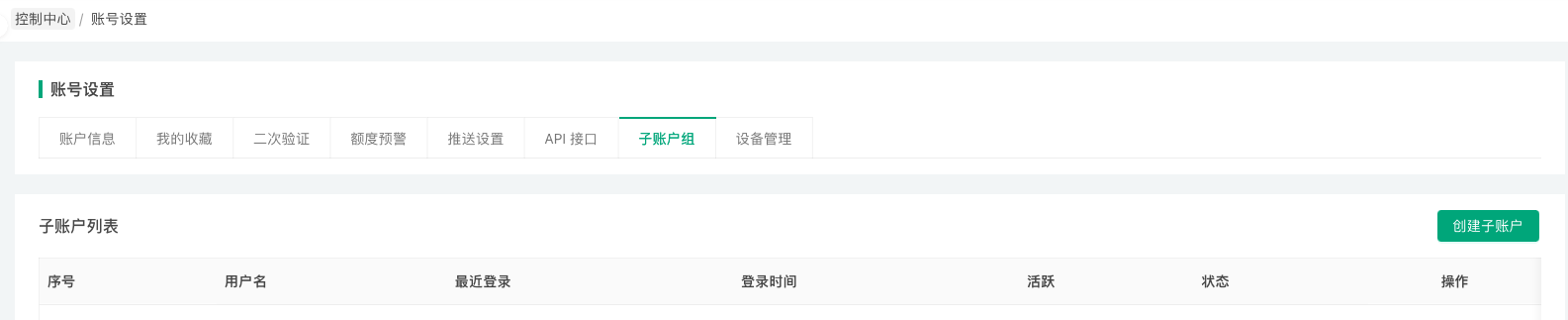
On the account settings page, open the sub-account tab, select the live robots the sub-account may access under operation permissions, enter its username and login password, and create it. Sub-accounts are listed on the same page, where you can edit, lock/unlock or delete them.
Permissions
A sub-account sees only the live robots authorized to it. On those robots it can change parameters, stop and restart, but it cannot change the exchange objects configured for the robot.
Typical uses
- A quant team sharing the management of several live robots.
- Letting the renter of a strategy help debug a live robot.