Deploy Docker
The docker management page lists the dockers of your account, as a list or with details, including each docker's IP address, version and build time. Click Deploy Docker to open the docker deployment page, which offers two ways: one-click docker rental and manual deployment.
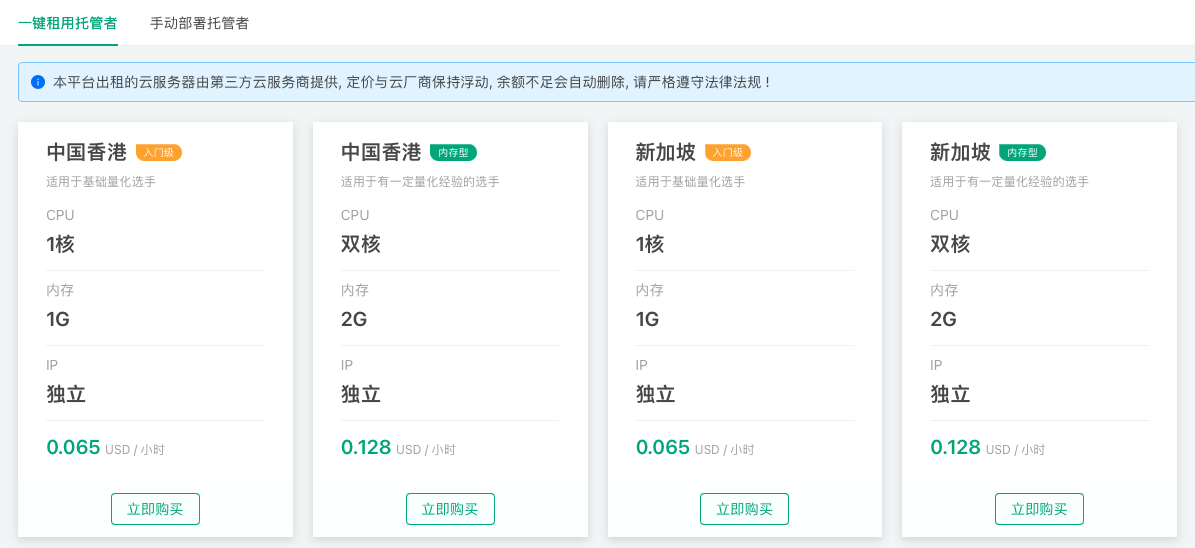
One-Click Docker Rental
On the Docker Deployment Page, click the One-Click Docker Rental tab and select the server to deploy based on your configuration requirements and server location preferences.
Click "Buy Now" and enter your FMZ Quant Trading Platform account credentials for verification. After successful verification, the docker program will be deployed automatically. The entire deployment process takes a few minutes, and the system will automatically install commonly used Python libraries.
After clicking "Buy Now", the rented server is provisioned through the platform on your behalf and has limited system permissions, with no support for remote login. If you need to use third-party Python libraries that are not pre-installed, it is recommended to use a private server for manual deployment.
Servers rented through the One-Click Docker Rental feature use independent billing, which is separate from live trading billing.
Clicking the "Redeploy" button will not delete the live trading logs and data files in the logs directory under the docker directory.
Manual Deployment of Docker
The docker can run on a PC, a server, a Raspberry Pi (64-bit OS) and similar devices. Only 64-bit builds are released:
- Linux command line: x86_64 (amd64), ARM64 (aarch64)
- macOS command line: Intel, Apple Silicon
- Windows: x64 and ARM64, each with a command-line and a GUI version
On the docker deployment page, click Manual Deployment, download the build for your system and unpack it; the executable robot is the docker program. The same page shows the two pieces of information needed:
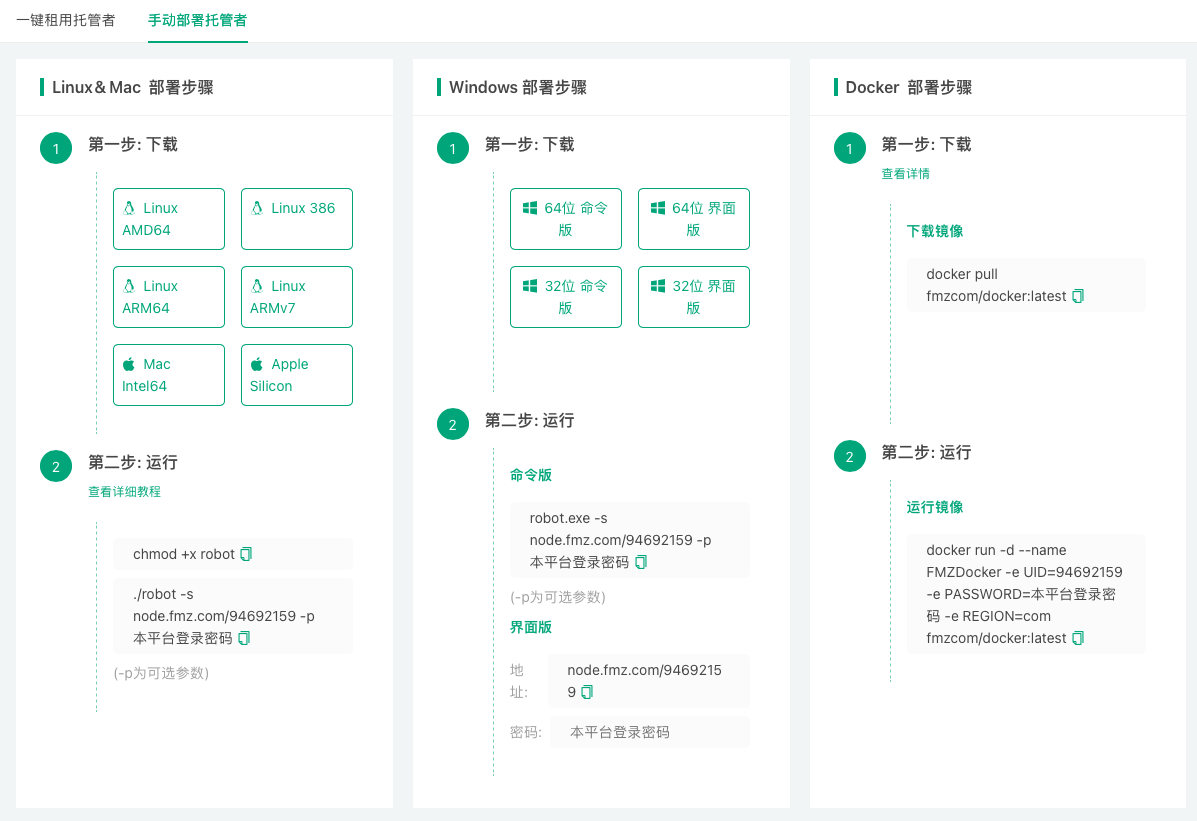
- Communication address: contains your account UID, like
node.fmz.com/123456. - Password: the password of the FMZ account that owns the UID.
Windows GUI version
Run robot.exe, enter the communication address and password, and click start.
Command-line version
bash
chmod +x robot # Linux/macOS: make it executable before the first run
./robot -s node.fmz.com/123456 # prompts for the password, which is not echoed
123456 is only an example; the real address is on the docker deployment page. Do not pass the password in plain text with -p: it stays in the shell history and the process list. For unattended start-up, put the address and password in a configuration file robot.conf that only you can read:
            bash

            cat > robot.conf <<'EOF'
s=node.fmz.com/123456
p=your-password
EOF
chmod 600 robot.conf
./robot -c robot.conf               # with robot.conf in the startup directory, plain ./robot loads it too
All options and the configuration file format are described in Platform Basics → Docker → Command-Line Options.
Running in the background
The docker ignores the terminal hang-up signal: start it in the foreground over SSH and simply disconnect, and it keeps running, with its log also written to logs/docker.log. To start at boot or restart after a crash, run it under a service manager such as systemd, e.g. /etc/systemd/system/robot.service:
            ini

            [Unit]
Description=FMZ robot
After=network-online.target
Wants=network-online.target

[Service]
WorkingDirectory=/opt/robot
ExecStart=/opt/robot/robot -c /opt/robot/robot.conf
Restart=on-failure
TimeoutStopSec=90

[Install]
WantedBy=multi-user.target
            bash

            sudo systemctl daemon-reload
sudo systemctl enable --now robot
The SIGTERM sent by systemctl stop robot makes the docker shut down gracefully: it stops all its live robots, reports their state and then logs out of the platform. TimeoutStopSec leaves enough time so that it is not killed before finishing.
Upgrading the docker
The strategy runtime and the exchange connectors are delivered by the platform when needed and need no manual updates. To upgrade the docker program itself, stop the docker (see Docker Operation Precautions), replace the robot executable with the new version and start it in the same working directory. The logs directory there keeps the docker identity and the robot data, so the docker comes back with its old ID.
Isolating strategy processes in Docker containers
On Linux and macOS, the command-line version can run each strategy process in its own Docker container with the -i option (Docker must be installed and running on the machine). This isolates strategy processes; it is not a Docker image of the docker program itself. See Command-Line Options for the parameters.
Docker Operation Precautions
Stop the robots first, then the docker
Before deleting a docker or stopping its process, make sure no live robot is running on it.
Stopping the docker normally
- Command-line version: press
Ctrl+Conce in the terminal, or sendSIGTERMto the process (kill <PID>,systemctl stop). - Windows GUI version: click the stop button.
On a stop request the docker shuts down gracefully: it stops all its live robots, reports their final state and then logs out of the platform. Pressing Ctrl+C again during this shutdown skips the reporting and logout and exits at once; normally do not do that.
Avoid forced termination
Do not end the docker with kill -9, cut the power or force a shutdown. The docker then has no chance to log out, and its live robots may still show as running on the platform and keep being billed; in that case the offline docker has to be deleted before those robots can be stopped. Stop the docker before rebooting the server; when it runs under a service manager such as systemd, a system shutdown sends SIGTERM automatically.