Live Trading
As opposed to a backtest, a live robot is a strategy program instance that really interacts with an exchange (fetching market data, querying positions, placing and canceling orders, etc.). An instance connected to the exchange's production environment is a live robot, and so is one connected to the exchange's simulation environment (many exchanges offer a test environment).
Creating a live robot
On the robot creation page, choose the strategy, the docker host and the exchanges, then create the robot. Three things must be ready beforehand:
- A strategy: click "New Strategy" in the Strategy Library, write it and save it.
- An online docker: click "Deploy Docker" on the Docker page (see Platform Basics → Docker).
- An exchange account: click "Add Exchange" on the Exchange page and configure it (see Platform Basics → Exchange).
Live robots are billed by the hour and cannot start without enough balance (see Platform Basics → Account and Billing → Live Robot Billing and Top-up).
Robot monitoring
On the live trading page, click "Monitor" in the actions column of a running robot to enable monitoring. Once enabled, the platform emails the address bound to your account when the robot exits for any reason other than a manual operation.
Robot database
For robot ID 123456, the database file is logs/storage/123456/123456.db3 (SQLite) under the working directory of the docker running it, with these tables:
- chart: chart data.
- cfg: the latest state such as the status bar content and the chart configuration.
- kvdb: data persisted with the
_G()function. - log: robot logs.
- profit: profit data.
The same directory also holds the strategy process's standard output stdout.log and standard error stderr.log.
In this chapter
- Grouping: group management of robots and strategies.
- Live Trading Observation: show a robot publicly or create a private viewing link.
- Live Trading Message Push: push logs to the mobile app, email or a WebHook.
- Common Causes of Live Trading Errors and Abnormal Exits.
To let other people view and operate some of your robots, use sub-accounts (see Platform Basics → Account and Billing → Sub-accounts).
Grouping
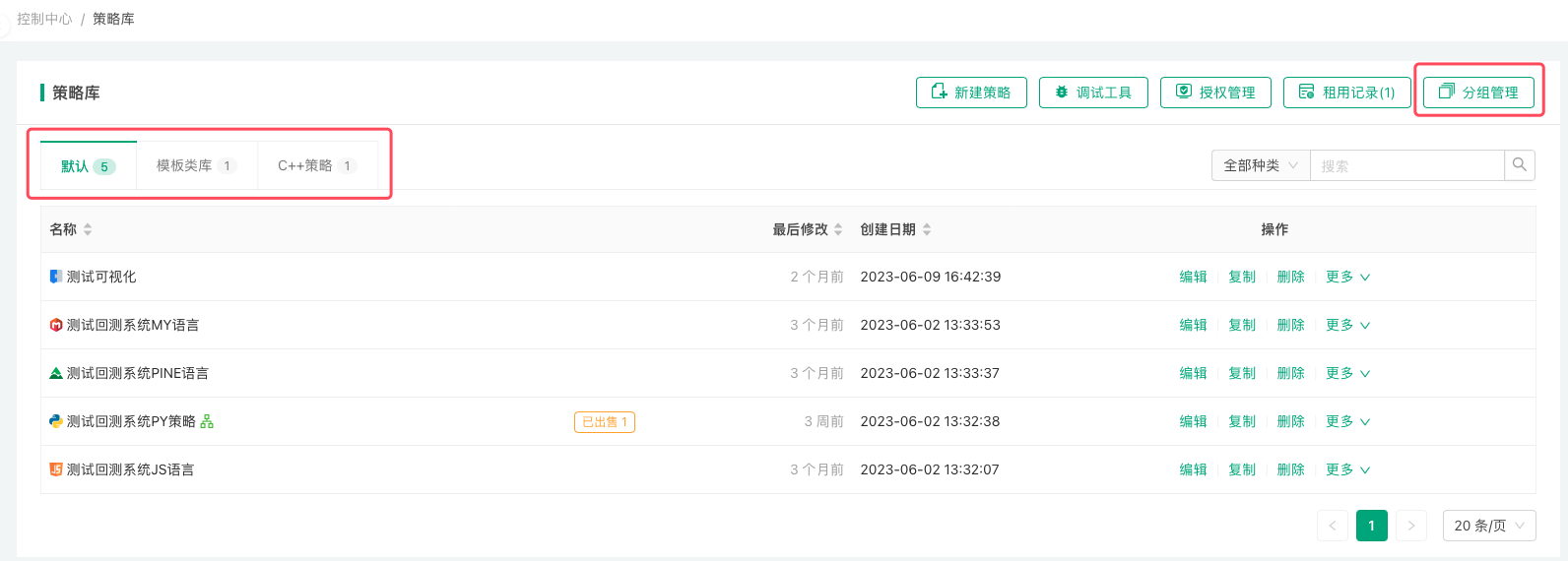
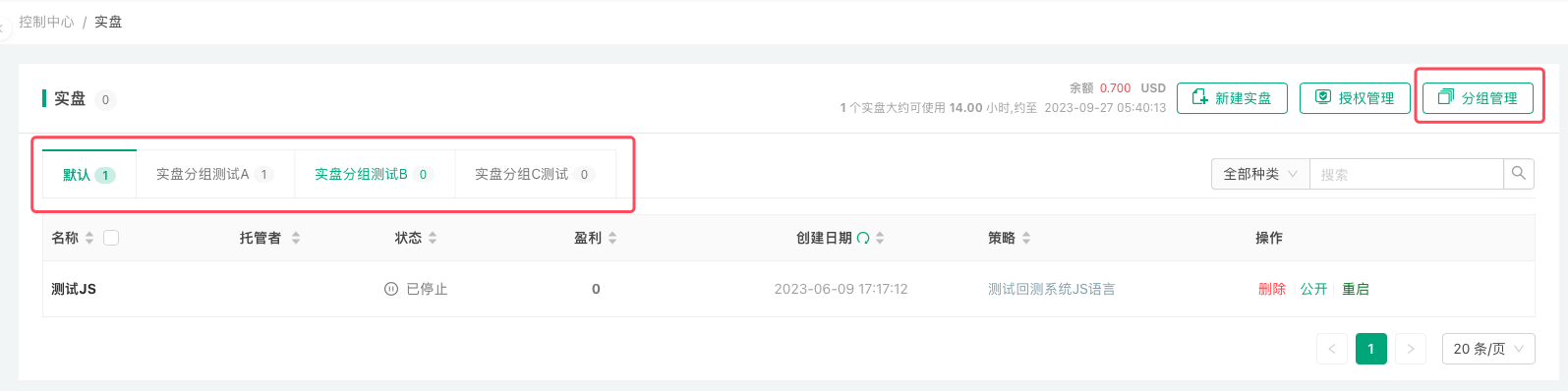
Click the Group Management button on the right of the "Live Trading" page or the "Strategy Library" page to group robots or strategies; group names are up to you.
For strategies, for example, you can put template libraries in one group, JavaScript strategies in another and test strategies in a third.
-
Strategy groups
-
Robot groups
Live Trading Observation
Click the "Public" button in the live trading list on the Live Trading Page of FMZ Quant Trading Platform to publicly display the current live trading instance.
Live trading observation currently supports two methods:
-
- Publicly display live trading on the Live Trading Observation page of FMZ Quant Trading Platform. Click the "Public" button and select Public Sharing.
-
- Create a private link for live trading observation.
Click the "Public" button and select Internal Sharing, set the validity period to generate a private link for accessing the private observation page of this strategy's live trading.
- Create a private link for live trading observation.
Live Trading Message Push
You can enable the message push feature on the Push Settings page.
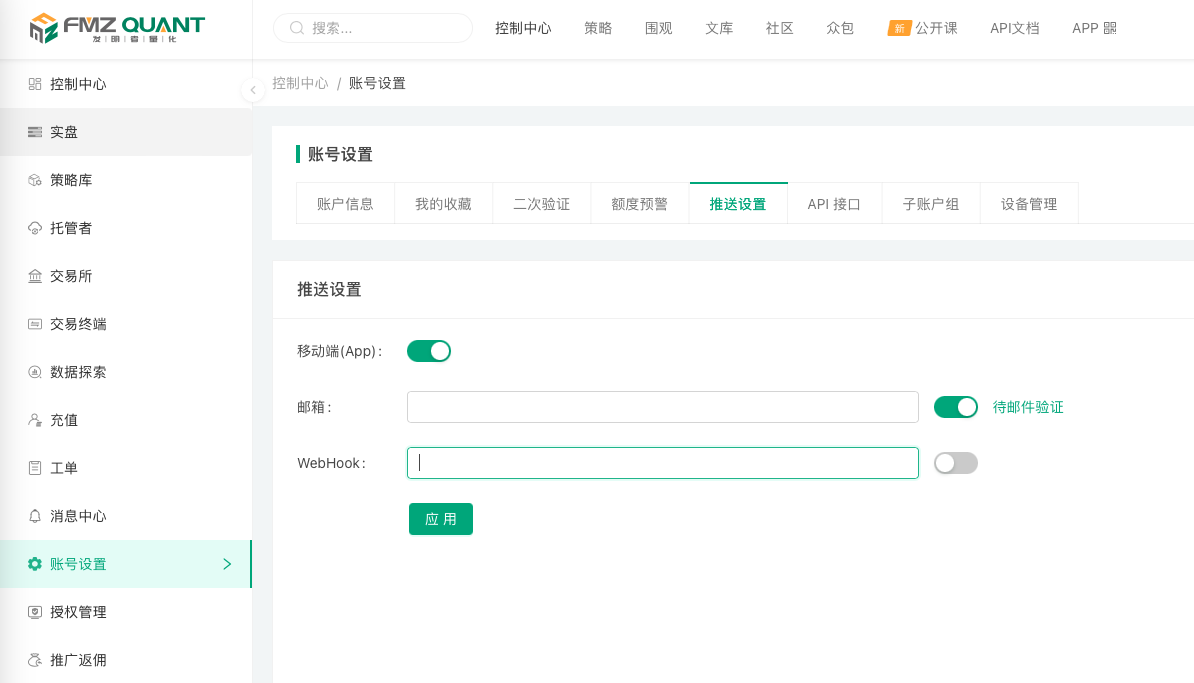
- Mobile (App)
After enabling mobile App push, push messages sent by the live trading program will be delivered to the FMZ Quant mobile App. - Email
To enable email push, you must first verify your email address. Once verified, you can receive push messages sent by the live trading program. - WebHook
After enabling WebHook push, you can customize the push address, for example:http://abc.com/push.php?data={body}.
When the live trading program sends a push message, the platform will send a request to the configured addresshttp://abc.com/push.php?data={body}(only theGETmethod is supported), and the pushed message content will replace the{body}placeholder.
Pushing Messages in Strategies
- JavaScript/TypeScript/Python/Rust Languages
In the strategy code, you can use theLog()function as well as other functions that output log information in the log area, such asexchange.CreateOrder(),exchange.CancelOrder(), etc.
By passing an additional parameter"@"to these functions (i.e., adding an extra parameter beyond the required ones), for exampleLog("This is a push message", "@"), the output log information will be pushed, and the platform will push the message according to the "Push Settings". In the Rust language, the correspondingLog!macro is used the same way:Log!("This is a push message", "@");. - PINE Language/My Language
In the "Trading Library" parameters integrated into PINE Language/My Language strategies, you can enable trading log push, which will automatically push messages after a trading action is triggered. - Blockly Visual
In the "Tools" section, select the Message Push module to push specified information.
Message push is subject to a frequency limit, with the following rule: within each 20-second cycle of live trading, only the last message is retained and pushed, while all other messages are filtered out and not pushed.
Common Causes of Live Trading Errors and Abnormal Exits
The robot cannot start
- No online docker
A robot cannot start while its docker is offline. Check on the docker page that the docker is online, or pick another online docker. - Insufficient balance
Starting a robot prepays its first hour, so it cannot start without enough balance; if the balance runs out while it runs, the platform stops it. Top up and start it again (see Platform Basics → Account and Billing → Live Robot Billing and Top-up). - Rented strategy expired or concurrency limit reached
When a rented strategy expires, robots using it are stopped and cannot be started again; once the rental's maximum number of concurrent robots is reached, no further robot can start. - Key decryption failed
The error containssecret key decrypt failed (wrong password). The FMZ account password was changed, so the exchange keys configured earlier can no longer be decrypted. To fix it:- Re-enter the exchange keys, passwords and similar fields on the Exchange management page.
- Stop all dockers and start them again with the new password.
- Credential file not found
The exchange configuration uses afile:///xxx.txtcredential file that is missing from the robot directory; the error containsread key file. An invalid path fails withkey file path must be relative and cannot contain '..'orkey file path escapes the robot directory. See Platform Basics → Exchange → Local Credential Files.
Errors caused by strategy code
-
Static syntax errors
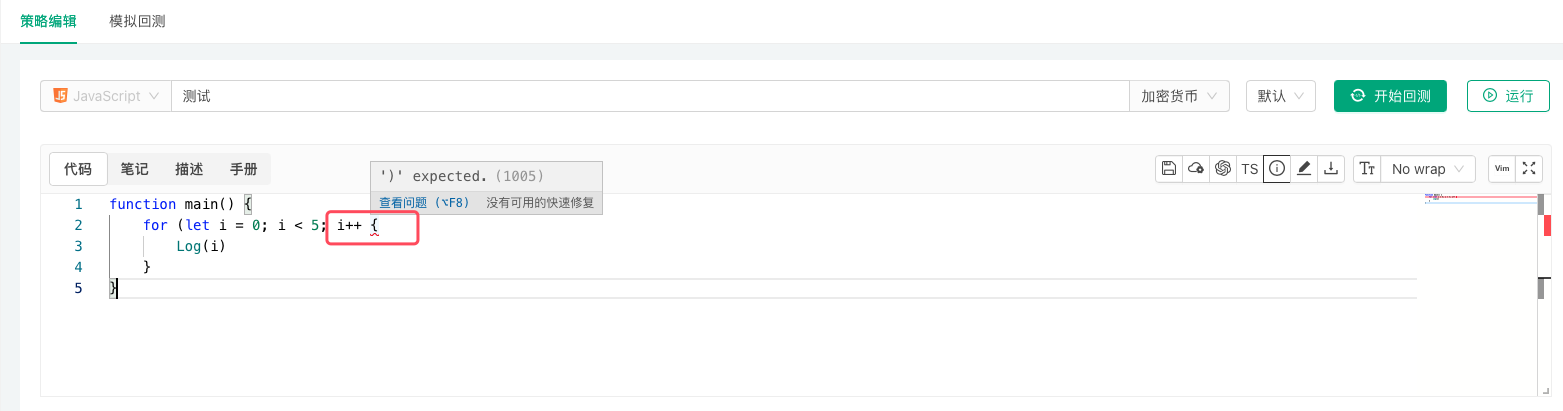
These are obvious: the strategy editing page usually marks them, and a backtest reveals them too.
-
Runtime errors
The most common one is using a function's return value without checking that it is valid. -
Excessive memory usage
Keeping too much data that cannot be garbage-collected in global variables. -
Improper use of
exchange.Gofor concurrent requests
Calling the asynchronousexchange.Gowithout callingwaitfor the results in time, so that too many concurrent tasks pile up. -
Recursion too deep
Too many levels of recursion exceed the call stack size.
Other errors
- API business errors and network request errors
These show the exchange object name, the function name, the error message and the reason, and do not stop the robot by themselves. They are usually the trigger rather than the direct cause, which is typically a program exception from using an API return value without checking it. interrupterror
Logged when the user clicks the Stop button on the robot page while the program is in the middle of an operation (such as an exchange API call) and the stop interrupts it. It is harmless, just a log entry.
See the FAQ collection for more.