Types of Interactive Controls
| Variable (naming example) | Description | Type | Default Value (description) | Component Configuration (description) | Notes |
|---|---|---|---|---|---|
| cmdNum | Description of interactive control cmdNum | Number type (number) | Default value is optional, can be left empty | Used to set the component type, minimum value, maximum value, grouping, etc. of the interface control bound to the current interactive item | Notes for interactive control cmdNum |
| cmdBool | Description of interactive control cmdBool | Boolean type (true/false) | Default value is required, on or off | Same as above | Notes for interactive control cmdBool |
| cmdStr | Description of interactive control cmdStr | String type (string) | Default value is optional, can be left empty | Same as above | Notes for interactive control cmdStr |
| cmdCombox | Description of interactive control cmdCombox | Dropdown (selected) | Default value is optional, can be left empty | Same as above | Notes for interactive control cmdCombox |
| cmdBtn | Description of interactive control cmdBtn | Button (button) | Button control does not bind input items | Same as above | Notes for interactive control cmdBtn |
Messages (strings) sent to the strategy after interactive control is triggered:
- Number type
After entering interactive data123in the input box of interactive controlcmdNum, click the button of interactive control cmdNum. TheGetCommand()function in the strategy program will receive the message:cmdNum:123. - Boolean type
After setting the switch control of interactive controlcmdBoolto on, click the button of interactive control cmdBool. TheGetCommand()function in the strategy program will receive the message:cmdBool:true. - String type
After entering interactive dataabcin the input box of interactive controlcmdStr, click the button of interactive control cmdStr. TheGetCommand()function in the strategy program will receive the message:cmdStr:abc. - Dropdown
After selecting the second option in the dropdown of interactive controlcmdCombox, click the button of interactive control cmdCombox. TheGetCommand()function in the strategy program will receive the message:cmdCombox:1, where 1 represents the index of the selected option, the first option has index 0, the second option has index 1. - Button
Click the button of interactive controlcmdBtn. TheGetCommand()function in the strategy program will receive the message:cmdBtn.
The "Component Configuration" of interactive controls is the same as for strategy parameters (see Strategy Parameters → Component Configuration).
Example: changing a strategy parameter with an interactive control
On the strategy editing page, add a string interactive control named changeSymbol under "Strategy Interaction". The settings of the interactive control:
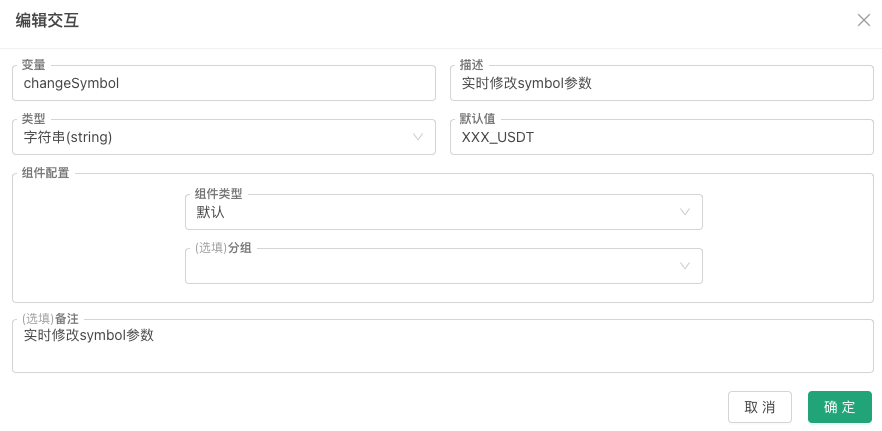
While the strategy runs live, enter ETH_USDT in the control's input box and click its button; GetCommand() receives the message changeSymbol:ETH_USDT. The strategy detects the message and updates the corresponding variable (parameters set in the strategy interface are global variables too; a global variable in the code is used here for demonstration):
javascript
// strategy parameter
var symbol = "BTC_USDT"
function main() {
while (true) {
var cmd = GetCommand()
if (cmd) {
var arr = cmd.split(":")
if (arr.length == 2 && arr[0] == "changeSymbol") {
// the changeSymbol control was triggered: update the parameter
Log("Changed symbol parameter to:", arr[1])
symbol = arr[1]
}
}
LogStatus(_D(), ", Current symbol parameter value:", symbol)
Sleep(3000)
}
}