Strategy Parameters
Parameters set in the strategy interface appear in the strategy code as global variables with the same names (global constants in Rust) and are accessed by name:
JavaScript,MyLanguage: parameters can be read directly and the parameter variables can also be modified in code.Python: parameters can be read directly; to assign a new value to one inside a function, declare it withglobalfirst.Rust: parameters are constants that can only be read, not modified; see Programming Languages → Rust for the type of each kind of parameter.PINE: interface parameters are created with theinput()function.Blockly Visual: there are no interface parameters.
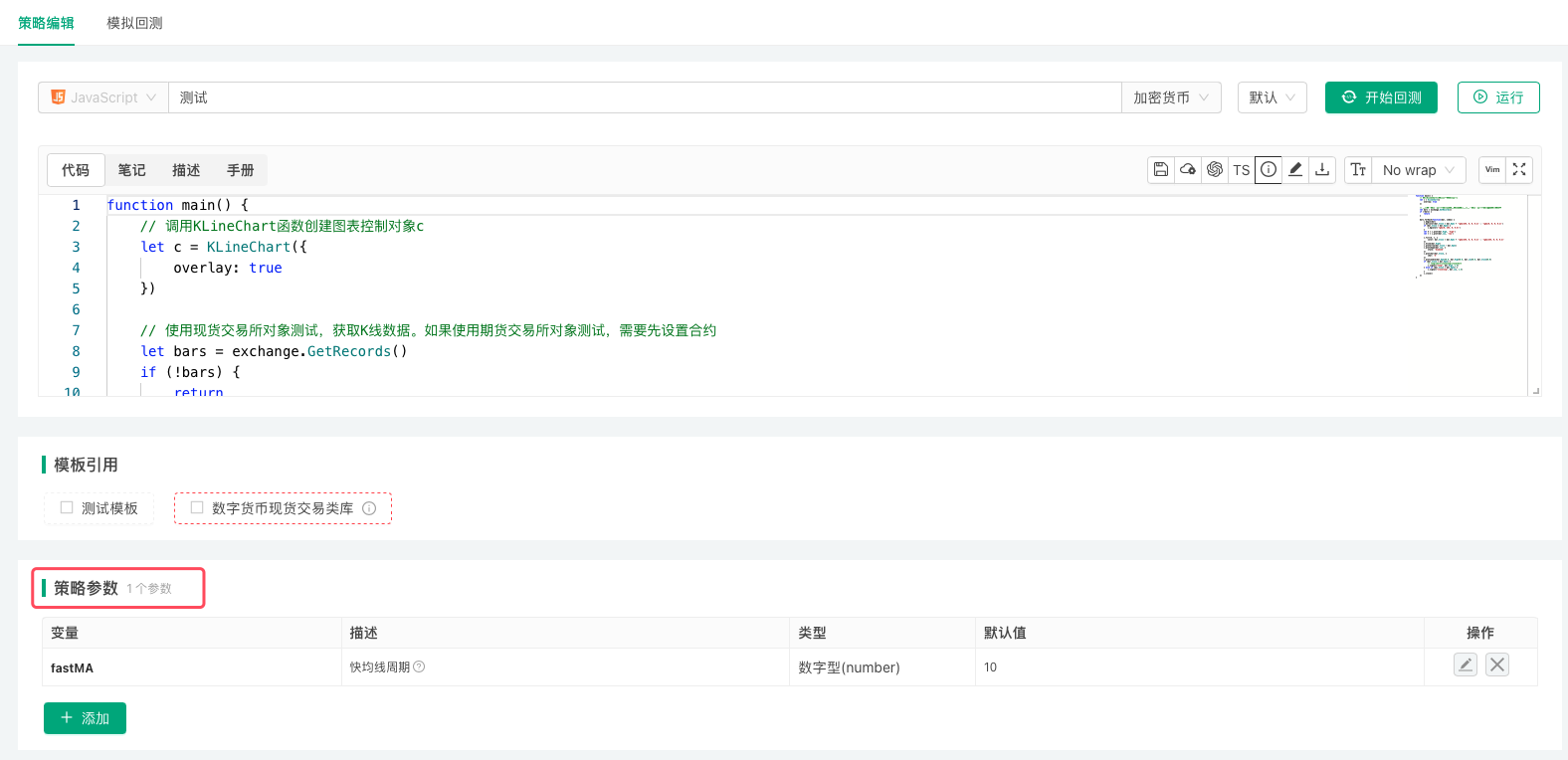
Interface Parameter Types
| Variable (naming example) | Description | Type | Default Value (description) | Component Configuration (description) | Remarks |
|---|---|---|---|---|---|
| pNum | Description of parameter pNum | Numeric (number) | Example: Set default value to 100; f64 in Rust strategies | Used to set the interface control bound to the current parameter: component type, minimum value, maximum value, grouping, filters, etc. | Remarks for parameter pNum, the value of pNum is numeric type |
| pBool | Description of parameter pBool | Boolean (true/false) | Use switch control to set default value, optional control not supported | Same as above | Remarks for parameter pBool, the value of pBool is boolean type |
| pStr | Description of parameter pStr | String (string) | Example: Set default value to abc | Same as above | Remarks for parameter pStr, the value of pStr is string type |
| pCombox | Description of parameter pCombox | Dropdown (selected) | Set one or more options from the options | Same as above | Remarks for parameter pCombox, the value of pCombox may have various forms |
| pSecretStr | Description of parameter pSecretStr | Encrypted string (string) | Example: Set default value to xyz | Same as above | Remarks for parameter pSecretStr, the value of pSecretStr is string type |
Interface parameters are configured in the strategy parameters area below the code editor on the strategy editing page. Please note the following:
- In the default value option of parameter settings, the "Optional" control is optional by default. You can change the state of this control to set the current parameter as required. After setting a parameter as required, if the parameter is not set during backtesting or live trading, backtesting cannot be performed or live trading cannot be started.
- Variable names for interface parameters in strategy code should not use reserved words (keywords) of the current programming language.
- In the backtesting or live trading interface, hovering the mouse over the control bound to a parameter will display the parameter's remarks.
- The "Description" of a parameter is the display name of the control bound to the parameter.
- The "Variable" of a parameter refers to those in the table above:
pNum,pBool,pStr,pCombox,pSecretStr. They exist as global variables in the strategy code, so the values of strategy parameters can be modified in the code (except in Rust, where parameters are global constants and cannot be modified). - For "Encrypted string" and "String" type parameters, no quotes are needed when entering default values; all input is treated as strings. "Encrypted string" parameters are used the same way as "String" parameters, but encrypted strings are transmitted encrypted and not sent in plain text.
- If a "String" type parameter is set to "Optional", when no parameter is filled in the control bound to the parameter, the value of the parameter variable is empty string;
Similarly, the value of a "Numeric" parameter is null;
Similarly, the value of a "Dropdown" parameter is null;
Similarly, the value of an "Encrypted string" parameter is null.
InRuststrategies, an optional parameter that is left empty has the zero value of its type:0for numbers, an empty string for strings and encrypted strings,falsefor booleans. - For dropdown type interface parameters (e.g., variable name
pCombox), when "Support multiple selection" is not enabled in "Component Configuration", the value of pCombox is the index or specific data of the currently selected option (when data is bound to options).
If "Support multiple selection" is enabled, the value of pCombox is an array containing the indices or specific data of all currently selected options (when data is bound to options).
Component Configuration
Both strategy interface parameters and strategy interactive controls have a "Component Configuration" option. It sets the UI control used for the parameter (or interactive control), as well as the minimum, maximum, group, filter and so on.
Components supported by each type:
- Number (number)
Input box (default), time picker, slider. - Boolean (true/false)
Switch only (default). - String (string)
Input box (default), text box, time picker, color picker, currency, trading symbol. - Dropdown (selected)
Dropdown (default), segmented control, currency, trading symbol. - Encrypted string (string), strategy parameters only
Encrypted input box only (default). - Button (button), interactive controls only
A single button (default), with no input.
Group
Enter a label in the "Group" box of the component configuration to put several strategy parameters in the same group (replacing the platform's old "Strategy Grouping" feature). Interactive controls can be grouped the same way (replacing the old "Interactive Control Grouping" feature).
Filter
In the component configuration of a strategy parameter, the "Filter" box takes a condition expression that controls whether the parameter is available (replacing the platform's old "Parameter Dependency" feature).
The filter is empty by default, meaning no filtering. Expressions such as a > b, a == 1, a, !a and a >= 1 && a <= 10 can be used. The parameter is available when the condition is true.
- With the filter
a == 1, the parameter's availability depends on the value of parametera: it is available whenaequals 1, otherwise not. - With the filter
a >= 1 && a <= 10, the parameter is available whenais greater than or equal to 1 and less than or equal to 10, otherwise not. - With the filter
!a, the condition is "not a";acan be a boolean or a number (!0is true).
Save Parameter Settings
-
Parameter saving in the backtesting system
When backtesting, if you want to save the strategy parameters, you can click the "Save Backtest Settings" button after modifying the strategy parameters. For details, see Backtesting System → Backtest Configuration and Saving.Variable Description Type Default Value number Numeric type Number (number) 1 string String String (string) Hello FMZ combox Dropdown box Dropdown (selected) 1|2|3 bool Boolean value Boolean (true/false) true numberA@isShowA Numeric A Number (number) 2 isShowA Whether to display the numberA parameter Boolean (true/false) false The configured strategy parameters will be saved in the strategy in the form of code, for example:
javascript/*backtest start: 2020-02-29 00:00:00 end: 2020-03-29 00:00:00 period: 1d args: [["number",2],["string","Hello FMZ.COM"],["combox",2],["bool",false],["numberA@isShowA",666],["isShowA",true]] */python'''backtest start: 2020-02-29 00:00:00 end: 2020-03-29 00:00:00 period: 1d args: [["number",2],["string","Hello FMZ.COM"],["combox",2],["bool",false],["numberA@isShowA",666],["isShowA",true]] '''rust/*backtest start: 2020-02-29 00:00:00 end: 2020-03-29 00:00:00 period: 1d args: [["number",2],["string","Hello FMZ.COM"],["combox",2],["bool",false],["numberA@isShowA",666],["isShowA",true]] */If a
Ruststrategy declares dependencies in a frontmatter block at the top, the backtest configuration block must come after the frontmatter (see Programming Languages → Rust). -
Importing and exporting live trading parameters
When running live trading, if you need to save the parameter data of the live trading configuration, you can click the "Parameter Settings" option on the strategy live trading page, then click the "Export Parameters" button. The exported strategy parameters will be saved as ajsonfile.
The exported strategy parameter configuration can also be imported into live trading again. Click the "Import Parameters" button to import the saved strategy live trading parameters into the current live trading, and after importing, click the "Update Parameters" button to save and apply them.