Welcome to FMZ Quant Trading Platform
Programming Languages
Key Security
Live Trading
Strategy Library
Docker
Exchange
Strategy Editor
Backtesting System
Backtesting System Modes
Impact of Backtest Data Granularity on Backtesting
The backtesting system supports multiple programming languages
Exchanges Supported by Backtesting System
Backtest System Parameter Optimization
Save Backtest Settings
Custom Data Source
Local Backtesting Engine
Backtest Page Shortcuts
Backtest Data Download
Backtest System Sharpe Ratio Algorithm
Strategy Entry Functions
Strategy Framework and API Functions
Template Library
Strategy Parameters
Interactive Controls
Options Trading
Rust Strategy Development Guide
C++ Strategy Writing Guide
JavaScript Strategy Writing Guide
Web3
Built-in Libraries
Extended API Interface
MCP Service
Trading Terminal
Data Explorer
Alpha Factor Analysis Tool
General Protocol
Debugging Tool
Remote Editing
Import and Export of Complete Strategies
Multi-language Support
Live Trading and Strategy Grouping
Live Trading Display
Strategy Sharing and Renting
Live Trading Message Push
Common Causes of Live Trading Errors and Abnormal Exits
Exchange-Specific Notes
Live Trading Message Push
You can enable the message push feature on the Push Settings page.
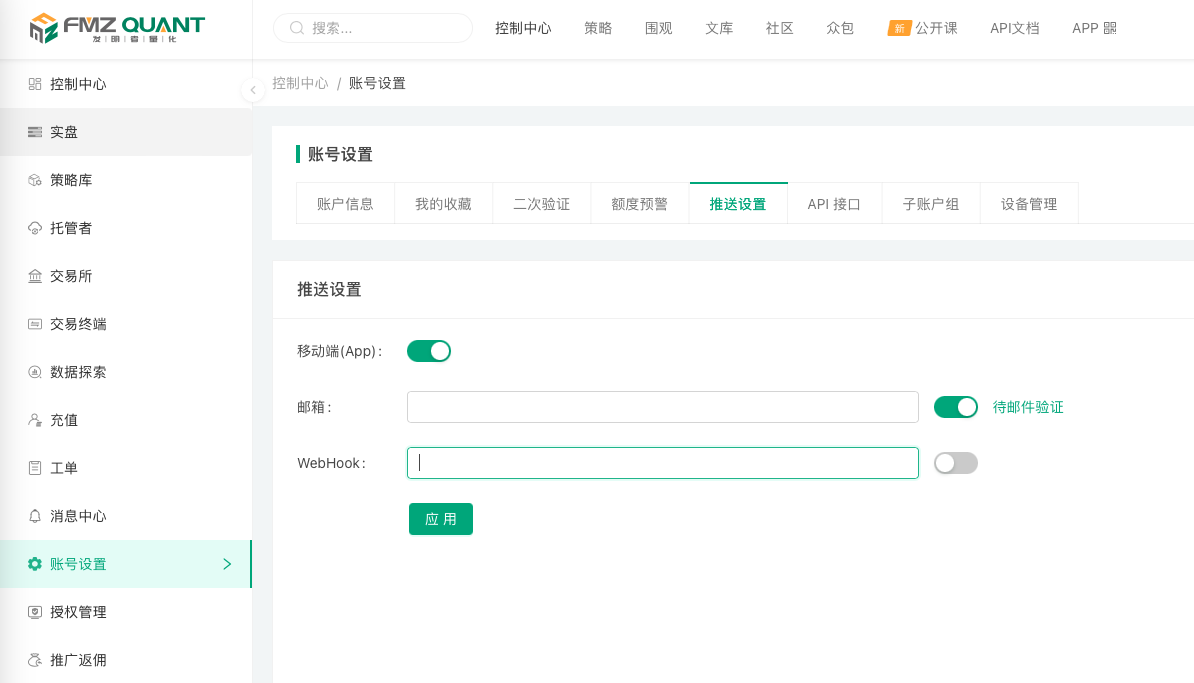
- Mobile (App)
After enabling mobile App push, push messages sent by the live trading program will be delivered to the FMZ Quant mobile App. - Email
To enable email push, you must first verify your email address. Once verified, you can receive push messages sent by the live trading program. - WebHook
After enabling WebHook push, you can customize the push address, for example:http://abc.com/push.php?data={body}.
When the live trading program sends a push message, the platform will send a request to the configured addresshttp://abc.com/push.php?data={body}(only theGETmethod is supported), and the pushed message content will replace the{body}placeholder.
Pushing Messages in Strategies
- JavaScript/TypeScript/Python/Rust/C++ Languages
In the strategy code, you can use theLog()function as well as other functions that output log information in the log area, such asexchange.CreateOrder(),exchange.CancelOrder(), etc.
By passing an additional parameter"@"to these functions (i.e., adding an extra parameter beyond the required ones), for exampleLog("This is a push message", "@"), the output log information will be pushed, and the platform will push the message according to the "Push Settings". In the Rust language, the correspondingLog!macro is used the same way:Log!("This is a push message", "@");. - PINE Language/My Language
In the "Trading Library" parameters integrated into PINE Language/My Language strategies, you can enable trading log push, which will automatically push messages after a trading action is triggered. - Blockly Visual
In the "Tools" section, select the Message Push module to push specified information.
Message push is subject to a frequency limit, with the following rule: within each 20-second cycle of live trading, only the last message is retained and pushed, while all other messages are filtered out and not pushed.