Live Trading Display
FMZ Quant Trading Platform provides multiple ways to display the live trading status of strategies.
Sub-accounts
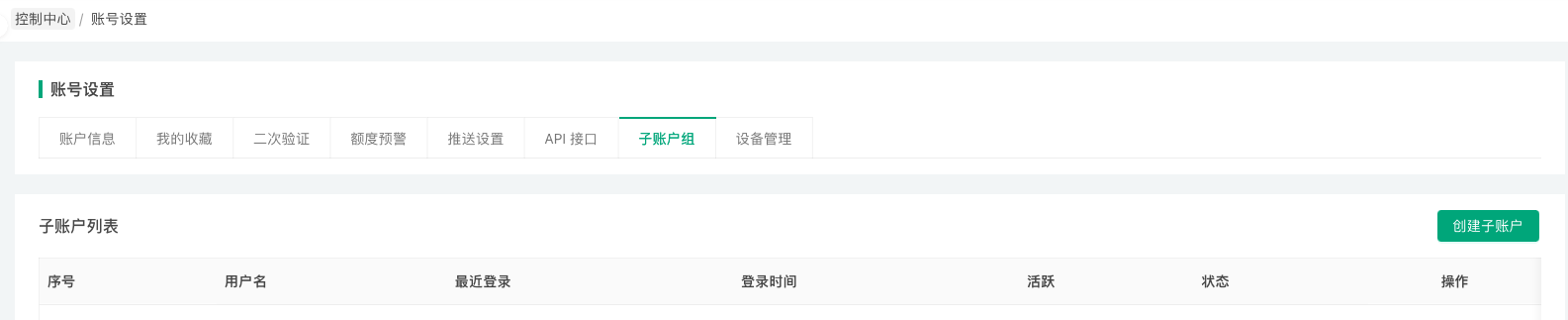
After logging into the platform, click "Control Center" and "Account Settings" to navigate to the FMZ account management page. Click "Sub-account Group" to see the sub-account creation page. In the Operation Permissions control, select the live trading accounts that the created sub-account can access. In the User Information control, set the sub-account's username and sub-account login password. Click the "Create Sub-account" button to create a sub-account. Created sub-accounts will be displayed on the current page, where you can perform "Modify", "Lock/Unlock", and "Delete" operations.
Sub-accounts have limited permissions and can only view live trading accounts authorized in the Operation Permissions settings. For authorized live trading accounts, sub-accounts have permissions to modify parameters, stop live trading, and restart live trading, but cannot modify the exchange objects configured for live trading.
Common use cases for sub-accounts include:
-
- When quantitative trading teams manage multiple live trading strategies, facilitating login and management.
-
- When renting out strategies, used for users' live trading debugging work.
Live Trading Observation
Click the "Public" button in the live trading list on the Live Trading Page of FMZ Quant Trading Platform to publicly display the current live trading instance.
Live trading observation currently supports two methods:
-
- Publicly display live trading on the Live Trading Observation page of FMZ Quant Trading Platform. Click the "Public" button and select Public Sharing.
-
- Create a private link for live trading observation.
Click the "Public" button and select Internal Sharing, set the validity period to generate a private link for accessing the private observation page of this strategy's live trading.
- Create a private link for live trading observation.