Docker
The Docker software of the FMZ Quant Trading Platform is the core component of the entire quantitative trading system. Docker can be understood as the executor of your trading strategy, responsible for complex data requests, data reception, network connections, log transmission, and other tasks. Live trading strategy programs run on the Docker software, not on the FMZ Quant Trading Platform website. The Docker runs on your server, so even if the FMZ Quant Trading Platform website experiences network failures, it will not affect your Docker's operation. Docker can run on systems such as Linux, Windows, Mac OS, Android, Raspberry Pi ARM Linux, etc.
The live trading logs managed by the Docker are all saved in the ./logs/storage directory where the Docker program is located. The files are Sqlite database files with the db3 extension. You can use Sqlite management software to edit them directly. For these live trading database files with the db3 extension, the filename is the live trading Id.
The Docker program supports automatic detection and use of system proxy settings. When proxy software (such as Clash X, V2Ray, Shadowsocks, etc.) is running on the system with enhanced mode or system proxy mode enabled, the Docker will automatically detect and use the proxy for network access without manual configuration. This is very convenient for users who need to access exchange APIs through a proxy, as the Docker can automatically adapt to the system's network environment after startup.
Deploy Docker
You can view the dockers associated with your FMZ Quant Trading Platform account on the Docker Management Page, with support for switching between list view and detailed information view. This page displays the docker's IP address, version number, compilation release time, and other related information. Click the Deploy Docker button to navigate to the Docker Deployment Page. Docker deployment offers two modes: 1. One-click docker rental; 2. Manual docker deployment.
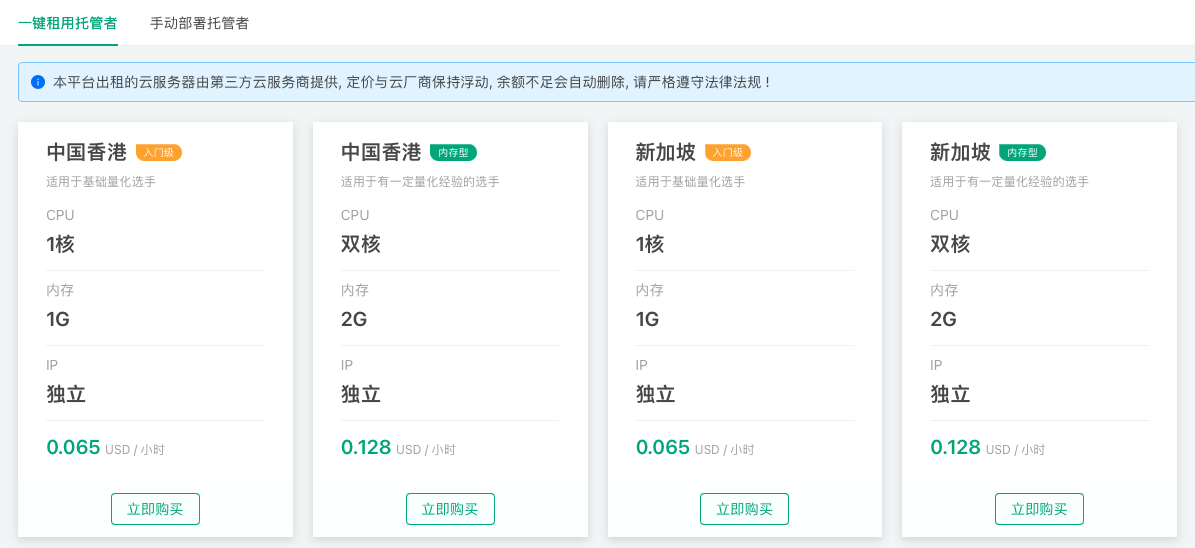
One-Click Docker Rental
On the Docker Deployment Page, click the One-Click Docker Rental tab and select the server to deploy based on your configuration requirements and server location preferences.
Click "Buy Now" and enter your FMZ Quant Trading Platform account credentials for verification. After successful verification, the docker program will be deployed automatically. The entire deployment process takes a few minutes, and the system will automatically install commonly used Python libraries.
After clicking "Buy Now", the rented server is provisioned through the platform on your behalf and has limited system permissions, with no support for remote login. If you need to use third-party Python libraries that are not pre-installed, it is recommended to use a private server for manual deployment.
Servers rented through the One-Click Docker Rental feature use independent billing, which is separate from live trading billing.
Clicking the "Redeploy" button will not delete the live trading logs and data files in the logs directory under the docker directory.
Manual Deployment of Bot
You can deploy the bot to various devices, such as: personal computers, servers, Raspberry Pi, etc., supporting multiple mainstream operating systems.
- Linux command-line version: Linux AMD64 / Linux 386 / Linux ARM64 / Linux ARMv7
- Mac command-line version: Mac Intel64 / Apple Silicon
- Windows command-line version, GUI version: 64-bit / 32-bit
- Docker image
After logging into the device where you need to deploy the bot program, download the corresponding bot program according to the device's operating system. The download link can be found in the content displayed after clicking the Manual Bot Deployment tab on the Bot Deployment Page.
Deploying the bot program requires setting 2 parameters:
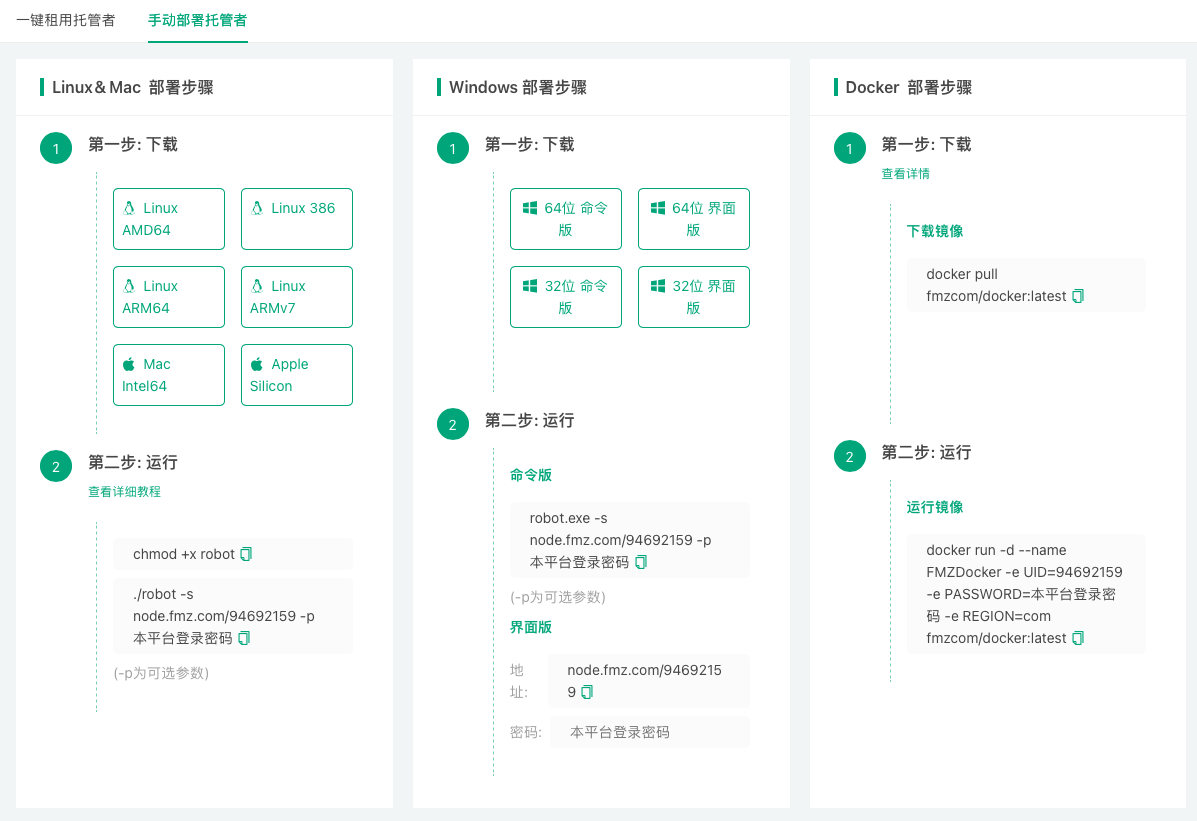
- Communication address containing the FMZ Quant Trading Platform UID.
- Password for the FMZ Quant Trading Platform account corresponding to the UID.
Configuring "Communication Address" and "FMZ Quant Trading Platform Account Password" when deploying the bot:
-
Windows GUI version bot
The Windows GUI version bot can directly fill these two parameters into the corresponding input box controls on the bot interface. -
Command-line version bot
For other command-line version bot programs, different operating systems have different commands. Taking Linux & Mac as an example, use the command:./robot -s node.fmz.com/123456 -p 654321, the following explains each part of the command:./robotmeans running the robot executable program (i.e., the bot program), where123456is the UID, and654321is the password for the FMZ Quant Trading Platform account corresponding to the UID.
-sparameter represents "Communication address with FMZ Quant Trading Platform UID", the parameter value can be filled in, for example:node.fmz.com/123456.
-pparameter represents "Password for the FMZ Quant Trading Platform account corresponding to the UID", the parameter value can be filled in, for example:654321.Please note that the parameters here are only examples. The actual parameters can be viewed after logging into FMZ.COM and clicking the Manual Bot Deployment tab on the Bot Deployment Page. The
-pparameter does not necessarily need to be written in plain text in the bot deployment command. You can use the./robot -s node.fmz.com/123456command to run, then it will prompt for password input, and you can manually enter the password. Also, please pay attention to issues such as program execution permissions, you need to grant the bot program sufficient permissions and remove running restrictions.
Docker Operation Precautions
Important Operation Tips
-
Incorrect Operations:
Do not forcibly terminate the docker process directly on servers or other devices (such as killing the process directly or restarting the server). Such operations may cause the docker to disconnect from the FMZ platform, leading to the following issues:- Live trading cannot be stopped normally
- Live trading continues to run and incur charges
When this happens, you need to delete the offline docker first before you can stop the live trading.
-
Correct Operation Procedure:
- Confirm that there are no running live trades on the docker
- Then perform the operation to delete the docker or stop the docker process
Operating Principle: Stop live trading first, then stop the docker.
Global IP Address Specification
- The GUI version of the docker on
Windowssystem can set the IP address directly in the docker software interface. The docker software defaults to automatic IP configuration. - Dockers running in command-line environment use the
-Iparameter to specify the IP address.log-I string custom local ip address -c string config file -d string custom dns resolve server -e string docker node executable path -f string docker settings json -i string docker image name -n string node name -p string password -s string server address -u string run as system user -v version info -vv show verbose log -w string working directory
Command Line Parameters for Bot Program
After downloading the bot software, the executable file robot obtained from decompression is the bot program. You can specify parameters for the bot program when deploying it.
-v:
View the current bot program version, compilation time and other information.
Complete execution command example forMac OS:./robot -v.-vv:
Detailed running logs and interaction messages of the bot program are not displayed by default and not written to the bot log file.
This prevents frequent interaction commands from causing log expansion and occupying disk space. If you need to record detailed bot logs and display them during bot operation, you can use the-vvparameter to set detailed logs and interaction messages to be written to the bot log file.-s:
Specify the communication address with FMZ Quant Trading Platform when running the bot program.
Complete execution command example forMac OS:./robot -s node.fmz.com/xxxxxxx, wherexxxxxxxis the unique identification ID for each FMZ Quant Trading Platform account. After executing the command, you will be prompted to enter the corresponding FMZ Quant Trading Platform account password.-p:
You can directly specify the password through parameters in the run command, which is not recommended as it will leave password parameters in the current system records. Assuming the password for addressnode.fmz.com/xxxxxxxis:abc123456.
Complete execution command example forMac OS:./robot -s node.fmz.com/xxxxxxx -p abc123456.-n:
Add label information to the running bot program.
Complete execution command example forMac OS:./robot -n macTest -s node.fmz.com/xxxxxxx. ThemacTesttext label will be displayed in the bot information on the platform's bot management page.-l:
Print the list of exchanges supported by the current bot.
Complete execution command example forMac OS:./robot -l. This will output the names of supported exchanges.
Live Trading Data Migration
When you need to migrate live trading data to a bot on another device (server), you can move the live trading database file (database file with .db3 extension) to the corresponding path location in the bot directory on the target device (server).
Set the filename to the corresponding live trading ID on the platform, so that all previous live trading log information will not be lost due to migration to the new device.
Docker Monitor
In the Docker Management Page, you can enable the Docker Monitor function in the Docker List Actions or Docker Details Actions. After enabling monitoring, if the docker goes offline abnormally, the email address bound to the current FMZ Quant Trading Platform will receive a notification message.