AI Assistant
FMZ Quant Trading Platform integrates advanced AI large model assistant functionality, providing users with intelligent strategy development and trading assistance services. Through deep integration with industry-leading large language models, the platform can help users quickly solve programming problems, optimize trading strategies, analyze market data, and provide professional quantitative trading guidance.
FMZ platform currently supports the following AI large models:
Claude Sonnet 4 - Anthropic's latest high-performance model with excellent code understanding and generation capabilities.
-
How to invoke AI Assistant
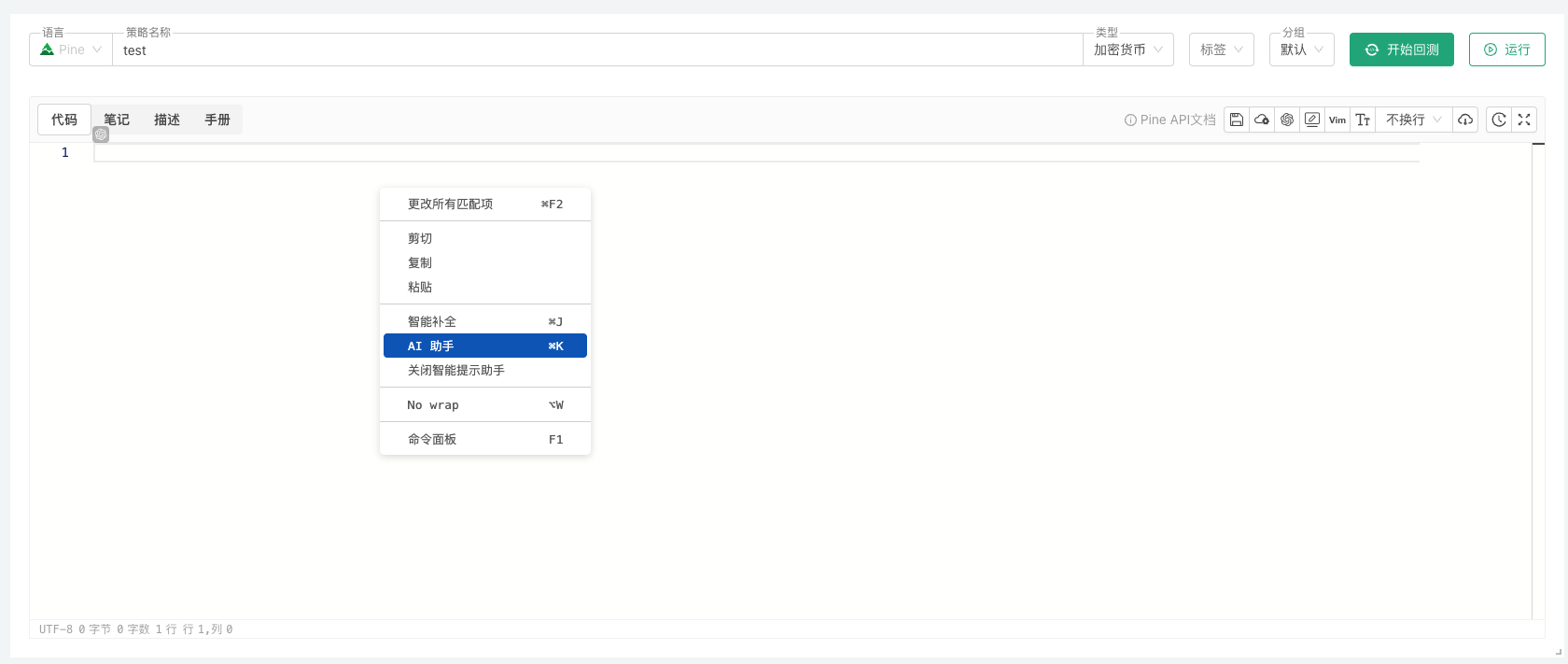
Right-click in a blank area and select "AI Assistant" from the popup menu to invoke the AI Assistant, or use the shortcut key
⌘Kto invoke the AI Assistant. -
Using AI Assistant to explain code
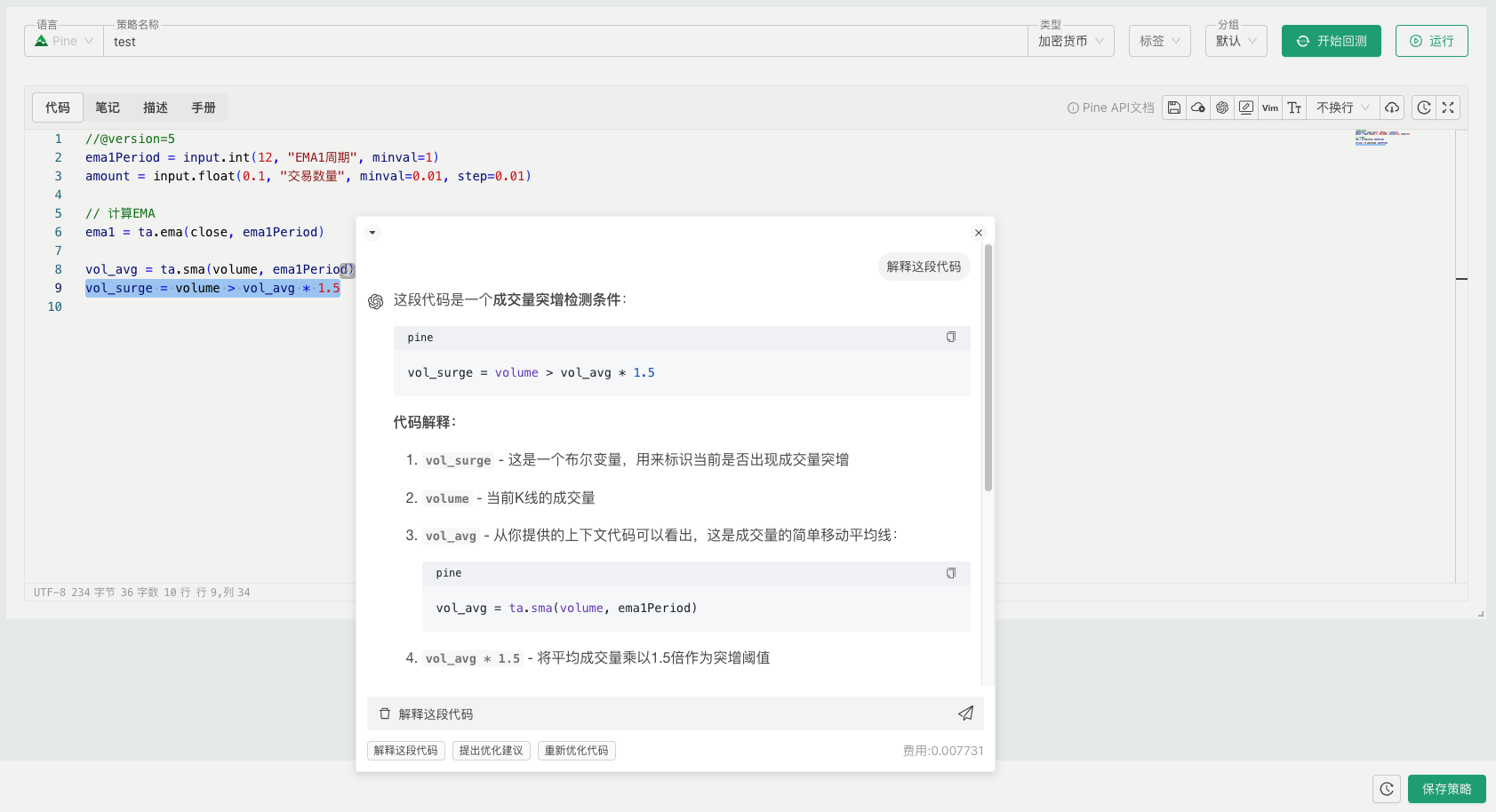
The AI Assistant can not only help you write code but also explain code logic for you. After selecting the code snippet that needs explanation, right-click and select "Explain this code" from the popup menu to view the detailed code explanation provided by the AI Assistant.
-
Optimize and improve code
After selecting the code snippet that needs optimization, right-click and select "Suggest optimizations" or "Refactor code" from the popup menu. The AI Assistant will provide optimization suggestions or directly generate optimized code for you.